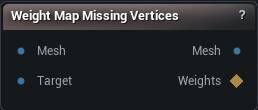
The Weight Map Missing Vertices node
When to use it
Marks which parts of a source mesh are actually covered by a target mesh. Vertices with a close match come out at 1, vertices with none at 0, with a falloff in between.
How to use it
- 1
Connect the mesh you want the mask for
- 2
Connect the target, the mesh that may be missing regions
- 3
Set the threshold and the falloff
- 4
Click Compute
- 5
Send the WeightMap into Apply Weight Map or any blend node
Pins
| Pin | Type | Description |
|---|---|---|
Mesh |
Mesh | The mesh you want the mask for. The weight map is sized to this one. |
Target |
Mesh | The mesh to hunt for a matching surface on. |
| Pin | Type | Description |
|---|---|---|
Mesh |
Mesh | The input mesh, unchanged. |
WeightMap |
Weight Map | 1 where the target covers this mesh, 0 where it does not. |
Settings
| Setting | Type | Description |
|---|---|---|
Distance Threshold |
Number | How close the target surface has to be for a vertex to count as covered. Set it too tight and a body under clothing reads as missing everywhere the cloth floats off the skin. |
Falloff Distance |
Number | Extra distance past the threshold over which the weight fades out. Leave it at 0 and the mask edge follows the triangles, which shows up as a jagged line the moment you use it to blend. |
Falloff Type |
Choice | Shape of that fade. |
Invert |
True/False | Flips the map, so the missing areas come out at 1 instead. |
Available in Mesh Morpher Graph and Mesh Morpher Studio.