Editor-only node. Runs only in Mesh Morpher Graph inside the Unreal Editor, because it reads or writes Unreal Engine assets. Not available in the standalone Mesh Morpher Studio app.
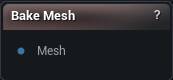
The Bake Mesh node
When to use it
Editor only. Writes the edited geometry back into the project asset it came from, closing a Load Skeletal Mesh or Load Static Mesh round trip. It can take the reference skeleton, the skeleton asset, an attached DNA, re-projected morph targets, higher LODs and bound grooms along with it.
The Mesh input has to originate from one of those loader nodes, because that is where the asset path comes from. A mesh that came from a file import has nowhere to bake to, and the node will say so.
For a new asset instead of overwriting the source, Export Dynamic Mesh To Skeletal Mesh.
Press Bake Mesh. This modifies content on disk, which is why no wire change will ever trigger it.
How to use it
- 1
Connect the modified mesh, tracing back to an asset loader
- 2
Choose what the bake should write
- 3
Click Bake Mesh
Pins
| Pin | Type | Description |
|---|---|---|
Mesh |
Mesh | The edited mesh. It must trace back to Load Skeletal Mesh or Load Static Mesh, or the bake has no asset to write to. |
Settings
| Setting | Type | Description |
|---|---|---|
Bake Reference Skeleton |
True/False | Writes the mesh's bone hierarchy and rest pose back onto the asset. Turn it off to keep the asset's existing skeleton and change only geometry. |
Bake To Skeleton Asset |
True/False | Pushes the bone changes into the shared Skeleton asset as well, not just this mesh. Every other mesh on that skeleton feels it, so leave it off unless you meant to change them all. |
Bake Mesh Data |
True/False | Writes the geometry itself: positions, triangles, UVs, materials. Off means only the skeleton side of the bake happens. |
Bake Vertex Colors |
True/False | Carries your painted vertex colours into the asset. Off and the build drops the colour channel, so the asset comes back white. |
Bake Skin Weights |
True/False | Carries your painted skin weights into the asset. Skeletal meshes only. |
Bake To DNA Asset (if available) |
True/False | Updates the MetaHuman DNA riding along on the asset so the rig keeps up with the new shape. Skipped if you changed the vertex count, since the DNA can no longer be matched up. |
Bake Groom Assets (Experimental) |
True/False | Also updates grooms bound to this mesh, so hair follows the new surface instead of floating off it. Experimental, and slow on a full head. |
Remove Scaling |
True/False | Strips scale off every bone, keeping position and rotation. Bones end up at a scale of 1. Reach for it when a rig arrived with baked-in scale that fights animation. |
Reapply Morph Targets |
True/False | Rebuilds the asset's morph targets against the new shape. Only does anything when you changed the vertex count; if the count still matches, the morphs already line up and are left alone. |
Projection Quality |
Whole number | How finely the old mesh is subdivided before the morphs are re-read off it. Two or three steps is plenty. Push it higher and the bake slows to a crawl for no visible gain. |
Normal Threshold |
Number | How far apart two surfaces can face and still be matched during the morph rebuild, as a fraction of half a turn. The 0.5 default allows anything up to a right angle. Lower it when a morph latches onto the wrong side of something thin like an eyelid or a lip. Set it to 0 and the check is off entirely, which is the opposite of strict. |
Skip Material Matching |
True/False | Lets the morph rebuild match vertices across different material slots. Turn it on when the new mesh has its materials split up differently from the old one. |
Apply To LODs |
True/False | Pushes your edit down onto the asset's other LODs too. Only runs when the vertex count still matches the original; change the count and every LOD below the one you edited stays on the old shape. |
Transfer UVs To LODs |
True/False | Copies the base mesh's UVs onto the other LODs as well. It overwrites whatever UV layout each LOD had, and it welds their UV seams shut, so leave it off if the lower LODs were unwrapped on purpose. |
Vertex Threshold |
Number | How far the LOD projection will search for a matching point on the edited mesh. Too low and parts of the LOD never move. Too high and the change jumps a gap onto the wrong side of a fold, so lips pull into teeth and eyelids stick shut. |
Normal Incompatibility Threshold |
Number | How different two surfaces can face before the projection treats them as unrelated. It is what stops triangles turning inside out where two surfaces nearly touch. |
Smooth Type |
Choice | How the projected result gets smoothed. Preserve UV Flow keeps the smoothing from dragging UVs around, which is usually what you want on a textured character. |
Smooth Strength |
Number | How hard each smoothing pass pulls. Small values here; large ones melt the detail you just projected. |
Smooth Iterations |
Whole number | How many smoothing passes to run. Zero means none at all, which is the default, so nothing above has any effect until you raise this. |
Available in Mesh Morpher Graph only. Compare the products.