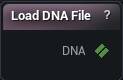
Load DNA File: Reads a .dna file off disk so the other DNA nodes can work on it.
Load DNA: Pulls the MetaHuman DNA out of a skeletal mesh so the other DNA nodes can read it.
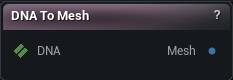
DNA To Mesh: Builds the mesh a DNA file describes, with its skeleton and skin weights, at the LOD you pick.
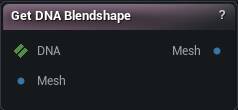
Get DNA Blendshape: Applies one of the DNA's blendshape targets to a mesh so you can see the shape it makes.
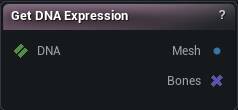
Get DNA Expression: Poses the DNA's mesh at one named expression and tells you which bones that expression moves.
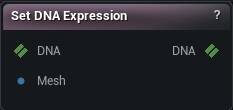
Set DNA Expression: Records a mesh you re-posed by hand back into the DNA as one of its expressions.
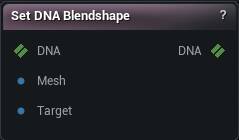
Set DNA Blendshape: Writes a sculpted shape back into the DNA as one of its blendshape targets, and optionally onto the coarser LODs too.
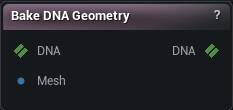
Bake DNA Geometry: Makes your sculpted mesh the DNA's new neutral shape, so every expression in the file then runs on top of your sculpt.
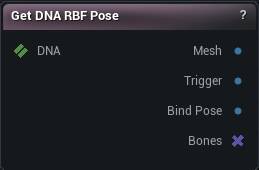
Get DNA RBF Pose: Isolates a single pose from one of the DNA's RBF solvers, so you can see what that corrective does and which joints it drives.
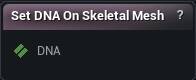
Set DNA On Skeletal Mesh: Attaches a DNA onto a Skeletal Mesh asset. Works with the legacy DNA storage below engine 5.8 and the new DNA asset format on 5.8 and above. Editor only.
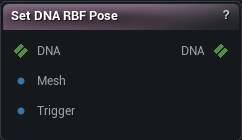
Set DNA RBF Pose: Records a corrective back into one of the DNA's RBF poses: the trigger rotations, the solver's RBF parameters and the corrected joint pose.
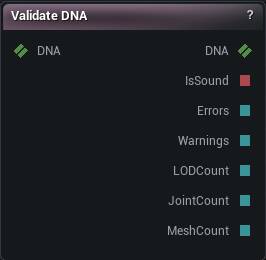
Validate DNA: Checks a MetaHuman DNA for the damage that makes a rig deform wrongly without ever throwing an error. The DNA passes through untouched and the verdict comes out on pins.
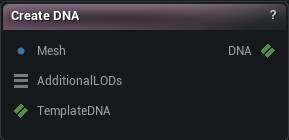
Create DNA: Builds a new MetaHuman-shaped DNA from a mesh - create, author a rig from scratch for a head, face or body.
Create DNA From Skeletal Mesh: Builds a new MetaHuman-shaped DNA directly from a Skeletal Mesh asset - create, author a rig from scratch for a head, face or body.
Edit DNA Animated Map: Adds, renames, sets LOD membership on, appends a driving row to, or removes an animated map - RigLogic's own conditional-table shape, authoring side.
Edit DNA Blendshape Channel: Adds, renames, edits LOD membership, wires or removes a blend shape channel, or drops one target row - the identity/wiring authoring counterpart to Set DNA Blendshape.
Edit DNA Expression: Adds, renames, wires or removes raw controls (expressions) - the DNA entities joint groups, blend shape channels, animated maps and RBF solvers drive from.
Edit DNA GUI Control: Adds, edits, renames or removes a GUI control's raw-control mapping rows - RigLogic's own conditional table, authoring side only.
Edit DNA LODs: Drops a DNA down to a subset of its LODs, or appends new LODs cloned from an existing one - edit, keep, add, remove, drop LOD.
Edit DNA ML: Adds or removes ML controls and removes neural networks - a network's own weights/layers are authored only by the Python verb add_neural_network.
Edit DNA PSD: Adds, replaces or removes PSD correctives - controls computed as the weighted product of their own factor controls.
Edit DNA RBF Pose: Adds or removes RBF poses and RBF pose controls on a DNA's corrective layer - the trigger/output structure, not the corrected joint pose itself.
Edit DNA RBF Solver: Adds or removes whole RBF solvers on a DNA - drivers, settings and LOD membership; pads stay hidden and are managed automatically.
Edit DNA Twist Swing: Adds, edits or removes twist/swing parameter-group setups - the quaternion-driven joint corrective tables RigLogic evaluates, authoring side only.
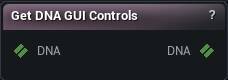
Get DNA GUI Controls: Lists a DNA's GUI controls and evaluates one control's effect on the rig controls it drives, the same way RigLogic computes it.
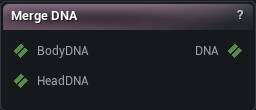
Merge DNA: Combines a body DNA and a head/face DNA into one DNA - merge, combine body and head/face into a single rig.
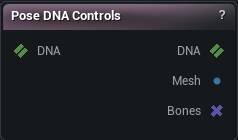
Pose DNA Controls: Poses a DNA's mesh from a sparse set of GUI control values, evaluated through the DNA's own RigLogic rig - the same slider values a MetaHuman face/body board would drive.
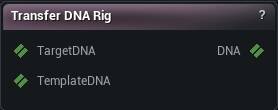
Transfer DNA Rig: Transfers a rig - face expressions, RBF, twist/swing, joint behavior - from a template DNA onto a target DNA that already has its own geometry and skeleton, via a hand-editable bone mapping.
Studio and Graph › MetaHuman DNA
Load DNA File
This is how you get at a DNA that is not sitting inside a skeletal mesh yet.
The Load DNA File node
When to use it
This is how you get at a DNA that is not sitting inside a skeletal mesh yet.
How to use it
1
Browse to a .dna file
2
Wire the DNA output onward
Into DNA To Mesh, Get DNA Expression, Bake DNA Geometry, or any other DNA node.
Pins
Pin
Type
Description
DNA
DNA
The DNA read from the file. Empty if the path does not exist.
Settings
Setting
Type
Description
File
File path
The .dna file to read. Expect a pause on a full MetaHuman: these files run to tens of megabytes. A path that does not exist leaves the output empty.
Editor-only node. Runs only in Mesh Morpher Graph inside the Unreal Editor, because it reads or writes Unreal Engine assets. Not available in the standalone Mesh Morpher Studio app.
Editor-only node. Runs only in Mesh Morpher Graph inside the Unreal Editor, because it reads or writes Unreal Engine assets. Not available in the standalone Mesh Morpher Studio app.
The Load DNA node
When to use it
Pulls the MetaHuman DNA out of a skeletal mesh so the rest of the DNA nodes can read it. Handles both the newer MetaHuman Character storage and the older one, so you do not have to know which your character was made with.
How to use it
1
Pick a skeletal mesh that carries DNA
2
Wire the DNA output onward
Into DNA To Mesh, Get DNA Expression, Bake DNA Geometry, or any other DNA node.
Pins
Pin
Type
Description
DNA
DNA
The DNA read out of the mesh. Empty if the mesh had none.
Settings
Setting
Type
Description
Skeletal Mesh
Asset
The skeletal mesh to read DNA out of. Picking one reads it immediately. A mesh with no DNA in it leaves the output empty.
Builds the mesh a DNA file describes, in its neutral shape, with the DNA's own skeleton and skin weights on it. This is the mesh you sculpt on before baking anything back.
The DNA To Mesh node
When to use it
Builds the mesh a DNA file describes, in its neutral shape, with the DNA's own skeleton and skin weights on it. This is the mesh you sculpt on before baking anything back.
How to use it
1
Wire a DNA in
2
Pick the LOD you want
0 is the densest.
3
The Mesh output is the mesh, ready to edit
Pins
Pin
Type
Description
DNA
DNA
The DNA to build a mesh from.
Pin
Type
Description
Mesh
Mesh
The mesh in its neutral shape, carrying the DNA's skeleton and skin weights.
Settings
Setting
Type
Description
LOD Index
Whole number
Which LOD to build. 0 is the densest. Ask for an LOD the file does not have and you get an empty mesh, not an error.
One named blendshape target out of a DNA, as a mesh, optionally filtered to the expression that uses it. Good for inspecting or re-sculpting a single shape. For the combined result an animator woul...
The Get DNA Blendshape node
When to use it
One named blendshape target out of a DNA, as a mesh, optionally filtered to the expression that uses it. Good for inspecting or re-sculpting a single shape. For the combined result an animator would actually see, Get DNA Expression.
Use the expression filter. A DNA carries hundreds of blendshapes, and without it the dropdown is a wall of names you have to read end to end.
Dual quaternion skinning changes the posed result, so keep it consistent with whatever you will use when writing the shape back. Otherwise the delta you author gets measured against a different baseline.
How to use it
1
Wire a DNA in, and the mesh from DNA To Mesh into Mesh
2
Pick a blendshape
Filter by expression first if the list is unwieldy.
3
The Mesh output is the same mesh with that shape on it
The mesh you feed in has to be the same mesh at the same LOD, with the same vertex count. Anything else and the node stops with a count mismatch.
Pins
Pin
Type
Description
DNA
DNA
The DNA to read the blendshape out of.
Mesh
Mesh
The mesh to put the shape on. Same vertex count and order as the DNA's own mesh, so use DNA To Mesh at the same LOD.
Pin
Type
Description
Mesh
Mesh
The same mesh with the shape applied on top of whatever pose it was already in.
Settings
Setting
Type
Description
Blendshape Name
Text
Which blendshape target to apply. Nothing shows up in the dropdown until a DNA is wired into the input pin.
Filter By Expression Name
Text
Cuts the blendshape list down to the ones a single expression drives. Leave it empty to see every target in the file.
Use Dual Quaternion Skinning
True/False
Skins the blendshape offsets with dual quaternions rather than linear blending, which holds volume where a joint twists. Set it to match how the character itself is skinned.
One named expression, evaluated out of a DNA with all its blendshapes combined and the skeleton deformation applied, handed back to you as a mesh. Turned all the way on, so you can see what a contr...
The Get DNA Expression node
When to use it
One named expression, evaluated out of a DNA with all its blendshapes combined and the skeleton deformation applied, handed back to you as a mesh. Turned all the way on, so you can see what a control actually does before you change it.
Seeing, sculpting on or comparing an expression is what it is for. For one shape in isolation rather than the combined result, use Get DNA Blendshape.
LOD Index picks which resolution of the mesh you get, and the meshes at different LODs have different vertex counts. A shape captured at one LOD cannot be written back at another.
Set DNA Expression closes the loop.
How to use it
1
Wire a DNA in
2
Pick an expression and an LOD
3
Mesh is the posed mesh
Bones tells you which joints that expression drives.
Pins
Pin
Type
Description
DNA
DNA
The DNA to read the expression out of.
Pin
Type
Description
Mesh
Mesh
The mesh posed at that expression, skinned to the bones the expression moves.
Bones
Bone Selection
The joints this expression actually moves. Handy for narrowing a bone selection to just the ones in play.
Settings
Setting
Type
Description
Expression Name
Text
Which expression to pose. The list is read from the DNA on the input pin, so connect that first or the dropdown is empty.
LOD Index
Whole number
Which LOD to build the posed mesh from. 0 is the densest.
Bakes a modified expression mesh back into the DNA by solving what per-joint deltas would produce it. The write half of Get DNA Expression.
The Set DNA Expression node
When to use it
Bakes a modified expression mesh back into the DNA by solving what per-joint deltas would produce it. The write half of Get DNA Expression.
The pairing is strict. Edit the mesh that Get DNA Expression produced, at the same LOD, without changing its vertex count or order, or the solve has nothing to correspond against.
When you meant to change one named shape rather than a whole expression, Set DNA Blendshape.
Press Set Expression, then validate. A DNA that accepts an update can still be structurally wrong in ways only Validate DNA will name.
How to use it
1
Pose the expression with Get DNA Expression, then move its bones
2
Wire that mesh into Mesh and the same DNA into DNA
3
Pick the expression to overwrite and press Set Expression
The mesh must still carry the DNA's own bone names. If the skeletons do not line up, nothing is written.
Pins
Pin
Type
Description
DNA
DNA
The DNA to write the expression into.
Mesh
Mesh
The mesh with its bones where you want the expression to sit. Start from Get DNA Expression and move joints from there.
Pin
Type
Description
DNA
DNA
The DNA with that expression re-recorded from the bones on Mesh.
Settings
Setting
Type
Description
Expression Name
Text
Which expression to overwrite. An empty dropdown means no DNA is wired into the input pin yet.
Insert Missing Attributes
True/False
Lets a bone you rolled record rotation on axes this expression was not already turning. It only helps joints the expression rotates somehow already; with it off, any axis that was not already in play is dropped and part of your pose quietly goes missing.
Replaces or adds one blendshape target in a DNA from a mesh you supply, and can propagate it down the LOD chain. Pair it with Get DNA Blendshape, keeping vertex layout and LOD identical between the...
The Set DNA Blendshape node
When to use it
Replaces or adds one blendshape target in a DNA from a mesh you supply, and can propagate it down the LOD chain. Pair it with Get DNA Blendshape, keeping vertex layout and LOD identical between the two, or the deltas come out against the wrong base.
How to use it
1
Wire the DNA in
Put the unsculpted mesh on Mesh and your sculpted copy on Target.
2
Pick the blendshape to overwrite
3
Press Set Blendshape
The DNA output carries the new deltas. Mesh and Target must have the same vertex count and order, and both must match the DNA's own mesh at that LOD. Sculpt on a copy of DNA To Mesh, do not retopologise it.
Pins
Pin
Type
Description
DNA
DNA
The DNA to write the blendshape into.
Mesh
Mesh
The mesh before you sculpted it. Same vertex count and order as the DNA's own mesh at that LOD.
Target
Mesh
The same mesh after sculpting. Whatever moved between these two becomes the blendshape.
Pin
Type
Description
DNA
DNA
The DNA with that blendshape rewritten.
Settings
Setting
Type
Description
Blendshape Name
Text
Which blendshape target to overwrite. The dropdown fills in from the DNA on the input pin, so wire that up first.
Filter By Expression Name
Text
Narrows the blendshape dropdown to the targets one expression drives. Empty means the whole file.
Use Dual Quaternion Skinning
True/False
Unskin your sculpt with dual quaternions instead of linear blending on the way back into the DNA. Set it the same way you set it on Get DNA Blendshape, or the shape you get back will not be the shape you sculpted.
Add Missing Channel Indices
True/False
Let the write create the blendshape channel on parts of the mesh that do not carry one yet. Turn it off and those parts are skipped: only meshes that already had that channel pick up the new shape.
Create Missing Channel
True/False
When Blendshape Name does not match any channel the DNA already has, add the channel itself rather than doing nothing. The new channel gets your sculpted shape but no expression driving it yet - it sits inert until you wire one in with Set DNA Expression or mm.dna's wire_expression_to_blendshape_channel. Off (the default) leaves an unknown name a no-op, same as today, but now with a card badge saying so instead of silence.
New Channel LODs
List of Whole number
Which LODs the newly created channel belongs to. Empty means just the LOD you are sculpting on (Mesh's own LOD Index). Only read when Create Missing Channel is on and the name did not already exist.
Apply To LODs
True/False
Also push the shape onto every coarser LOD, by projecting it from the LOD you sculpted on. Leave it off and only that one LOD carries the change.
Vertex Threshold
Number
How far the projection may reach to find the matching vertex on each coarser LOD. Too low and stretches of the LOD get no shape at all. Too high and the shape jumps a gap onto the wrong side of a fold.
Normal Incompatibility Threshold
Number
How far a triangle may face away from the one it matched before the projection refuses it. This is what stops LOD triangles turning inside out.
Replace Entire Channel
True/False
When on (the default), every mesh at this LOD that already has a target for this channel is rewritten: meshes this sculpt did not move get an empty target so leftover deltas from a previous pass cannot survive. Turn it off to keep per-mesh additive authoring (author the head in pass 1, eyelashes in pass 2).
Skeletal Mesh
Asset
Also writes this channel onto the mesh as a mesh__channel morph (engine Interchange name) so AnimNode_RigLogic can drive the corrective. Leave empty to only write DNA.
Writes edited mesh and skeleton data back into a DNA, optionally propagating the change to higher LODs and carrying morph targets along. This ends the round trip that DNA To Mesh starts, the way Ba...
The Bake DNA Geometry node
When to use it
Writes edited mesh and skeleton data back into a DNA, optionally propagating the change to higher LODs and carrying morph targets along. This ends the round trip that DNA To Mesh starts, the way Bake Mesh ends a mesh round trip.
How to use it
1
Build the mesh with DNA To Mesh, sculpt it, wire it into Mesh
2
Set LOD Index to the LOD you built from and pick what to write
3
Press Bake DNA
Keep the vertex count the same and the bake is exact. Change it and the DNA meshes are rebuilt from scratch, which is when Transfer Morph Targets and Quad Export start to matter and LOD propagation stops working. Rename or add bones and the bake refuses outright: the joint names on your mesh have to be the ones the DNA already knows.
Pins
Pin
Type
Description
DNA
DNA
The DNA to write into.
Mesh
Mesh
The sculpted mesh. Its positions, normals and bone poses become the DNA's new neutral shape. Bone names must still match the DNA's own.
Pin
Type
Description
DNA
DNA
The DNA with your mesh baked in.
Settings
Setting
Type
Description
LOD Index
Whole number
Which LOD of the DNA your mesh replaces. Has to be an LOD the file actually has, and it has to be the one you built the mesh from.
Bake Skeleton
True/False
Write the mesh's bone positions back as the DNA's rest skeleton. Only bones the DNA already names are touched; new bones on your mesh are ignored.
Bake Mesh Data
True/False
Write the vertex positions and normals. Turn it off to bake nothing but the skeleton.
Bake UVs
True/False
Write your edited UVs too. Only bites while the vertex count is unchanged; a rebuilt mesh brings its UVs across whatever you set here. Vertex colours are lost either way, since DNA has nowhere to keep them.
Bake Skin Weights
True/False
Write your edited skin weights too. Turn it off to keep the weights the DNA already had: with the vertex count unchanged they are kept exactly, and on a rebuilt mesh each new vertex takes weights blended from the closest point on the old surface. The same carry-over runs when this is on but your mesh has no weights at all, and the node warns about any vertex it found nothing to copy from.
Remove Scaling
True/False
Strip scale off every bone before writing, keeping only where it sits and how it is turned. Reach for this when a scaled rig writes a mesh that comes back the wrong size.
Remove Meshes Missing From Input
True/False
What happens to a DNA mesh of the baked LOD that the input mesh does not carry (no section with its name and no section at its position). Off (default): the mesh is kept in the LOD exactly as it was - bake only what you wired, e.g. a head-only mesh leaves teeth, eyes and eyelashes untouched. On: the mesh is removed from the baked LOD's mesh list, for the case where you deliberately deleted that section from the mesh. Removal only unlinks the mesh from this LOD; its data stays in the file and other LODs keep their own copies.
Transfer Morph Targets
True/False
Only matters when your mesh changed the vertex count. Carries the existing blendshapes over onto the rebuilt geometry, matching each part of the mesh up by name. Turn it off and every blendshape in the file is wiped, which is what you want when the old shapes no longer fit the new mesh.
Apply To LODs
True/False
Also push the change onto every coarser LOD, by projecting it down from the one you baked. Ignored when your mesh changed the vertex count, since there is then nothing to project from.
Vertex Threshold
Number
How far the projection may reach to find the matching vertex on each coarser LOD. Too low and stretches of the LOD stay unchanged. Too high and the change jumps a gap onto the wrong side of a fold.
Normal Incompatibility Threshold
Number
How far a triangle may face away from the one it matched before the projection refuses it. This is what stops LOD triangles turning inside out.
Smooth Type
Choice
How the projected result is smoothed on each coarser LOD. Preserve UV Flow keeps the smoothing from dragging across UV seams.
Smooth Strength
Number
How hard each smoothing pass pulls. Push it up and the projected detail flattens out.
Smooth Iterations
Whole number
How many smoothing passes to run. Zero, the default, means none: raise it only when the projected LOD comes out lumpy.
Quad Export
True/False
Only matters when your mesh changed the vertex count and the DNA meshes get rebuilt. Pairs triangles back into quads on the way out, so the written mesh reads the way DNA meshes normally do rather than as raw triangles.
Respect UV Seams
True/False
Never pair two triangles across a UV seam.
Respect Hard Normals
True/False
Never pair two triangles across a hard edge.
Quad Metric Clamp
Number
Ceiling on how bad a pairing the quad search will still accept. Lower it and only clean, square pairs survive; the rest go out as triangles.
Quad Adjacency Weight
Number
How much the quad search cares about lining its quads up with the ones next to them, rather than judging each pair on its own.
Quad Search Rounds
Whole number
How many passes the quad search makes. More passes tidy up the leftover triangles at the cost of bake time.
One pose of one RBF solver inside a DNA, evaluated on its own, with the mesh and the bones that pose drives.
The Get DNA RBF Pose node
When to use it
One pose of one RBF solver inside a DNA, evaluated on its own, with the mesh and the bones that pose drives.
How to use it
1
Wire a DNA in
2
Pick a solver
The pose list refills to match it.
3
Read the three outputs
Mesh is the fire pose plus this pose's joint-group column, the same conversion Get DNA Expression uses. Trigger is the fire pose only, ready to wire into Set DNA RBF Pose's Trigger. Bones tells you which joints the pose's column drives.
Pins
Pin
Type
Description
DNA
DNA
The DNA to read the RBF pose out of.
Pin
Type
Description
Mesh
Mesh
The mesh when this pose fires: the trigger plus this pose's joint-group column (same conversion as Get DNA Expression).
Trigger
Mesh
The mesh at just this pose's trigger rotations - the joints turned to where they fire the corrective, with no correction on top. Wire it into Set DNA RBF Pose's Trigger to start from what the DNA already stores.
Bones
Bone Selection
The joints this pose drives. Feed it into a bone selection so you only work on the ones this corrective touches.
Settings
Setting
Type
Description
RBF Solver Name
Text
Which solver to look inside. Pick this first: changing it rebuilds the pose list below. The list comes from the DNA on the input pin.
RBF Pose Name
Text
Which pose of that solver to apply. Nothing happens until both this and the solver are set.
LOD Index
Whole number
Which LOD to build the posed mesh from. 0 is the densest.
Log Pose Cells
True/False
Writes this pose's per-joint rotation cells to the log so a Get - Set - Get round trip can be checked cell by cell. Off for normal work.
Editor-only node. Runs only in Mesh Morpher Graph inside the Unreal Editor, because it reads or writes Unreal Engine assets. Not available in the standalone Mesh Morpher Studio app.
Editor-only node. Runs only in Mesh Morpher Graph inside the Unreal Editor, because it reads or writes Unreal Engine assets. Not available in the standalone Mesh Morpher Studio app.
The Set DNA On Skeletal Mesh node
When to use it
Writes a DNA onto a Skeletal Mesh asset, the same slot Load DNA reads back out. Feed it from Load DNA File, Bake DNA Geometry, or any DNA chain, pick the Skeletal Mesh to write into, and press Set DNA On Skeletal Mesh.
It replaces whatever DNA the mesh had. On newer engines the DNA is stored as the mesh's MetaHuman DNA Data; on older ones it uses the legacy storage, and you do not have to know which. The mesh is marked changed so a save keeps it.
Editor only: it edits a project asset, so it does nothing in a packaged build. Run Validate DNA just before it when the DNA came from somewhere you do not control.
How to use it
1
Wire a DNA in
2
Pick the Skeletal Mesh asset to write into
3
Press Set DNA On Skeletal Mesh
Pins
Pin
Type
Description
DNA
DNA
The DNA to attach onto the skeletal mesh.
Settings
Setting
Type
Description
Skeletal Mesh
Asset
The Skeletal Mesh asset the write button targets. Editor only.
Re-records one RBF pose of a DNA: the joint rotations that trigger it, the solver's RBF parameters, the pose's scale and name, and the corrected joint pose it applies. The write half of Get DNA RBF...
The Set DNA RBF Pose node
When to use it
Re-records one RBF pose of a DNA: the joint rotations that trigger it, the solver's RBF parameters, the pose's scale and name, and the corrected joint pose it applies. The write half of Get DNA RBF Pose.
How to use it
1
Isolate the pose with Get DNA RBF Pose, move its joints, wire that mesh into Mesh and the same DNA into DNA
2
Optionally wire a second mesh into Trigger to re-record which driver rotations fire the corrective. Unwired reads those drivers from Mesh
3
Pick the solver, then the pose
The solver settings and pose scale load from the DNA when you pick, so what you see is what is stored.
4
Adjust anything you want changed and press Set RBF Pose
This is bone work, not sculpting: it reads where the joints ended up, not where the vertices ended up. The mesh must still carry the DNA's own bone names — joints that do not line up are left untouched.
Pins
Pin
Type
Description
DNA
DNA
The DNA holding the RBF pose you want to rewrite.
Mesh
Mesh
The mesh with its bones at the corrected pose - what the corrective should look like when it fires. Start from Get DNA RBF Pose and move joints from there.
Trigger
Mesh
Optional: a mesh whose bones stand at the pose that should trigger this corrective. Leave unwired to read driver rotations from Mesh. Get DNA RBF Pose's Trigger output gives you that stored trigger mesh to start from.
Pin
Type
Description
DNA
DNA
The DNA with that pose re-recorded.
Settings
Setting
Type
Description
RBF Solver Name
Text
Which solver to write inside. Pick this first: changing it rebuilds the pose list below and reloads the solver settings from the DNA.
RBF Pose Name
Text
Which pose of that solver to overwrite. Nothing happens until both this and the solver are set.
New Pose Name
Text
Rename the pose on write. Empty keeps the current name.
Pose Scale
Number
Scale factor stored on the pose. Loaded from the DNA when you pick the pose; written back as-is. Joint cells are authored at pose weight 1.0; this scale multiplies them on top, at runtime.
Insert Missing Attributes
True/False
Lets the pose drive joint attributes it was not already driving (a joint you translated that the pose only rotated before, a joint the pose never touched at all). With it off, movement on any attribute the pose does not already own is dropped and that part of your pose quietly goes missing. New rows land in the joint's own joint group (never a borrowed one), and the pose's own column is added to that group when it is missing there. A joint whose attribute already has a row there - e.g. because an expression wired it - keeps that single row: this pose's column is added to it rather than a second row being inserted for the same attribute.
Log Pose Cells
True/False
Writes this pose's per-joint rotation cells to the log so a Get - Set - Get round trip can be checked cell by cell. Off for normal work.
Apply Solver Settings
True/False
Write the solver settings below into the DNA alongside the pose. They are loaded from the DNA when you pick the solver, so leaving them untouched writes back what was already there. Turn this off to leave the solver's stored settings alone entirely.
Solver Type
Choice
Additive sums contributions from each pose; Interpolative interpolates between them by distance.
Function Type
Choice
Falloff curve of a pose's influence over distance.
Distance Method
Choice
How the distance between the driver rotation and a pose's stored trigger is measured. MetaHuman correctives use SwingAngle / TwistAngle solvers.
Normalize Method
Choice
When pose weights are normalized after solving.
Twist Axis
Choice
The twist axis Swing/Twist distance methods measure around.
Automatic Radius
Choice
On derives the radius from the stored poses; Off uses Solver Radius.
Solver Radius
Number
Falloff radius, used when Automatic Radius is Off. Angle-based distance methods measure it in degrees.
Inspects a MetaHuman DNA for structural defects, passes the DNA straight through, and publishes the verdict on pins. LOD index tables, joint hierarchy, RigLogic behaviour matrices, skin weights, ve...
The Validate DNA node
When to use it
Inspects a MetaHuman DNA for structural defects, passes the DNA straight through, and publishes the verdict on pins. LOD index tables, joint hierarchy, RigLogic behaviour matrices, skin weights, vertex layouts, blendshape targets.
How to use it
1
Drop it anywhere in a DNA chain
DNA in, DNA out, nothing is changed.
2
Read the findings in the details panel, worst first
Each one says what breaks and where.
3
Branch on Is Sound to keep a broken DNA out of an export
Pins
Pin
Type
Description
DNA
DNA
The DNA to check. It passes straight through to the output, untouched.
Pin
Type
Description
DNA
DNA
The same DNA, byte for byte. Nothing is repaired here; the findings tell you what to fix and where.
IsSound
True/False
True when the DNA read cleanly and nothing came back as an error. Warnings alone leave it true: a duplicated bone name imports wrongly but is still a complete rig. Only written once a check has actually run.
Errors
Whole Number
How many errors were found. The full count, even when only the first few are listed.
Warnings
Whole Number
How many warnings were found.
LODCount
Whole Number
How many LODs the DNA has.
JointCount
Whole Number
How many bones are in the DNA's skeleton.
MeshCount
Whole Number
How many separate meshes the DNA carries, across every LOD.
Settings
Setting
Type
Description
Validate Automatically
True/False
Re-check every time the DNA on the pin changes. Turn it off on a file so big the geometry pass gets in your way; the node then says nothing at all until you press Validate, rather than showing you a stale answer.
Depth
Choice
How deep to look. The top two settings are instant; the last one walks every vertex.
Skin Weight Normalization Tolerance
Number
How far a vertex's skin weights may drift from summing to 1 before they are called wrong. Deliberately loose. MetaHuman DNA is authored in Maya and stores weights at single precision, so a perfectly good vertex routinely sums to 0.9999. Tie this down tight and every vertex of every shipped file gets flagged.
Max Issues Per Defect
Whole number
How many individual locations to list per kind of problem. The counts stay exact whatever you set; this only caps the "mesh 3, vertex 812" lines, so one systematic corruption cannot bury the report in millions of them.
Builds a brand new MetaHuman-shaped DNA from a mesh: skeleton, skin weights and geometry, plus a structurally complete but functionally identity behavior layer underneath - no controls, no blendsha...
The Create DNA node
When to use it
Builds a brand new MetaHuman-shaped DNA from a mesh: skeleton, skin weights and geometry, plus a structurally complete but functionally identity behavior layer underneath - no controls, no blendshapes, so RigLogic evaluates it and nothing moves. This is a geometry-and-skeleton round trip, not a rig round trip. To edit an existing DNA and keep its rig, use Bake DNA Geometry instead.
How to use it
1
Wire your base mesh (bones + skin weights already on it, e.g. from a DNA To Mesh sculpt or an Auto Rig) into Mesh. It becomes LOD 0
2
Optionally wire coarser LODs into Additional LODs, element i becoming LOD i+1
3
Pick Body Part - it decides the db-name convention and the default mesh name, nothing geometric
4
Press Create DNA
This is a geometry-and-skeleton round trip, not a rig round trip: the file this produces has no GUI controls and no blendshapes. Chain Create DNA → Set DNA Blendshape to author shapes on top of it.
Pins
Pin
Type
Description
Mesh
Mesh
The base mesh. Its bones and skin weights become the new DNA's skeleton and weights. Becomes LOD 0.
AdditionalLODs
Mesh List
Optional coarser LODs, in order - element 0 becomes LOD 1, element 1 becomes LOD 2, and so on. Leave unwired for a single-LOD DNA.
TemplateDNA
DNA
Optional. The rig donor when Scaffold Rig is on. Leave unwired to use the engine's own MetaHuman archetype for Body Part when available.
Pin
Type
Description
DNA
DNA
The new DNA. Empty until Create DNA succeeds - never a partial file.
Settings
Setting
Type
Description
Body Part
Choice
Whether the file describes a head or a body. Head / Face uses the mh.6 db-name convention, head_lod_mesh mesh names and the 8-LOD convention; Body uses mhb.1, body_lod_mesh and 4.
DNA Name
Text
The descriptor's own Name field - metadata inside the file. No longer overridable from a pin (the DNAName override input pin is gone); edit it here.
Ethnicity
Choice
The archetype field is an ethnicity field (asian/black/caucasian/hispanic/ alien/other), never head-vs-body - Body Part above is the separate answer to that question.
Gender
Choice
Age
Whole number
Write UVs
True/False
Write real UVs. Off writes the same layout structure with placeholder (0,1) UVs, so a later re-topology tool still finds a UV channel.
Write Skin Weights
True/False
Write the mesh's own skin weights. Off writes no skin weights at all - the mesh will not deform under any pose.
Synthesize Root Joint
True/False
When the mesh carries no bones at all, add a single "root" joint at the origin and bind every vertex to it 100%, rather than refusing. A DNA needs at least one joint - JointRowCount is JointCount*9, and zero is a defect the validator reports, not a legal empty rig.
Max Influences Per Vertex
Whole number
Skin weights are truncated to this many influences per vertex (fewest- first dropped, matching the reader's own influence ordering). RigLogic's own MAX_TOTAL_INFLUENCES ceiling is 12.
Scaffold Rig
True/False
Also donate a rig from a template DNA - generic face expressions for Head, RBF/twist-swing machinery for Body - so the created DNA is immediately drivable instead of geometry+skeleton only. Off by default: the plain geometry+skeleton contract stays what Create DNA promises unless you ask for more. The template is transferred by matching joint names against your mesh's own skeleton - never a hard-coded control list - so a mesh whose bone names do not match the template gets little or nothing scaffolded, honestly reported either way. Geometry, skin weights and your mesh's own neutral pose are never touched by this - only the rig layers are donated. Wire Template DNA to choose the source explicitly; leave it unwired to use the engine's own MetaHuman archetype for the chosen Body Part when available, or a badge naming the fix when it is not.
Bone Mapping
List of MMDNA Bone Map Row
Which bone in your mesh's own skeleton a template joint donates its rig to, keyed by template joint - Writable by the in-app agent but hidden from the ordinary properties rows; the bone-map panel is its real editor. Reactively prefilled from the resolved scaffold template whenever it changes; explicit Auto-Map/Clear via the widget's buttons force a full re-map / empty it.
Editor-only node. Runs only in Mesh Morpher Graph inside the Unreal Editor, because it reads or writes Unreal Engine assets. Not available in the standalone Mesh Morpher Studio app.
Editor-only node. Runs only in Mesh Morpher Graph inside the Unreal Editor, because it reads or writes Unreal Engine assets. Not available in the standalone Mesh Morpher Studio app.
The Create DNA From Skeletal Mesh node
When to use it
Create DNA's asset-picker-sourced sibling: the same build - skeleton, skin weights, geometry, plus a structurally complete but functionally identity behavior layer, and the same optional Scaffold Rig - built directly from a project Skeletal Mesh asset instead of a mesh pin. Editor only, the same reason Load Skeletal Mesh is: it reads the asset's mesh description, which a packaged build strips.
How to use it
1
Pick a Skeletal Mesh asset
2
Optionally list Keep LODs (empty imports every LOD the asset has; asset LOD i becomes DNA LOD i)
3
Pick Body Part - it decides the db-name convention and the default mesh name, nothing geometric
4
Optionally turn on Scaffold Rig to donate generic expressions/RBF/twist- swing from a template DNA - see the property's own tooltip
Pins
Pin
Type
Description
TemplateDNA
DNA
Optional. The rig donor when Scaffold Rig is on. Leave unwired to use the engine's own MetaHuman archetype for Body Part when available.
Pin
Type
Description
DNA
DNA
The new DNA. Empty until the asset and options resolve to a valid build - never a partial file.
Settings
Setting
Type
Description
Skeletal Mesh
Asset
The asset to build a DNA from.
Use Import Data
True/False
Reads the geometry the asset was imported with instead of the built render mesh - see Load Skeletal Mesh's own property of the same name for why leaving it on is usually right.
Keep LODs
List of Whole number
Which of the asset's LODs to import, in order - asset LOD i becomes DNA LOD i. Empty (the default) imports every LOD the asset has. Writable by the in-app agent but hidden from the ordinary properties rows.
Body Part
Choice
DNA Name
Text
The descriptor's own Name field.
Ethnicity
Choice
Gender
Choice
Age
Whole number
Write UVs
True/False
Write real UVs. Off writes the same layout structure with placeholder (0,1) UVs.
Write Skin Weights
True/False
Write the asset's own skin weights. Off writes no skin weights at all - the mesh will not deform under any pose.
Max Influences Per Vertex
Whole number
Skin weights are truncated to this many influences per vertex (fewest- first dropped). RigLogic's own ceiling is 12.
Scaffold Rig
True/False
See Create DNA's own Scaffold Rig property - identical behaviour.
Bone Mapping
List of MMDNA Bone Map Row
See Create DNA's own Bone Mapping property - identical behaviour and identical editor.
Adds, renames, sets LOD membership on, appends a driving row to, replaces the rows of, or removes animated maps on a DNA - MetaHuman's eyeBlink / eyeLidTightener-style values, each driven by a raw ...
The Edit DNA Animated Map node
When to use it
Adds, renames, sets LOD membership on, appends a driving row to, replaces the rows of, or removes animated maps on a DNA - MetaHuman's eyeBlink / eyeLidTightener-style values, each driven by a raw control through the same [From, To] interval and Slope*x+Cut line a GUI control's own rows use - as an ordered list of operations applied atomically.
How to use it
1
Wire a DNA in
2
Build an ordered list of operations in the Operations panel below the properties
Each entry picks Add / Rename / Set LODs / Add Row / Set Rows / Remove, a target/new name, and whichever of the LOD checkbox row / raw-control picker + From-To-Slope-Cut fields / rows table its own Op uses. Picking a map shows that map's own current rows (read-only) so Add Row's own "appends after this" is never a guess, and on a Set Rows entry also loads those rows into the rows table to edit (Load Rows From DNA does the same at any time). Untick an entry to keep it staged without running it.
3
Press Apply Animated Map
Every enabled entry runs in order against the result of every earlier one - rename a map then Add Row on it in the very next entry and the row lands on the map under its new name. The whole batch is atomic: the first refusal publishes nothing at all, not even the operations before it.
Pins
Pin
Type
Description
DNA
DNA
The DNA to edit animated maps on.
Pin
Type
Description
DNA
DNA
The DNA with every operation applied. Empty until Apply Animated Map succeeds - never a partial file.
Settings
Setting
Type
Description
Operations
List of MMDNA Animated Map Operation
The ordered batch Apply Animated Map runs, one entry at a time, top to bottom. Edited in its own panel on the node, not in the plain properties list.
Adds, renames, edits LOD membership, wires an expression to, removes outright, or drops one target row of a blend shape channel, as an ordered list of operations applied atomically - the identity/w...
The Edit DNA Blendshape Channel node
When to use it
Adds, renames, edits LOD membership, wires an expression to, removes outright, or drops one target row of a blend shape channel, as an ordered list of operations applied atomically - the identity/wiring/removal authoring counterpart to Set DNA Blendshape, which only ever creates the inert channel from a sculpted mesh and writes its targets.
How to use it
1
Wire a DNA in
2
Build an ordered list of operations in the Operations panel below the properties
Each entry picks Add / Rename / Set Lods / Wire Expression / Remove Channel / Remove Target, a target (Channel Name, or Mesh Name + Target Index for Remove Target), and whichever of New Name / the LOD checkboxes / Control Name apply to it. Untick an entry to keep it staged without running it.
3
Press Apply Blendshape Channel
Every enabled entry runs in order against the result of every earlier one - rename a channel then wire it in the very next entry and the wire finds it under the new name. The whole batch is atomic: the first refusal publishes nothing at all, not even the operations before it.
Pins
Pin
Type
Description
DNA
DNA
The DNA to edit blend shape channels on.
Pin
Type
Description
DNA
DNA
The DNA with every operation applied. Empty until Apply Blendshape Channel succeeds - never a partial file.
Settings
Setting
Type
Description
Operations
List of MMDNA Blendshape Channel Operation
The ordered batch Apply Blendshape Channel runs, one entry at a time, top to bottom. Edited in its own panel on the node, not in the plain properties list.
Adds, renames, wires or removes raw controls (expressions) on a DNA, as an ordered list of operations applied atomically - the authoring counterpart to whatever reads them (PSDs, joint groups, blen...
The Edit DNA Expression node
When to use it
Adds, renames, wires or removes raw controls (expressions) on a DNA, as an ordered list of operations applied atomically - the authoring counterpart to whatever reads them (PSDs, joint groups, blend shape channels, animated maps, RBF solvers, and Get DNA GUI Controls' own raw-control table).
How to use it
1
Wire a DNA in
2
Build an ordered list of operations in the Operations panel below the properties
Each entry picks Add / Rename / Wire / Remove / Set Wiring / Unwire, a target, and whatever fields that op needs. Untick an entry to keep it staged without running it.
3
Press Apply Expressions
Every enabled entry runs in order against the result of every earlier one - add a raw control then wire it in the very next entry and the wire finds it under its new name. The whole batch is atomic: the first refusal publishes nothing at all, not even the operations before it.
Pins
Pin
Type
Description
DNA
DNA
The DNA to edit raw controls (expressions) on.
Pin
Type
Description
DNA
DNA
The DNA with every operation applied. Empty until Apply Expressions succeeds - never a partial file.
Settings
Setting
Type
Description
Operations
List of MMDNA Expression Operation
The ordered batch Apply Expressions runs, one entry at a time, top to bottom. Edited in its own panel on the node, not in the plain properties list.
Adds, edits, renames or removes GUI controls (MetaHuman face-board sliders) on a DNA, as an ordered list of operations applied atomically - the authoring counterpart to Get DNA GUI Controls, which ...
The Edit DNA GUI Control node
When to use it
Adds, edits, renames or removes GUI controls (MetaHuman face-board sliders) on a DNA, as an ordered list of operations applied atomically - the authoring counterpart to Get DNA GUI Controls, which only reads and evaluates.
How to use it
1
Wire a DNA in
2
Build an ordered list of operations in the Operations panel below the properties
Each entry picks Add / Edit Rows / Rename / Remove, a target/new name, and (for Add / Edit Rows) a Mapping Rows table, the same [From, To] interval / Slope*x+Cut line RigLogic evaluates inside it. Picking a control on an Edit Rows entry replaces that entry's rows with what is currently on the DNA; Load Rows From DNA does the same at any time. Untick an entry to keep it staged without running it.
3
Press Apply GUI Control
Every enabled entry runs in order against the result of every earlier one - rename a control then edit its rows in the very next entry and the edit finds it under the new name. The whole batch is atomic: the first refusal publishes nothing at all, not even the operations before it.
Pins
Pin
Type
Description
DNA
DNA
The DNA to edit GUI controls on.
Pin
Type
Description
DNA
DNA
The DNA with every operation applied. Empty until Apply GUI Control succeeds - never a partial file.
Settings
Setting
Type
Description
Operations
List of MMDNA Gui Control Operation
The ordered batch Apply GUI Control runs, one entry at a time, top to bottom. Edited in its own panel on the node, not in the plain properties list.
Operation
Choice
Legacy - pre-Operations single-edit shape, kept only so a graph saved before this batch redesign still opens correctly (an older graph's values are folded into the first operation when it opens). Nothing in the app writes them anymore.
Control Name
Text
Legacy - see Operation. Never rendered; kept only so a graph saved before the redesign still opens.
Drops a DNA down to a subset of its own LODs, appends new LODs cloned from an existing one, or both in the same pass.
The Edit DNA LODs node
When to use it
Drops a DNA down to a subset of its own LODs, appends new LODs cloned from an existing one, or both in the same pass.
How to use it
1
Wire a DNA in
2
Keep LODs: list the LODs to keep, ascending, e.g. [0, 2] to keep only LOD 0 and LOD 2 (renumbered 0 and 1). Leave empty to keep every LOD
3
Add Cloned LODs: how many new LODs to append, each a byte-identical copy of Clone From LOD - "immediately valid, evaluates identically". Clone From LOD indexes the mesh after the keep-filter above, so -1 (the default) always means "the last LOD that survived the filter"
4
Press Apply LODs
A dropped LOD's own meshes, blendshape targets and LOD-only behavior rows are gone - re-adding it later starts from whatever the DNA looks like then, not from what was dropped.
Pins
Pin
Type
Description
DNA
DNA
The DNA to edit the LODs of.
Pin
Type
Description
DNA
DNA
The DNA with its LODs edited. Empty until Apply LODs succeeds - never a partial file.
Settings
Setting
Type
Description
Keep LODs
List of Whole number
LODs to keep, ascending, no duplicates. Empty (the default) keeps every LOD - Apply LODs then only appends clones, if any. Writable by the in-app agent but hidden from the ordinary properties rows.
Add Cloned LODs
Whole number
How many new LODs to append, each a clone of Clone From LOD. 0 skips the additive half entirely.
Clone From LOD
Whole number
Which LOD the appended clones copy, indexed after Keep LODs has already run. -1 means the last LOD that survived the keep-filter.
Adds or removes ML controls, and removes neural networks, on a DNA, as an ordered list of operations applied atomically - the wave-3 authoring counterpart to whatever a Get/Create DNA node can only...
The Edit DNA ML node
When to use it
Adds or removes ML controls, and removes neural networks, on a DNA, as an ordered list of operations applied atomically - the wave-3 authoring counterpart to whatever a Get/Create DNA node can only read. ML controls and neural networks need DNA file format 2.3 or newer; the node re-stamps the file to the version it needs and says so in Summary. A network's own weights and layers are authored only by the Python verb add_neural_network (a real layer needs its full weight/bias matrices, not a handful of Slate fields), so this node never adds one - do not go looking for that option here.
Operations is a list edited in the Operations panel below the properties: Add Operation appends an entry, and each entry has an enabled tick, an Op (Add ML Control / Remove ML Control / Remove Neural Network), a New Name box (Add ML Control), an ML control target (Remove ML Control, picked from a plain-name list), a Network target (Remove Neural Network, picked from a list labelled "net <i>: <in> in → <out> out, <layers> layer(s), LODs <list>" - a read-only info line under the card repeats it) and a Force Cascade tick (Remove ML Control), Up/Down/Remove. An unticked entry is skipped entirely (never validated) and reported as "skipped".
Apply ML runs every enabled entry in order, each resolved against the result of every earlier one - an ML control is targeted by its name, which stays correct across the batch even after an earlier entry adds or removes other controls (unlike a PSD's positional index); a network is targeted by its plain index, renumbered down by an earlier Remove Neural Network in the same batch exactly like a PSD's own Remove. This is atomic: the first entry that refuses publishes nothing at all, not even the operations before it, and Summary names exactly which entry and why. A pin change only updates Summary (ML control/network counts and one preview block per operation, including a live reference-cascade preview for Remove ML Control) without touching the DNA, the same pattern as Edit DNA PSD.
An ML control no neural network writes stays 0 at evaluation time - harmless, exactly like an unused raw control. Removing a referenced ML control (a PSD factor, a neural network's own input or output) refuses without Force Cascade; Summary lists every kind found before you press anything. Removing a neural network renumbers every later network's own index, its per-LOD membership lists and every mesh-region row that named it; Summary surfaces that renumbering plus, when this DNA carries the plugin's own mlbe op-graph section, whatever the cascade dropped from it.
Mid-band insertion is unsupported: Add ML Control always appends at the end of the ML band.
How to use it
1
Wire a DNA in
2
Build an ordered list of operations in the Operations panel below the properties
Each entry picks Add ML Control / Remove ML Control / Remove Neural Network, a New Name box (Add ML Control), an ML control picker (Remove ML Control), a Network picker (Remove Neural Network) and a Force Cascade tick (Remove ML Control). Untick an entry to keep it staged without running it.
3
Press Apply ML
Every enabled entry runs in order against the result of every earlier one. The whole batch is atomic: the first refusal publishes nothing at all, not even the operations before it.
Pins
Pin
Type
Description
DNA
DNA
The DNA to edit ML controls / neural networks on.
Pin
Type
Description
DNA
DNA
The DNA with every operation applied. Empty until Apply ML succeeds - never a partial file.
Settings
Setting
Type
Description
Operations
List of MMDNAML Node Operation
The ordered batch Apply ML runs, one entry at a time, top to bottom. Edited in its own panel on the node, not in the plain properties list.
Adds, replaces or removes PSD correctives on a DNA, as an ordered list of operations applied atomically - a PSD is a control computed as the weighted product of its own factor controls, the missing...
The Edit DNA PSD node
When to use it
Adds, replaces or removes PSD correctives on a DNA, as an ordered list of operations applied atomically - a PSD is a control computed as the weighted product of its own factor controls, the missing authoring counterpart to every PSD a Get/Create DNA node can only read.
How to use it
1
Wire a DNA in
2
Build an ordered list of operations in the Operations panel below the properties
Each entry picks Add / Replace Factors / Remove, a Factors table (control + weight rows, Add / Replace) and, for Replace / Remove, a PSD target and a Force Cascade tick. Untick an entry to keep it staged without running it.
3
Press Apply PSD
Every enabled entry runs in order against the result of every earlier one. The whole batch is atomic: the first refusal publishes nothing at all, not even the operations before it.
Pins
Pin
Type
Description
DNA
DNA
The DNA to edit PSDs on.
Pin
Type
Description
DNA
DNA
The DNA with every operation applied. Empty until Apply PSD succeeds - never a partial file.
Settings
Setting
Type
Description
Operations
List of MMDNAPSD Operation
The ordered batch Apply PSD runs, one entry at a time, top to bottom. Edited in its own panel on the node, not in the plain properties list.
Adds or removes RBF poses and RBF pose controls on a DNA's corrective layer - the structural authoring counterpart to Get DNA RBF Pose, as an ordered list of operations applied atomically.
The Edit DNA RBF Pose node
When to use it
Adds or removes RBF poses and RBF pose controls on a DNA's corrective layer - the structural authoring counterpart to Get DNA RBF Pose, as an ordered list of operations applied atomically.
How to use it
1
Wire a DNA in
2
Build an ordered list of operations in the Operations panel below the properties
Each entry picks Add Pose / Remove Pose / Add Pose Control / Remove Pose Control. Add Pose needs a solver, a new name, a driver value per that solver's own driver control (sized automatically once you pick the solver) and, usually, at least one output. Untick an entry to keep it staged without running it.
3
Press Apply RBF Pose
Every enabled entry runs in order against the result of every earlier one - add a pose control then wire a new pose's own Outputs at it in the very next entry and it resolves under the name that entry just created. The whole batch is atomic: the first refusal publishes nothing at all, not even the operations before it.
Pins
Pin
Type
Description
DNA
DNA
The DNA to edit RBF poses / pose controls on.
Pin
Type
Description
DNA
DNA
The DNA with every operation applied. Empty until Apply RBF Pose succeeds - never a partial file.
Settings
Setting
Type
Description
Operations
List of MMDNARBF Pose Operation
The ordered batch Apply RBF Pose runs, one entry at a time, top to bottom. Edited in its own panel on the node, not in the plain properties list.
Adds or removes whole RBF solvers on a DNA, as an ordered list of operations applied atomically - drivers, the wire-format settings and LOD membership for Add; a poses policy (remove/keep) plus an ...
The Edit DNA RBF Solver node
When to use it
Adds or removes whole RBF solvers on a DNA, as an ordered list of operations applied atomically - drivers, the wire-format settings and LOD membership for Add; a poses policy (remove/keep) plus an optional force cascade for Remove. Editing an existing solver's own 12 fields stays on Set DNA RBF Pose; this node only adds whole solvers or removes them.
How to use it
1
Wire a DNA in
2
Build an ordered list of operations in the Operations panel below the properties
Each entry picks Add / Remove. Add needs a New Name, a Driver Controls table (raw controls, in order - the panel shows a live quartet badge next to it) and the solver settings; Remove needs a Solver picker (pads are hidden - they are never a valid target) plus Keep Poses / Force Cascade. Untick an entry to keep it staged without running it.
3
Press Apply RBF Solver
Every enabled entry runs in order against the result of every earlier one - adding a solver then removing it again in the very next entry works. The whole batch is atomic: the first refusal publishes nothing at all, not even the operations before it.
Pins
Pin
Type
Description
DNA
DNA
The DNA to edit RBF solvers on.
Pin
Type
Description
DNA
DNA
The DNA with every operation applied. Empty until Apply RBF Solver succeeds - never a partial file.
Settings
Setting
Type
Description
Operations
List of MMDNARBF Solver Operation
The ordered batch Apply RBF Solver runs, one entry at a time, top to bottom. Edited in its own panel on the node, not in the plain properties list.
Adds, edits (Set) or removes twist/swing parameter-group setups - the quaternion-driven joint corrective tables RigLogic evaluates - as an ordered list of operations applied atomically.
The Edit DNA Twist Swing node
When to use it
Adds, edits (Set) or removes twist/swing parameter-group setups - the quaternion-driven joint corrective tables RigLogic evaluates - as an ordered list of operations applied atomically.
How to use it
1
Wire a DNA in
2
Build an ordered list of operations in the Operations panel below the properties
Each entry picks Add / Set / Remove, Twist or Swing, and (Set / Remove) a Setup picked from the per-kind cache below it. Add and a flagged Set need the driver quaternion (exactly 4 raw controls, x/y/z/w), an Axis, and at least one output joint with a blend weight. Set only writes the fields ticked Set Axis / Set Inputs / Set Outputs - an untouched field keeps the setup's current value. Untick an entry to keep it staged without running it.
3
Press Apply Twist Swing
Every enabled entry runs in order against the result of every earlier one. The whole batch is atomic: the first refusal publishes nothing at all, not even the operations before it - Summary names the failing entry.
Pins
Pin
Type
Description
DNA
DNA
The DNA to edit twist/swing setups on.
Pin
Type
Description
DNA
DNA
The DNA with every operation applied. Empty until Apply Twist Swing succeeds - never a partial file.
Settings
Setting
Type
Description
Operations
List of MMDNA Twist Swing Operation
The ordered batch Apply Twist Swing runs, one entry at a time, top to bottom. Edited in its own panel on the node, not in the plain properties list.
Lists every GUI control (slider) a DNA exposes and, for the one you pick, evaluates exactly what a chosen value on it drives - which raw controls, and at what values - computed the same way RigLogi...
The Get DNA GUI Controls node
When to use it
Lists every GUI control (slider) a DNA exposes and, for the one you pick, evaluates exactly what a chosen value on it drives - which raw controls, and at what values - computed the same way RigLogic's own conditional table would compute it.
How to use it
1
Wire a DNA in
2
Pick a control from the dropdown (lists every one, in DNA order, regardless of the pick)
3
Set Control Value and read Inspection (in the details panel) to see exactly what that control drives and how far
Pins
Pin
Type
Description
DNA
DNA
The DNA to read. Passes straight through to the output, untouched.
Pin
Type
Description
DNA
DNA
The same DNA, byte for byte. Never written by this node.
Settings
Setting
Type
Description
Control Name
Text
Which GUI control to evaluate. The list comes from the DNA on the input pin - wire that first or the dropdown is empty.
Control Value
Number
The value to drive ControlName at, in that control's own units - a slider's own from/to domain, which RigLogic never normalizes to a fixed range. A value outside the control's legal range matches nothing and evaluates to 0 - that is RigLogic's own behavior, not a bug here, so this deliberately carries no ClampMin/ClampMax.
Combines a body DNA and a head/face DNA into one DNA: every joint, control, mesh and behavior table renumbered into a single index space, with the shared-by-name joints (head, neck01, neck02 and th...
The Merge DNA node
When to use it
Combines a body DNA and a head/face DNA into one DNA: every joint, control, mesh and behavior table renumbered into a single index space, with the shared-by-name joints (head, neck_01, neck_02 and the rest of the chain they hang off) collapsed to one entry each. This is index-space concatenation, not a geometric re-fit - a MetaHuman-family pair is already authored pre-aligned in one world space, so nothing needs to move.
How to use it
1
Wire a body DNA into Body DNA and a head/face DNA into Head DNA
2
Read Report and Shared Joints in the details panel - they update on every pin change without running the merge itself
3
Press Merge Now
A precondition refusal leaves DNA empty; Report says exactly why.
Pins
Pin
Type
Description
BodyDNA
DNA
The body DNA - its skeleton root, world placement and shared-joint neutrals win. Side A: keeps its own joint numbering unchanged in the merged file.
HeadDNA
DNA
The head/face DNA - its face rig is appended. Side B: its joints are renumbered, shared-by-name ones folded onto the body's.
Pin
Type
Description
DNA
DNA
The merged DNA. Empty until Merge Now succeeds - never a partial merge.
Settings
Setting
Type
Description
Descriptor Source
Choice
Which input DNA's descriptor the merged file inherits. Head by default, because the head/face DNA is the identity carrier.
LOD Mapping
List of Merge DNALOD Pair
One entry per output LOD - merged LOD k unions Body LOD BodyLOD with Head LOD HeadLOD. Auto-filled proportionally the moment both DNAs are wired - edit a row to override it; the auto-fill never overwrites a row you have changed, tracked against LastAutoLODMapping below. Reset LOD Mapping re-applies the proportional table unconditionally, discarding any edits. Writable by the in-app agent but hidden from the ordinary properties rows.
Shared Joint Tolerance
Number
How far a shared-by-name joint's world position may drift, in cm, before Anchor Mismatch Policy engages.
Shared Joint Policy
Choice
Anchor Mismatch Policy
Choice
Allow Unknown Layer Loss
True/False
A merge renumbers every index; a DNA container section this build does not model (5.8's mlbe/dsce, or newer) would keep pointing at the old index space if carried through unchanged - refused by default. Turn this on to proceed anyway and drop it (named in Report either way).
Solver Name Suffix
Text
Appended to a Head DNA RBF solver's name when it collides with a Body DNA solver name after concatenation.
Shared Joint Rotation Tolerance
Number
How far a shared-by-name joint's world rotation may drift, in degrees, before Anchor Mismatch Policy engages. Checked independently of Shared Joint Tolerance - either one exceeding its limit engages the policy.
Poses a DNA's mesh from a sparse set of GUI control values - only the ones you have moved off zero - evaluated through the DNA's own RigLogic rig: GUI-to-raw mapping, corrective and machine-learned...
The Pose DNA Controls node
When to use it
Poses a DNA's mesh from a sparse set of GUI control values - only the ones you have moved off zero - evaluated through the DNA's own RigLogic rig: GUI-to-raw mapping, corrective and machine-learned behaviour, joints, blendshapes and animated maps, exactly as the rig would compute them, then publishes the posed mesh.
How to use it
1
Wire a DNA in
2
Open the details panel and move sliders
Releasing one (or pressing Enter) reposes; dragging does not, so a fast pose stays fast.
3
Mesh is the result; Bones and Pose Summary (in the details panel) say what actually moved
Pins
Pin
Type
Description
DNA
DNA
The DNA to pose. Passes through untouched - the values here are a preview, never written back to the DNA itself.
Pin
Type
Description
Mesh
Mesh
The DNA's mesh at this LOD with the stored control values applied: blendshapes summed then skinned by the evaluated joints. Vertex-identical to DNA To Mesh at the same LOD.
Bones
Bone Selection
The joints these control values actually move.
Settings
Setting
Type
Description
Control Values
List of MMDNAGUI Control Value
Sparse: only controls the user has moved off zero. Writable by the in-app agent but hidden from the ordinary properties rows; the board above is its real editor. Stays in undo and in presets - the values are the pose.
LOD Index
Whole number
Which LOD to pose. 0 is the densest. Also the rig's own LOD argument, so a lower LOD both simplifies the mesh and mutes any correctives that do not exist below their authored LOD.
Donates a rig - generic face expressions, RBF, twist/swing, joint behavior - from a template DNA onto a target DNA that already has its own geometry, skeleton and identity behavior, without rebuild...
The Transfer DNA Rig node
When to use it
Donates a rig - generic face expressions, RBF, twist/swing, joint behavior - from a template DNA onto a target DNA that already has its own geometry, skeleton and identity behavior, without rebuilding it from a mesh. The same transfer Create DNA's own Scaffold Rig option runs, as its own node - use this to (re-)donate a rig onto a DNA you already have.
How to use it
1
Wire the DNA that should receive the rig into Target DNA (it keeps its own geometry/skeleton/neutrals - only rig layers are donated onto it)
2
Wire the rig donor into Template DNA
3
Optionally turn on Retarget Values to also convert the donated values so a target joint sitting in a different local frame than its template counterpart still gets a correct rig - off is the existence-only transfer, byte-identical to what Create DNA's own Scaffold Rig has always shipped
4
Edit Bone Mapping if the target's bone names do not match the template's (prefilled automatically; Auto-Map / Clear force a full re-map / empty it)
5
Press Transfer Now
Pins
Pin
Type
Description
TargetDNA
DNA
The DNA to receive the rig. Keeps its own geometry, skeleton, skin weights and neutral joint poses unchanged - only rig layers are donated onto it.
TemplateDNA
DNA
The rig donor.
Pin
Type
Description
DNA
DNA
The target DNA with the rig transferred in. Empty until Transfer Now succeeds - never a partial file.
Settings
Setting
Type
Description
Retarget Values
True/False
False (the default): the existence-only transfer, byte-identical to what Create DNA's own Scaffold Rig has always shipped. true: also converts a kept row's numbers via per-(joint,control) quaternion conjugation.
Translation Scale Mode
Choice
Frame Delta Tolerance Deg
Number
Both the rotation and translation frame deltas within this many degrees of identity for a joint → that joint's rows copy byte- identical, skipping conversion entirely ("frames identical" in Report).
Axis Snap Tolerance Deg
Number
A scale conversion's implied axis permutation must land within this many degrees of a signed coordinate axis to snap exactly - also used to snap a twist/swing/RBF-solver TwistAxis.
Linearization Warn Deg
Number
Per rotation column, a measured error above this many degrees gets a Report line.
Linearization Error Deg
Number
Above LinearizationErrorDeg, an Info badge names the joint.
Create Missing Rotation Rows
True/False
When a rotation component's converted value has no existing row to write into and clears Row Create Epsilon, insert a new row for it adjacent to the joint's own sibling row instead of dropping it.
Row Create Epsilon
Number
A synthesized rotation row's converted magnitude (degrees) must exceed this to be worth creating at all.
Bone Mapping
List of MMDNA Bone Map Row
Which target bone a template joint donates its rig to, keyed by template joint. Identical contract to both Create DNA nodes' BoneMapping - see Create DNA's own Bone Mapping property.