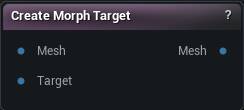
Create Morph Target: Records what moved between a base mesh and a sculpted copy of it, and stores that as a named morph target (blendshape / blend shape) riding on the Mesh output.
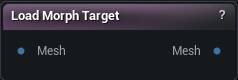
Load Morph Target: Dials one of the mesh's morph targets (blendshapes / blend shapes) in at a weight, and in the editor it finds the ones stored on a Skeletal Mesh asset too.
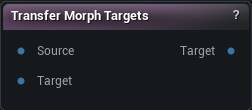
Transfer Morph Targets: Copies morph targets (blendshapes / blend shapes) off one mesh onto another built from completely different geometry.
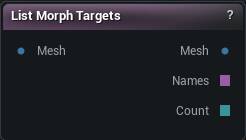
List Morph Targets: Tells you which morph targets a mesh is carrying. A mesh holding fifty of them looks exactly like a mesh holding none, so the names and the count come out as pins and get printed on the node card.
Retarget Morph Targets: Moves a whole set of morph targets (blendshapes / blend shapes) off one character's neutral onto another's, bending each shape to follow the new surface so it rotates and scales where the face does.
Studio and Graph › Morph Targets
Create Morph Target
Captures the difference between two meshes as a named morph target that rides along on the mesh wire. No asset anywhere, so it travels through the graph and through saves.
The Create Morph Target node
When to use it
Captures the difference between two meshes as a named morph target that rides along on the mesh wire. No asset anywhere, so it travels through the graph and through saves.
Pins
Pin
Type
Description
Mesh
Mesh
The mesh before you sculpted it.
Target
Mesh
The same mesh after sculpting. Vertex counts have to match, or the node errors and passes the base mesh through.
Pin
Type
Description
Mesh
Mesh
Same base mesh, now carrying the new shape. It looks unchanged - Load Morph Target is what makes it visible.
Settings
Setting
Type
Description
Morph Target Name
Text
What to call the shape. Leave it blank and nothing is captured; the base mesh still passes through.
Skeletal Mesh
Asset
The Skeletal Mesh asset the write button targets. Editor only.
LOD Index
Whole number
Which LOD the shape is written into. Leave it at 0 unless you have a reason not to: the LOD settings below only run for LOD 0, and picking a LOD the asset does not have refuses the write.
Use Dual Quaternion Skinning
True/False
Un-pose the shape back onto the asset's bind pose with dual quaternion skinning instead of linear blend. Only the asset write uses this.
Apply To LODs
True/False
Push the shape down onto the lower LODs too, so it does not pop away as the character gets further from camera.
Vertex Threshold
Number
How far a LOD vertex can sit from the LOD0 surface and still pick the shape up. Too low and parts of the LOD stay flat; too high and the shape jumps a gap onto the wrong side of a fold.
Normal Incompatibility Threshold
Number
Throws away a match when the two surfaces face too differently. This is what keeps triangles from flipping inside out on the projected LOD.
Smooth Type
Choice
How the projected LOD shape gets smoothed.
Smooth Strength
Number
How hard each smoothing pass pulls. Does nothing while Smooth Iterations is 0.
Smooth Iterations
Whole number
How many smoothing passes to run over the projected LOD shape. 0 leaves it exactly as projected. Raise it when a coarse LOD comes out lumpy.
Applies one of the morph targets the incoming mesh already carries, at whatever Weight you dial in. No asset needed: the dropdown lists what is on the wire, and the deltas are already in that mesh'...
The Load Morph Target node
When to use it
Applies one of the morph targets the incoming mesh already carries, at whatever Weight you dial in. No asset needed: the dropdown lists what is on the wire, and the deltas are already in that mesh's own space.
In the editor, when the mesh came from Load Skeletal Mesh, the asset's own morph targets show up too, posed onto the current skeleton. Names carried on the wire always win, which is what keeps a graph behaving identically in the packaged app.
An empty dropdown means nothing upstream put a morph target on the mesh. Add a Create Morph Target, or import through a path that carries them.
How to use it
1
Connect a mesh that carries morph targets
2
Pick a morph target name from the dropdown
3
The output is the morphed mesh
Pins
Pin
Type
Description
Mesh
Mesh
A mesh that already carries morph targets. Wire List Morph Targets in first if you are not sure it does.
Pin
Type
Description
Mesh
Mesh
The mesh with the chosen shape dialled in. It still carries the whole set, so you can chain a second one after it.
Settings
Setting
Type
Description
Morph Target Name
Text
Which shape to apply. The list is whatever the connected mesh is carrying.
Weight
Number
How much of the shape to apply. 1 is full, 0 is none. Push past 1 to exaggerate the pose, or go negative to run it backwards.
Use Dual Quaternion Skinning
True/False
Pose the asset's deltas with dual quaternion skinning instead of linear blend. Only matters for shapes read off a Skeletal Mesh asset; ones carried on the mesh are already in the right space and need no posing.
Moves named morph targets onto a mesh with a different vertex count, by closest point or by UV, with optional subdivision and smoothing. This is the node for a retopologised or re-densified mesh th...
The Transfer Morph Targets node
When to use it
Moves named morph targets onto a mesh with a different vertex count, by closest point or by UV, with optional subdivision and smoothing. This is the node for a retopologised or re-densified mesh that needs its blendshapes back.
Pins
Pin
Type
Description
Mesh
Mesh
The mesh you are taking the shapes from.
Target
Mesh
The mesh receiving the shapes. Its vertex count and layout can be completely different - a retopo, a denser head, another body.
Pin
Type
Description
Target
Mesh
Same destination mesh, now carrying the copied shapes. It looks unchanged until Load Morph Target applies one.
Settings
Setting
Type
Description
Morph Target(s)
Text
Which shapes to copy, one name per row. Shift + Enter adds a row. Leave it empty and everything the source carries comes across.
Automatically Overwrite
True/False
Replace a shape the target already has. Turn it off and the existing one is kept, and the node names what it skipped.
Auto Scale
True/False
Scale the copied movement by the size difference between the two meshes. Turn it on when the target is the same character built at another scale. Leave it off when the two already share units.
Delta Method
Choice
Whether each target vertex is moved onto the sculpted source surface, or just pushed by the same amount the source moved.
Vertex Threshold
Number
How far apart two vertices can sit and still count as the same spot. This is the setting that decides quality. Too low and patches of the target never move at all. Too high and a shape jumps a gap onto the wrong side of a fold, so lips pull into teeth and eyelids stick shut.
Normal Incompatibility Threshold
Number
Throws away a match when the two surfaces face too differently. This is what keeps triangles from flipping inside out during the projection.
Match Material IDs
True/False
Only let a vertex take its shape from source geometry with the same material. Useful where eyes, teeth and skin nearly touch and keep stealing each other's movement.
Subdivision
Whole number
Split the source triangles this many times before sampling, so a dense target has more points to land on. Raise it when a fine target picks up a blocky, low-resolution version of the shape. Costs memory and time.
Match By UV
True/False
Match the two meshes through their UVs instead of by distance, so vertex count and order stop mattering. Far more reliable around lips, eyelids and anywhere two surfaces nearly touch, as long as both share a UV layout. Do not use it on welded meshes - welding wrecks their UVs.
Smooth Type
Choice
How the copied shape gets smoothed after projection.
Smooth Strength
Number
How hard each smoothing pass pulls. Does nothing while Smooth Iterations is 0.
Smooth Iterations
Whole number
How many smoothing passes to run. 0 leaves the shape exactly as projected. Raise it when the result comes out speckled or lumpy.
Apply To LODs
True/False
Push the shapes down onto the lower LODs too, so they do not pop away as the character gets further from camera.
LOD Vertex Threshold
Number
Same distance rule as above, but for landing the shape on the lower LODs.
LOD Smooth Type
Choice
How the shape gets smoothed on the lower LODs.
LOD Smooth Strength
Number
How hard each LOD smoothing pass pulls. Does nothing while LOD Smooth Iterations is 0.
LOD Smooth Iterations
Whole number
How many smoothing passes to run on the lower LODs. Coarse LODs usually need a pass or two where LOD0 needs none.
Tells you which morph targets a mesh is carrying, and passes the mesh through untouched.
The List Morph Targets node
When to use it
Tells you which morph targets a mesh is carrying, and passes the mesh through untouched.
This is what you reach for the moment a morph question turns into "did that actually do anything". Morph targets live inside the mesh as vertex deltas, so a mesh carrying fifty of them and a mesh carrying none look identical in the viewport, on the wire and in a thumbnail. The names go on the node card and out on Names, one per line, with Count for the graph to branch on.
It never writes the mesh output, so dropping one into a working chain cannot change what flows down it. To actually see a shape rather than confirm it exists, apply it with Load Morph Target.
How to use it
1
Connect any mesh
2
Read the names off the card, or wire Names / Count into the graph
Pins
Pin
Type
Description
Mesh
Mesh
The mesh you want to look inside.
Pin
Type
Description
Mesh
Mesh
The same mesh that came in, untouched. Safe to drop this node into the middle of a chain.
Names
Text
The names on the mesh, one per line, sorted. Blank when it carries none.
Count
Whole Number
How many the mesh carries. A zero means none; a blank pin means no mesh reached the node at all.
Moves a whole blendshape set from one character's neutral onto another's. Mesh (labelled Source) carries the donor neutral and its shapes, Target carries the recipient neutral, and the Target outpu...
The Retarget Morph Targets node
When to use it
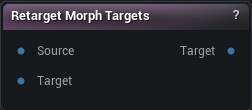
Moves a whole blendshape set from one character's neutral onto another's. Mesh (labelled Source) carries the donor neutral and its shapes, Target carries the recipient neutral, and the Target output is that neutral now carrying the retargeted set. Same pin shape as Transfer Morph Targets, so the two swap in and out of a chain.
How to use it
1
Connect the source character (carrying the morph targets) to Mesh ("Source")
2
Connect the recipient neutral to Target
3
Leave Morph Targets empty to move the whole set, or name a subset one per line
4
The Target output carries them; it recomputes whenever an input changes
Pins
Pin
Type
Description
Mesh
Mesh
The character you are taking the shapes from, in its neutral pose, with the set riding on it.
Target
Mesh
The character receiving the shapes, in its neutral pose. Same vertex count and triangles as the source; its own positions are never moved.
Pin
Type
Description
Target
Mesh
The recipient neutral, now carrying the retargeted set. It looks identical in the viewport - wire List Morph Targets in to see what actually arrived.
Settings
Setting
Type
Description
Morph Target(s)
Text
Which shapes to move, one name per line. Leave it empty to move the whole set, which is what you usually want and the reason this node exists rather than running Transfer Morph Targets two hundred times.
Method
Choice
How each shape is bent onto the new character. Auto picks Delta Copy when the two neutrals turn out to be the same shape and Local Frame when they do not, which is the right call almost always.
Overwrite Existing
True/False
Replace a shape the recipient already has. Turn it off and the existing one is kept, and the node names what it skipped.