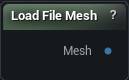
Load File Mesh: Reads a mesh off disk: FBX, OBJ, GLB, glTF, STL or PLY. Textures the file points at come in with it.
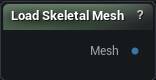
Load Skeletal Mesh: Brings a Skeletal Mesh asset from your project into the graph, bones and skin weights included.
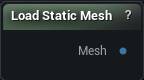
Load Static Mesh: A Static Mesh asset out of your project, ready to edit. No bones come with it, so a rigged character wants Load Skeletal Mesh instead.
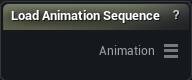
Load Animation Sequence: Pick an Animation Sequence out of the project and its keyframes land on the Animation output, copied into the graph so the graph keeps working without the asset around.
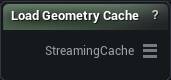
Load Geometry Cache: Pulls a Geometry Cache asset out of the project so the graph can read its frames.
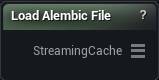
Load Alembic File: Opens an Alembic (.abc) cache from disk. Frames are read as you ask for them, so a long cache never has to sit in memory all at once.
Load USD File: Opens a USD file (.usd, .usda or .usdc) and streams its frames in. You can point it at one branch of a big scene instead of pulling in the lot.
Studio and Graph › Importers
Load File Mesh
Available in Mesh Morpher Graph and Mesh Morpher Studio.
The Load File Mesh node
How to use it
1
Set the file path and import settings on the node's details panel
2
Downstream consumers (sculpt / repair / exporter) read that struct
Pins
Pin
Type
Description
Mesh
Mesh
The mesh read out of the file, triangulated, with its material slots and textures attached.
Settings
Setting
Type
Description
File
File path
Path to the FBX File.
Use T0 Pose
True/False
T0 Pose
Coordinate System
Choice
Front Axis
Choice
Up Axis
Choice
OBJ Sections From
Choice
OBJ only. Which statements split the file into material sections. OBJ marks materials with usemtl, so parts that reuse one material — or name none — would otherwise arrive merged into a single section; the o and g statements are what carry the real structure. Pick Groups for ZBrush polygroups, Material Only for strict OBJ behaviour.
Editor-only node. Runs only in Mesh Morpher Graph inside the Unreal Editor, because it reads or writes Unreal Engine assets. Not available in the standalone Mesh Morpher Studio app.
Editor-only node. Runs only in Mesh Morpher Graph inside the Unreal Editor, because it reads or writes Unreal Engine assets. Not available in the standalone Mesh Morpher Studio app.
The Load Skeletal Mesh node
When to use it
The skeletal half of Load Static Mesh, editor only for the same reason. It brings a project Skeletal Mesh in with its bones and skin weights attached, which is what Pose Mesh, Paint Skin Weights and every skeleton node need before they will do anything at all.
How to use it
1
Pick a skeletal mesh asset
2
Set LOD index / import-vs-render data
3
Output is the mesh with skeleton data
Pins
Pin
Type
Description
Mesh
Mesh
The asset's mesh, with its bones and skin weights, and a note of where it came from so Bake Mesh can write back.
Settings
Setting
Type
Description
Skeletal Mesh
Asset
The skeletal mesh to load. Its asset path travels with the mesh, so Bake Mesh can write your edits back into this same asset later.
Use Import Data
True/False
Reads the geometry the asset was imported with instead of the built render mesh. Leave it on: the render mesh has been split apart at every UV and hard-normal seam, so it carries more vertices than the source, and it only reads at all if the asset has Allow CPU Access ticked.
LOD Index
Whole number
Which LOD to read. Ask for one the asset does not have and the node stops with an error and sends nothing on.
Editor-only node. Runs only in Mesh Morpher Graph inside the Unreal Editor, because it reads or writes Unreal Engine assets. Not available in the standalone Mesh Morpher Studio app.
Editor-only node. Runs only in Mesh Morpher Graph inside the Unreal Editor, because it reads or writes Unreal Engine assets. Not available in the standalone Mesh Morpher Studio app.
The Load Static Mesh node
When to use it
Editor only. Pulls a Static Mesh that is already in your project into the graph as an ordinary mesh wire. Nothing gets decoded again, and the asset path travels along with the mesh, so Bake Mesh can write your edits back into that same asset later.
Use Import Data decides how the round trip ends. On, you get the original imported geometry, which is what a bake needs. Off, you get the built render data for the LOD you picked, already welded and optimised, which is what the engine actually draws.
Pick the wrong one and a later Bake Mesh either fails to line up or quietly stamps render-time geometry into your source asset.
How to use it
1
Pick a static mesh asset
2
Set LOD index / import-vs-render data
3
Output is the mesh data
Pins
Pin
Type
Description
Mesh
Mesh
The asset's mesh, with a note of where it came from so Bake Mesh can write back.
Settings
Setting
Type
Description
Static Mesh
Asset
The static mesh to load. Its asset path travels with the mesh, so Bake Mesh can write your edits back into this same asset later.
Use Import Data
True/False
Reads the geometry the asset was imported with instead of the built render mesh. Leave it on: the render mesh has been split apart at every UV and hard-normal seam, so it carries more vertices than the source, and it only reads at all if the asset has Allow CPU Access ticked.
LOD Index
Whole number
Which LOD to read. Ask for one the asset does not have and the node stops with an error and sends nothing on.
Editor-only node. Runs only in Mesh Morpher Graph inside the Unreal Editor, because it reads or writes Unreal Engine assets. Not available in the standalone Mesh Morpher Studio app.
Editor-only node. Runs only in Mesh Morpher Graph inside the Unreal Editor, because it reads or writes Unreal Engine assets. Not available in the standalone Mesh Morpher Studio app.
The Load Animation Sequence node
Editor-only authoring node that picks a project Animation Sequence asset.
Additive sequences are not supported.
1
Pick an animation sequence asset in the details panel
2
Wire the Animation output into Apply Animation Frame or Delta Mush Animation Corrective
Pins
Pin
Type
Description
Animation
Animation
The keyframes, plus a reference back to the asset for Delta Mush Animation Corrective.
Settings
Setting
Type
Description
Anim Sequence
Asset
The Animation Sequence to read. Pick an additive one and the node tells you it cannot use it.
Editor-only node. Runs only in Mesh Morpher Graph inside the Unreal Editor, because it reads or writes Unreal Engine assets. Not available in the standalone Mesh Morpher Studio app.
Editor-only node. Runs only in Mesh Morpher Graph inside the Unreal Editor, because it reads or writes Unreal Engine assets. Not available in the standalone Mesh Morpher Studio app.
The Load Geometry Cache node
When to use it
Reads a Geometry Cache asset already in your project as a streaming pin. This is the project-asset counterpart to Load Alembic File and Load USD File, and its frames arrive already oriented for MeshMorpher, so there is nothing to convert.
How to use it
1
Pick a geometry cache asset
2
Wire the StreamingCache output onward
Into Geometry Cache Sculpt, Get Streaming Geometry Cache Frame, or an export node.
Pins
Pin
Type
Description
StreamingCache
Streaming Geometry Cache
The asset's frames, ready for the sculpt, frame and export nodes.
Settings
Setting
Type
Description
Geometry Cache
Asset
The Geometry Cache asset to read. Frames come in already oriented for MeshMorpher, so there is nothing to convert.
The way an animated cache from Maya, Houdini or 3ds Max gets into a graph. It streams: frames come off disk as something downstream asks for them, so a thousand-frame cache costs about what one fra...
The Load Alembic File node
When to use it
The way an animated cache from Maya, Houdini or 3ds Max gets into a graph. It streams: frames come off disk as something downstream asks for them, so a thousand-frame cache costs about what one frame costs.
There is no Load button. Pick a file and it reads, and it reads again the moment you change any setting below, so getting the orientation right is a matter of nudging Preset or Rotation and looking at the result.
The conversion settings stay on show whether or not a file is picked, so you can set the package preset up front and then browse.
Pins
Pin
Type
Description
StreamingCache
Streaming Geometry Cache
The animated cache read from the .abc file, one frame at a time.
Settings
Setting
Type
Description
Source File
File path
The .abc file to read. Pick one and the load runs straight away, and it runs again every time you change a setting below.
Preset
Choice
Which package wrote the cache. Maya and 3ds Max fill in the Scale and Rotation those apps need. Touch either of those by hand and this flips to Custom.
Scale
Vector
Scale applied to every vertex as the cache is read. The default (1, -1, 1) only flips handedness, it does not resize anything.
Rotation
Vector
Rotation in degrees applied to every vertex as the cache is read. The 90 on X is what stands a Y-up Maya cache upright. Get it wrong and the character arrives lying on its face.
Flip U
True/False
Mirrors the U coordinate. Turn it on if textures arrive reversed left to right.
Flip V
True/False
Mirrors the V coordinate. On by default, which is what Maya and most Alembic caches expect. Switch it off and textures land upside down.
The USD counterpart to Load Alembic File. It streams a stage's frames in as something downstream asks for them, so scene length costs you nothing up front.
The Load USD File node
When to use it
The USD counterpart to Load Alembic File. It streams a stage's frames in as something downstream asks for them, so scene length costs you nothing up front.
What it adds over the Alembic loader is Prim Filter Path and the purpose switches. A production stage carries far more than the one character you want, in several detail levels at once, and those settings are how you take the branch you need and leave the rest on disk.
There is no Load button. Pick a file and it reads, and it reads again the moment you change any setting below.
The stage's own up-axis and metersPerUnit are both ignored. Rotation is the only thing standing a Y-up scene upright, and a scene authored in metres arrives a hundred times too small until you scale it here.
Pins
Pin
Type
Description
StreamingCache
Streaming Geometry Cache
The animated cache read from the USD stage, one frame at a time.
Settings
Setting
Type
Description
Source File
File path
The USD file to read. Pick one and the load runs straight away, and it runs again every time you change a setting below.
Preset
Choice
Which package wrote the file. Maya and 3ds Max fill in the Scale and Rotation those apps need. Touch either of those by hand and this flips to Custom.
Scale
Vector
Scale applied to every vertex as the stage is read. The default (1, -1, 1) only flips handedness, it does not resize anything. The stage's own metersPerUnit is ignored, so a scene authored in metres arrives a hundred times too small until you scale it here.
Rotation
Vector
Rotation in degrees applied to every vertex as the stage is read. The stage's own up-axis is ignored, so this is the only thing standing a Y-up scene upright.
Flip U
True/False
Mirrors the U coordinate. Turn it on if textures arrive reversed left to right.
Flip V
True/False
Mirrors the V coordinate. On by default. Switch it off and textures land upside down.
Prim Filter Path
Text
Read only one branch of the stage, by prim path (something like /Root/Characters/Hero). Leave it empty for the whole stage. On a big scene this is the difference between opening in a second and waiting on the whole thing.
Include Default Purpose
True/False
Include geometry that carries no purpose tag. This is where most hand-authored meshes live, so leaving it off usually gets you nothing.
Include Render Purpose
True/False
Include geometry tagged as render. That is the high-detail version meant for final frames.
Include Proxy Purpose
True/False
Include geometry tagged as proxy: the cheap stand-in a scene uses for fast playback. Turning this on alongside render usually gets you two copies of the same character sitting inside each other.
Include Guide Purpose
True/False
Include geometry tagged as guide: rig visualisers, motion paths and other things nobody wants in a sculpt.