Studio and Graph › Selection
Select
Mark triangles by hand with the viewport's selection brush, then accept to emit the selection and the clipped mesh. When the region is a judgement call rather than something measurable, this beats ...
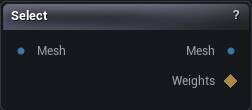
The Select node
When to use it
Mark triangles by hand with the viewport's selection brush, then accept to emit the selection and the clipped mesh. When the region is a judgement call rather than something measurable, this beats deriving one with Weight Map To Selection.
How to use it
- 1
Connect a mesh and select the node to pick up the brush
- 2
Paint the triangles you want in the viewport
- 3
Press Accept
Weights carries the mask, Mesh carries the trimmed geometry.
Pins
| Pin | Type | Description |
|---|---|---|
Mesh |
Mesh | The mesh you paint on. |
| Pin | Type | Description |
|---|---|---|
Mesh |
Mesh | Just the triangles you painted, cut out as their own mesh. Passes the whole mesh through when nothing is selected. |
Weights |
Weight Map | The painted mask, brush falloff and all: 1 is fully selected, 0 is untouched. These line up with the input mesh's vertices, not with the trimmed Mesh output, which gets renumbered. Selection Threshold cuts the Mesh output only, never these weights. |
Settings
| Setting | Type | Description |
|---|---|---|
Selection Threshold |
Number | A painted vertex counts as selected once its weight reaches this. The cut keeps or drops whole triangles, so the soft brush edge has to become a yes or no somewhere, and this is where. At 0 the faintest touch of the falloff drags a triangle in. It trims the Mesh output only; the Weights output keeps its falloff either way. Two catches. There is only a falloff to cut when Full Strength Mask is off, under Masking > Draw. With the default on, the brush stamps a hard 1.0 and the marquee and Sections list seed exactly 1.0, so every value above 0 picks the same triangles. And the viewport never previews the cut: hide-unselected isolates anything you have painted at all, so a feathered mask accepts tighter than the region you were looking at. |
Occlusion Test Method |
Choice | How hidden geometry is judged. Fast winding is quick and catches sealed pockets inside a closed mesh; ray visibility fires rays out of each face and is the safer choice on an open or messy mesh. |
Triangle Sampling |
Choice | Where on each triangle the hidden-or-not test is taken. |
Winding Iso Value |
Number | The cutoff that separates inside from outside for the winding test. 0.5 is standard; raise it to select less, lower it to select more. |
Add Random Rays |
Whole number | Extra rays in random directions on top of the six axis rays. Raise it when the ray test leaves slivers of hidden surface unselected. |
Add Triangle Samples |
Whole number | Extra sample points scattered over each triangle. Raise it when a big triangle is missed because only a corner of it happens to be hidden. |
Grow Shrink |
Whole number | Reach the selection outward (+) by a ring or two to catch the rim around a cavity, or pull it inward (-) to keep clear of the visible surface. Counts in rings of vertices. |
Invert |
True/False | Flip it: select everything you can see from outside instead of what you cannot. |
Available in Mesh Morpher Graph and Mesh Morpher Studio.