Studio and Graph › Sculpt
Sculpt Mesh
Sculpt a mesh by hand in the viewport. Select the node and the brushes appear; deselect it and they go away.
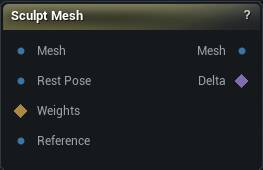
The Sculpt Mesh node
When to use it
Sculpt a mesh by hand in the viewport. Select the node and the brushes appear; deselect it and they go away.
Wire the unsculpted mesh into Original as well. That is what the Restore brush paints back toward, and what Delta is measured against.
How to use it
- 1
Wire a mesh into Mesh and select the node
- 2
Pick a brush from the side panel and work in the viewport
- 3
Press Accept
Meshcarries the result;Deltacarries what you moved.
Pins
| Pin | Type | Description |
|---|---|---|
Mesh |
Mesh | The mesh you want to sculpt on. |
Original |
Mesh | The same mesh before you sculpted it. Delta is measured against this, and the Restore brush paints back toward it. |
Weights |
Weight Map | Where the brushes are allowed to bite: 1 is full strength, 0 is frozen, in between feathers. Leave it unconnected to sculpt the whole mesh. |
Reference |
Mesh | The surface the Project brush pushes vertices onto. The other brushes ignore it. |
| Pin | Type | Description |
|---|---|---|
Mesh |
Mesh | The sculpted mesh, once you press Accept. |
Delta |
Deltas | How far each vertex moved from the original. Feed it to Apply Deltas to put the same change on a different mesh. |
Learn more
| Mesh Morpher Studio | Read the walkthrough on meshmorpher.com | https://meshmorpher.com/blog/mesh-morpher-studio |
Available in Mesh Morpher Graph and Mesh Morpher Studio.