Mesh Morpher allows users to create Morph Targets from Poses.
Mesh Morpher allows users to create Morph Targets from Poses. Poses can be an Animation frame, a Bone Snapshot or a combination of an Animation frame and Bones modification.
There are two ways to create Morph Targets from Pose:
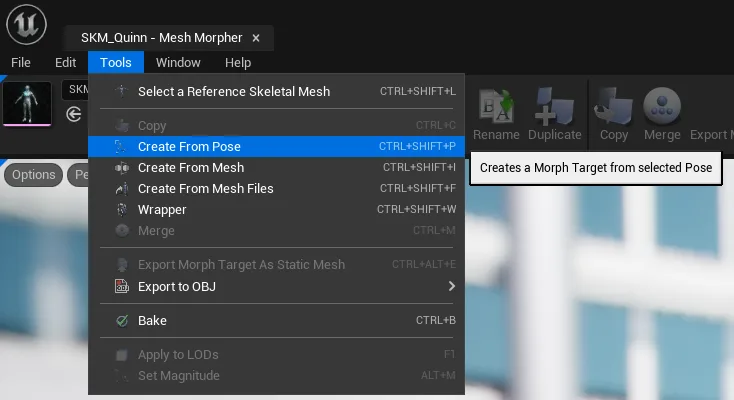
By clicking Create from Pose in Mesh Morpher's toolbar
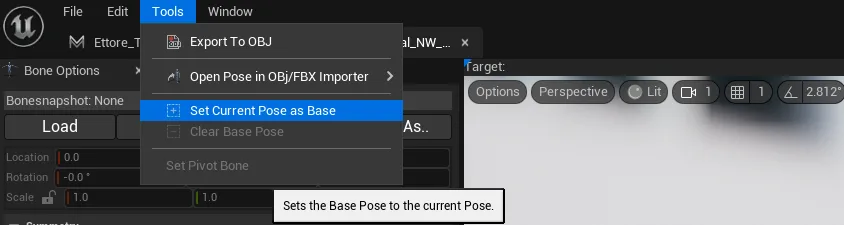
Navigating to Tools top dropdown menu and clicking Create from Pose
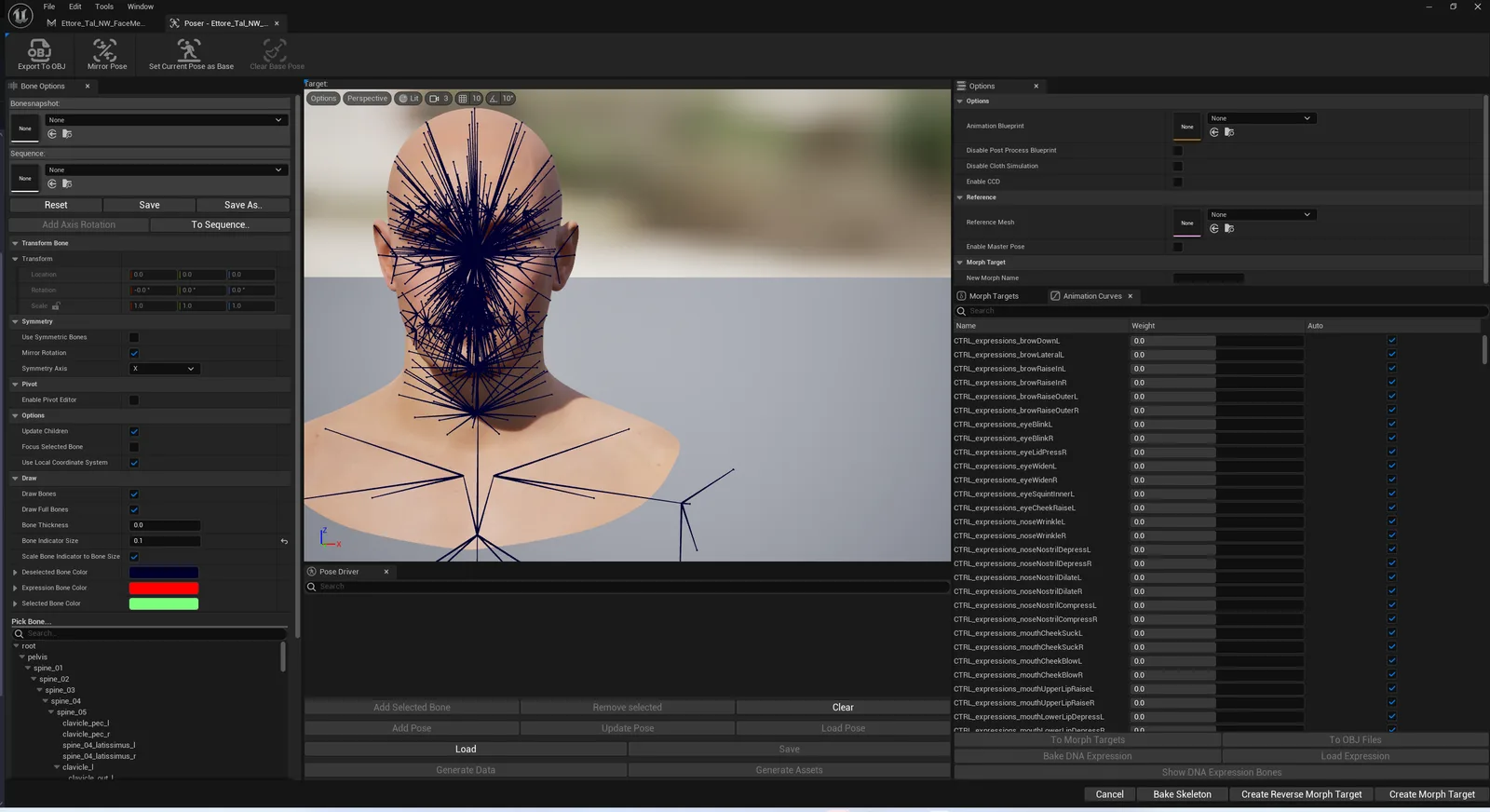
Once the Create from Pose button is pressed, a dialog box will open where users can select several options.
Options
Description
Animation Blueprint
Allows users to select and enable an Animation Blueprint in Poser
Disable Post Process Blueprint
Toggles the Post Process blueprint in the selected skeletal mesh in Poser
Disable Cloth Simulation
Toggles the cloth simulation for the selected skeletal mesh in Poser
Enable CCD
Toggles Continuous Collision Detection in Poser
Reference Mesh
Allows users to select a skeletal mesh as a reference
Enable Master Pose
Set the Leader/Master Pose Component for the reference mesh to the main skeletal mesh opened in Poser
New Morph Name
Users can also pick the Morph Target name that will be created.
Classic › Editor › Advanced Operations › Poser
Bake Skeleton
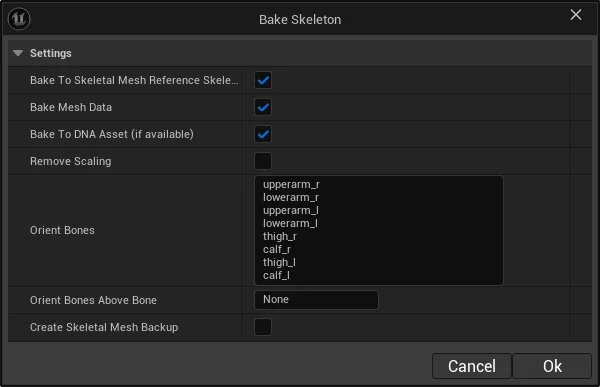
Bake Skeleton allows users to permanently bake skeleton and mesh changes in Poser to the Skeletal Mesh and Skeleton.
Option
Description
Bake to Skeletal Mesh Reference Skeleton
This option enables the skeleton changes to be baked in the Skeleton Reference which is located inside the Skeletal Mesh.
Bake Mesh Data
This option allows to bake Mesh data to skeletal Mesh. Required to reflect skeleton changes in the mesh data.
Bake To DNA Asset
Bakes skeleton and Mesh data to the DNA Asset if available. This is intended for Meta Humans only. It doesn't bake any Morph Target data.
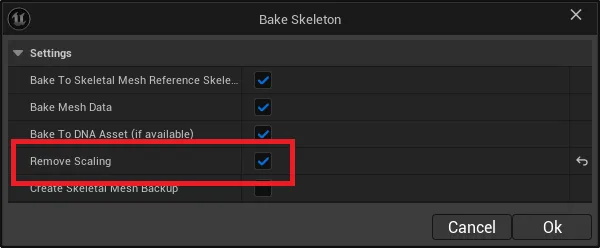
Remove Scaling
This scales back to 1,1,1 all bones while preserving translations and rotation. Useful for FBX exports.
Orient Bones
List of bones to recompute orientations for. To disable, simply remove the bones from the list. This impacts how Pose Drivers and control Rigs functions(for metahumans as well)
Orient Bones Above Bone
Recomputes the orientations for all the bones above the selected bone name in the hierarchy. To disable, simply set the bone name to None. This impacts how Pose Drivers and control Rigs functions(for metahumans as well)
Create Skeletal Mesh Backup
Whether to create a backup before baking. Users will be prompted to save the asset. The asset will have "_bk" suffix automatically added.
Classic › Editor › Advanced Operations › Poser
Create Reverse Morph Target
This option allows users to create a reversed Morph Target from the current Pose. 
By default the Morph Targets contain the deltas between the default Skeletal Mesh and the modified Skeletal Mesh.
By creating a Reverse Morph Target, the Morph Target will hold the deltas between the Modified Skeletal Mesh and the default Skeletal Mesh.
If the Toolkit(Main Window) has a Pose asset selected or there is a Base Pose selected in Poser then this Morph Target will be a reversed corrective Morph Target between those two poses.
Classic › Editor › Advanced Operations › Poser
Create Morph Target
This option allows users to create a Morph Target from the current Pose. 
By creating a Morph Target, the Morph Target will hold the deltas between the default Skeletal Mesh and the modified Skeletal Mesh(Poser pose).
If the Toolkit(Main Window) has a Pose asset selected or there is a Base Pose selected in Poser then this Morph Target will be a reversed corrective Morph Target between those two poses.
Classic › Editor › Advanced Operations › Poser
Animation Curves
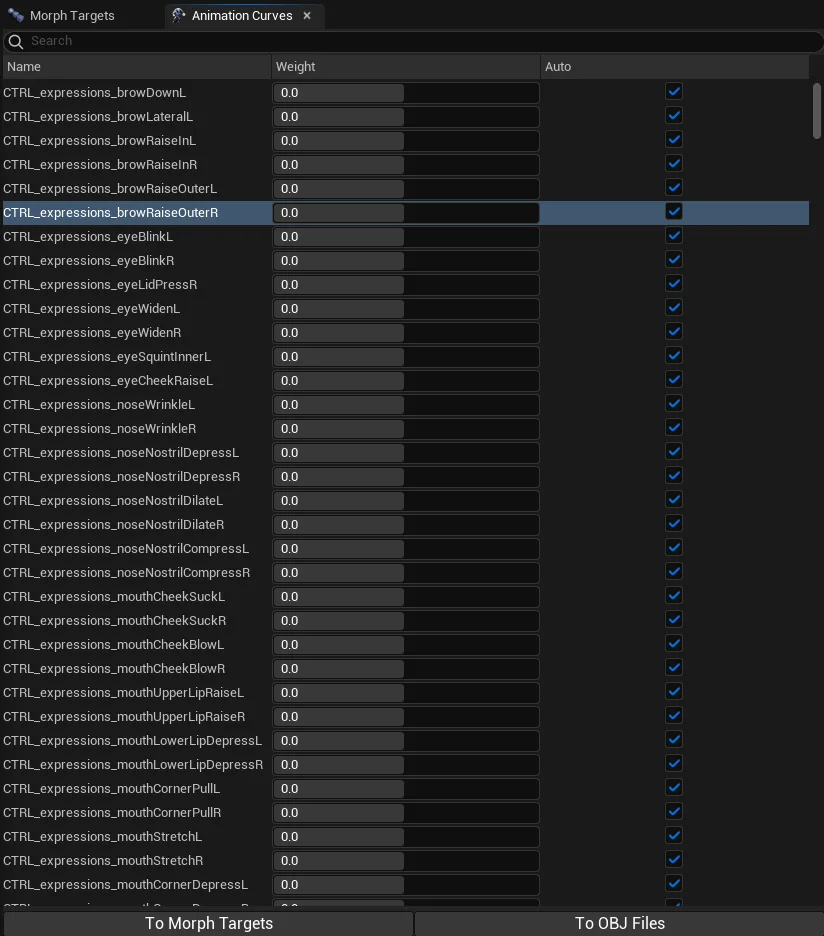
Poser allows users to interact with Animation Curves.
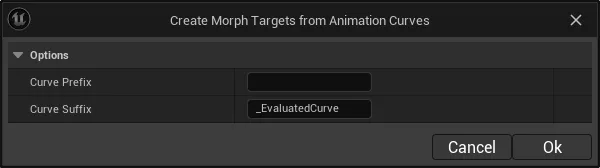
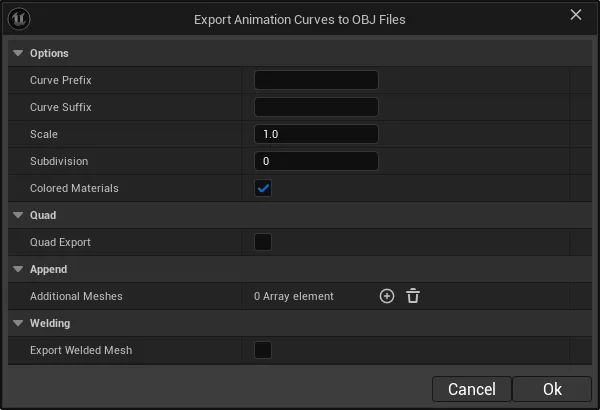
Animation curves can be enabled and disabled and also exported to OBJ files or converted to Morph Targets.
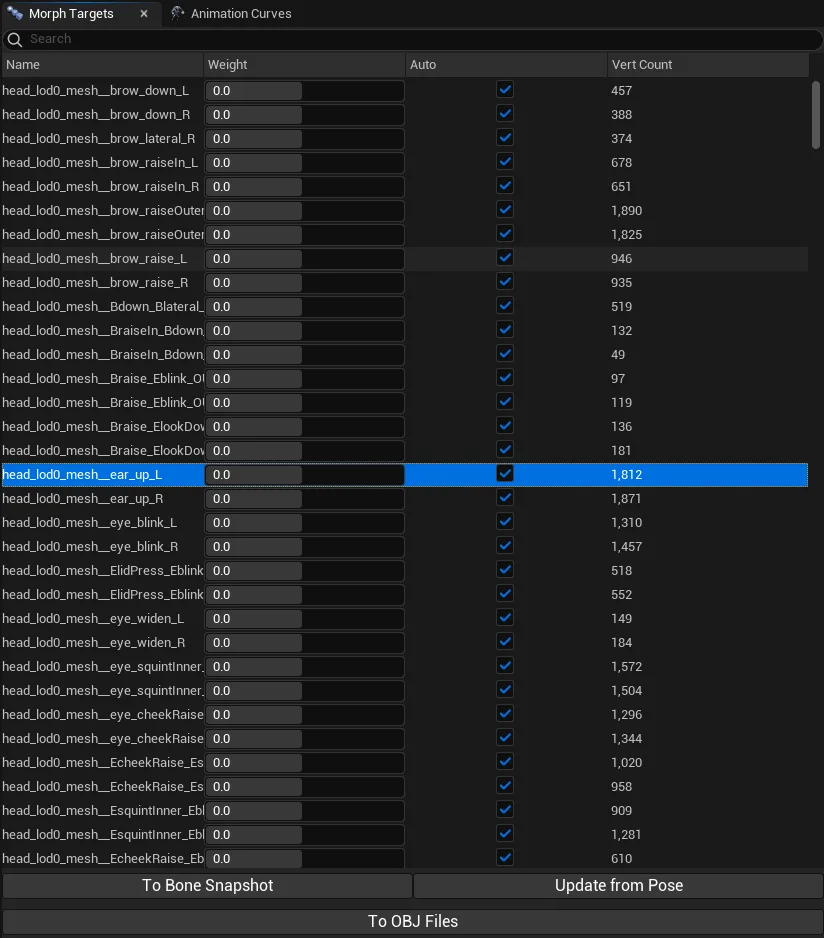
Bone Snapshots can be created from Morph Targets which allows users to fit the skeleton to match the Morph Target shape.
In order to do so, select a Morph Target and click on To Bonesnapshot.
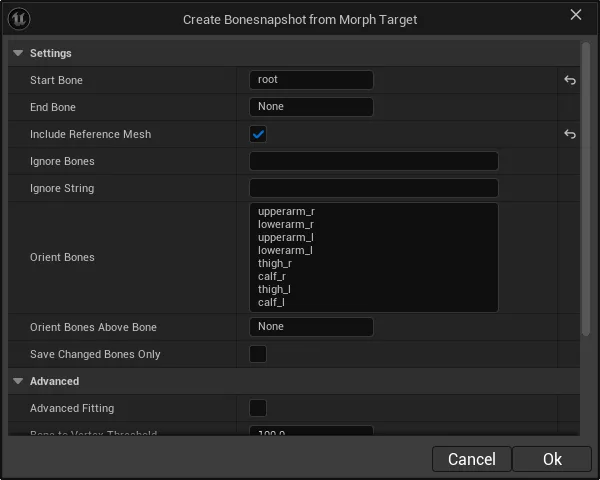
A dialog window will open.
Option
Description
Start Bone
Pick the first bone in the Bonesnapshot. Users can select whether to bonesnapshot will start from root or any other bone in the skeleton hierarchy
End Bone
The end Bone in the hierarchy that will be part of the bonesnapshot
Include Reference Mesh
Whether to include the selected reference skeletal mesh in the bonesnapshot. This option appears only when a reference skeletal mesh is selected in Poser and a Morph Target with the same name exists on both meshes.
Ignore Bones
List of Bones to ignore. One per row. Ignored bones will not be part of the bonesnapshot
Ignore String
Ignore all bones containing the string. Ignored bones will not be part of the bonesnapshot
Orient Bones
List of bones to recompute orientations for. To disable, simply remove the bones from the list. This impacts how Pose Drivers and control Rigs functions(for metahumans as well)
Orient Bones Above Bone
Recomputes the orientations for all the bones above the selected bone name in the hierarchy. To disable, simply set the bone name to None. This impacts how Pose Drivers and control Rigs functions(for metahumans as well)
Save Changed Bones Only
Whether the bonesnapshot will hold only the bones that have their transform changed during the fitting.
Advanced Fitting
Enable this when fitting bones to morph targets for meta human expressions.
Bone to Vertex Threshold
Maximum distance at which a bone is deemed to be compatible with a vertex.
Bone to Bone Threshold
Maximum distance at which a bone is deemed to be compatible with another bone.
Max Distance To Surface
Maximum distance to surface
Use Vertex Weights
Whether to use vertex weights when available
Preserve Relative Bone Transforms
Whether to preserve relative bone transformations.
Vertex Sample Size
Nearest Vertex Sample Size used to reposition the bones.
Advanced Bone Fitting is using Dem Bones and its purpose solely intended to create bonesnapshots from facial expressions morph targets.
Copyright (C) 2019 Electronic Arts Inc. All rights reserved.
Redistribution and use in source and binary forms, with or without modification, are permitted provided that the following conditions are met:
Redistributions of source code must retain the above copyright notice, this list of conditions and the following disclaimer.
Redistributions in binary form must reproduce the above copyright notice, this list of conditions and the following disclaimer in the documentation and/or other materials provided with the distribution.
Neither the name of Electronic Arts, Inc. ("EA") nor the names of its contributors may be used to endorse or promote products derived from this software without specific prior written permission.
THIS SOFTWARE IS PROVIDED BY ELECTRONIC ARTS AND ITS CONTRIBUTORS "AS IS" AND ANY EXPRESS OR IMPLIED WARRANTIES, INCLUDING, BUT NOT LIMITED TO, THE IMPLIED WARRANTIES OF MERCHANTABILITY AND FITNESS FOR A PARTICULAR PURPOSE ARE DISCLAIMED. IN NO EVENT SHALL ELECTRONIC ARTS OR ITS CONTRIBUTORS BE LIABLE FOR ANY DIRECT, INDIRECT, INCIDENTAL, SPECIAL, EXEMPLARY, OR CONSEQUENTIAL DAMAGES (INCLUDING, BUT NOT LIMITED TO, PROCUREMENT OF SUBSTITUTE GOODS OR SERVICES; LOSS OF USE, DATA, OR PROFITS; OR BUSINESS INTERRUPTION) HOWEVER CAUSED AND ON ANY THEORY OF LIABILITY, WHETHER IN CONTRACT, STRICT LIABILITY, OR TORT (INCLUDING NEGLIGENCE OR OTHERWISE) ARISING IN ANY WAY OUT OF THE USE OF THIS SOFTWARE, EVEN IF ADVISED OF THE POSSIBILITY OF SUCH DAMAGE.
Morph Targets can be updated from the current Pose in Poser.
This means that if the bones changed, by Updating from Pose the deltas in Morph Target will only contain the deltas between the Pose in Poser and the final Morph Target shape.
Bone Editor in Poser allows users to modify bone transforms and pivots.
Bone Editor allows Symmetry and a lot of additional customization that can improve the experience.
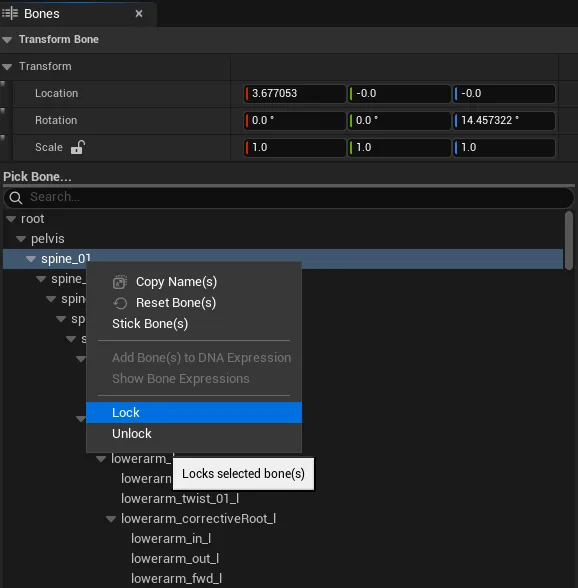
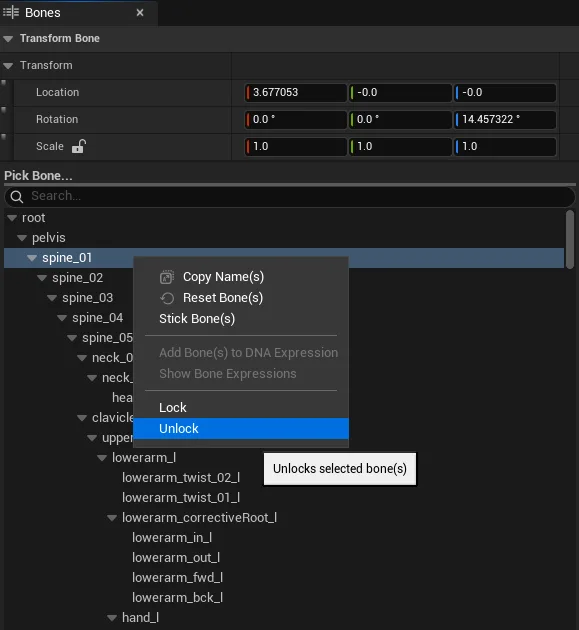
Holding Left Ctrl while clicking a bone will toggle its selection status. Users can select multiple bones at once.
Clicking on no bone will deselect all bones.
Bone editor supports Bone Symmetry and can be enabled by enabling the Symmetry Checkbox
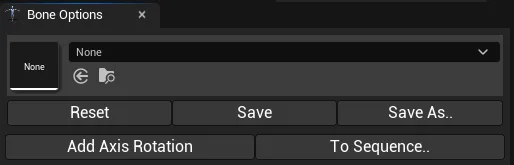
Bonesnapshots are another important component of Bone Editor and users are allowed to Load and Save Bonesnapshots that will hold the skeleton transformation.
Enabling Pivot Editor allows users to transform bones without affecting Mesh Data. Disabling the Pivot Editor will bake the changes to the skeletal mesh.
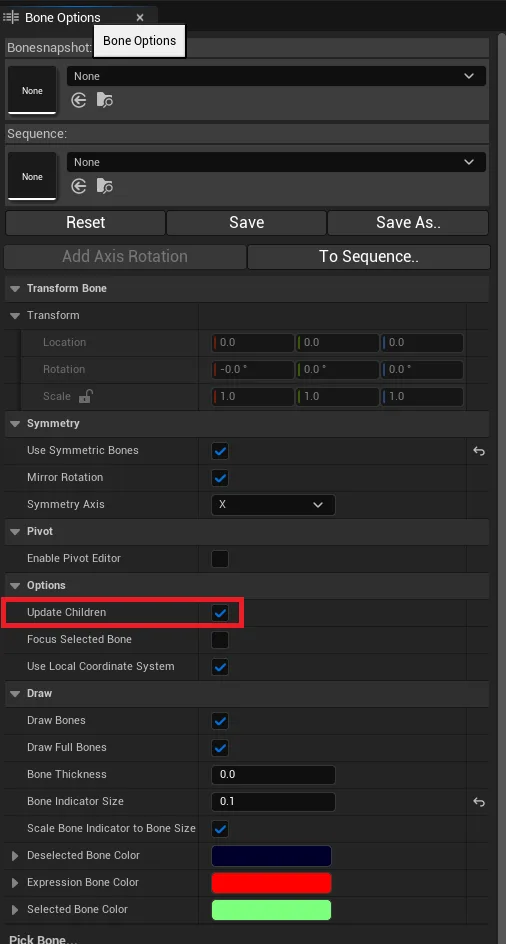
Update Children
Whether changing the transform of a Pivot Bone updates its children bones.
When working with Animation or control rigs(modular rigs as well) the engine in general doesn't play well with scaled bones.
To overcome this users should bake with Remove Scaling enabled
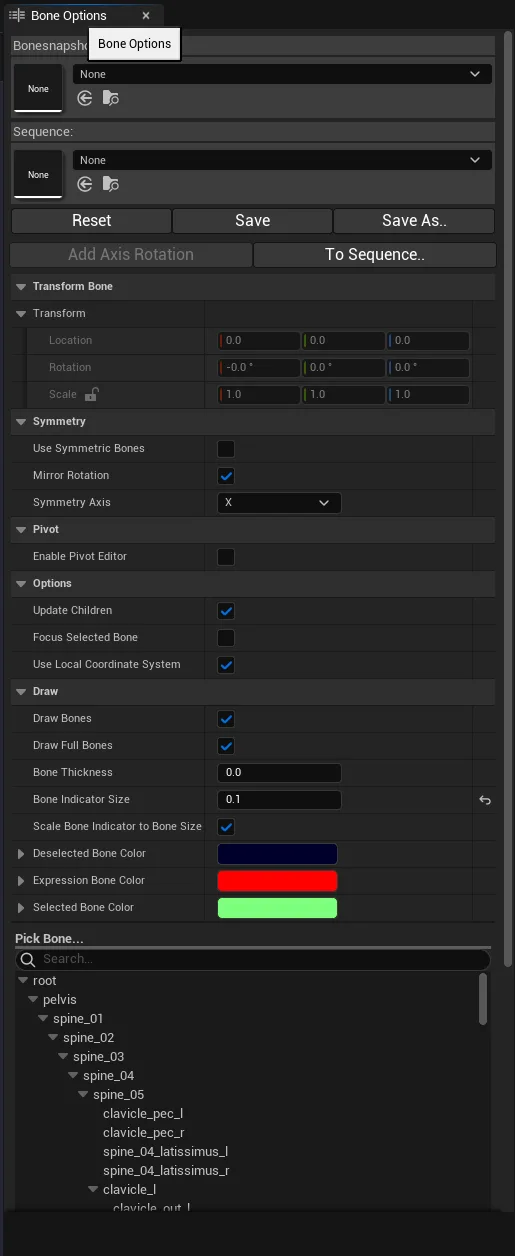
The above options works only for bones above root in the skeleton hierarchy. For root bone(or any other bone) scaling can be removed manually. After scaling, disable Update Children option in Bone Options side panel and set back the scale to 1.(don't forget to re-enable Update Children after you've completed this step).