Studio and Graph › Weight Map
Weight Map Math
Combines weight maps: add, subtract, multiply, min and max, invert, remap, smooth, lerp, power. This is where a usable mask gets built out of the raw ones other nodes produce. Multiply a distortion...
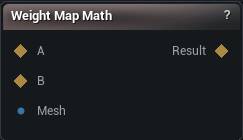
The Weight Map Math node
When to use it
Combines weight maps: add, subtract, multiply, min and max, invert, remap, smooth, lerp, power. This is where a usable mask gets built out of the raw ones other nodes produce. Multiply a distortion map by a hand-painted region to limit a repair. Invert a coverage map to select what is missing. Power a falloff to sharpen it.
Operations that need one map use input A. Smooth also needs the Mesh input, because smoothing follows mesh connectivity rather than index order, and without that wire it has no neighbours to average over.
The output updates on its own, so there is no button.
Two maps built against different meshes will not line up. Weights are stored per vertex and nothing checks that for you.
How to use it
- 1
Connect weight map A, and B if the operation needs two
- 2
For Smooth, also connect the Mesh input
- 3
Choose an operation and set its parameters
- 4
The output updates as soon as any input changes
Pins
| Pin | Type | Description |
|---|---|---|
A |
Weight Map | The first weight map. Every operation reads this one. |
B |
Weight Map | The second weight map. Add, Subtract, Multiply, Min, Max and Lerp need it, and it has to come off the same mesh as A. |
Mesh |
Mesh | Only Smooth reads this, to spread values between neighbouring vertices. It has to be the mesh the map was built on. |
| Pin | Type | Description |
|---|---|---|
Result |
Weight Map | The finished weight map. |
Settings
| Setting | Type | Description |
|---|---|---|
Operation |
Choice | What to do with the maps. |
Input Min |
Number | Anything at or below this drops to 0. |
Input Max |
Number | Anything at or above this rises to 1. Drag it down close to Input Min and the gradient collapses into a hard on/off edge. |
Iterations |
Whole number | How many smoothing passes to run. Each one bleeds the values out another ring of vertices, so a high count washes a tight mask away entirely. |
Factor |
Number | 0 gives you A, 1 gives you B, halfway gives you the average. |
Exponent |
Number | Below 1 the mask fattens up and its soft edge spreads. Above 1 it shrinks back toward the bright core. |
Available in Mesh Morpher Graph and Mesh Morpher Studio.