Studio and Graph › Texture
Load Texture
Reads an image off disk (PNG, JPG, TGA, BMP, EXR, HDR) and puts it on the Texture output. This one works in the standalone app, so it is the way in whenever the image is not a project asset. In the...
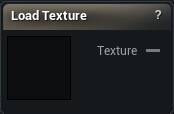
The Load Texture node
When to use it
Reads an image off disk (PNG, JPG, TGA, BMP, EXR, HDR) and puts it on the Texture output. This one works in the standalone app, so it is the way in whenever the image is not a project asset. In the editor, Load Texture (Asset) is the better route for one that already is.
How to use it
- 1
Browse to the image file
- 2
Set the compression type and sRGB to match what the image is for
- 3
The Texture output carries the loaded image
Pins
| Pin | Type | Description |
|---|---|---|
Texture |
Asset | The image you loaded. |
Settings
| Setting | Type | Description |
|---|---|---|
File |
File path | Image file to read. |
Texture Name Suffix |
Text | Tacked onto the end of the name this texture shows up under in tool dropdowns. Handy when you load several maps that share a file name. |
Compression Type |
Choice | How the image should be read. Normal Map for normals, HDR for float images, Default for everything else. |
SRGB |
True/False | Treat the file as colour rather than data. Turn it off for masks, roughness and anything else that is not meant to be looked at. |
Learn more
| Texture transfer with Mesh Morpher Graph | Read the walkthrough on meshmorpher.com | https://meshmorpher.com/blog/texture-transfer-with-mesh-morpher-graph |
Available in Mesh Morpher Graph and Mesh Morpher Studio.