Studio and Graph › Geometry
Subdivide
Splits every triangle to raise resolution, with optional smoothing and reprojection back onto the original surface so the detail does not get rounded off. Good when you need more vertices for a def...
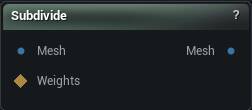
The Subdivide node
When to use it
Splits every triangle to raise resolution, with optional smoothing and reprojection back onto the original surface so the detail does not get rounded off. Good when you need more vertices for a deformation or a bake and want to keep the existing vertex layout, skin weights and morph targets.
For proper Catmull-Clark smoothing of a low-poly cage, that is OpenSubdiv. For even triangle sizes rather than more of the same triangles, Remesh.
Levels multiply. Each one quadruples the triangle count, so level 3 on a 500k mesh is 32 million triangles and no amount of patience will save you.
Press Subdivide Mesh. Nothing subdivides on a wire change.
How to use it
- 1
Connect the source mesh
- 2
Set the subdivision level and the smoothing options
- 3
Click Subdivide Mesh
Pins
| Pin | Type | Description |
|---|---|---|
Mesh |
Mesh | The mesh to add density to. |
Weights |
Weight Map | Paint here to split only part of the mesh. Leave it empty and the whole thing gets split. |
| Pin | Type | Description |
|---|---|---|
Mesh |
Mesh | The mesh with the extra triangles in it. |
Settings
| Setting | Type | Description |
|---|---|---|
Selection Threshold |
Number | The weight a vertex has to beat before the triangles around it get split. A painted mask fades off gradually, but a triangle is either split or it is not, so this is where that soft edge turns into a hard yes or no. At 0, any vertex with any paint on it counts. |
Normal Threshold |
Number | How far a triangle's facing may differ from the vertex being snapped back onto the original before it is ruled out as a landing spot. 0.5 works out to 90 degrees, 0 turns the check off. Keeps the inside of a sleeve from landing on the arm underneath it. |
Skip Material Matching |
True/False | Let a vertex snap back onto any triangle, whatever material it belongs to. Leave it off and each part stays on its own material, which is what you want where two materials meet along a seam. |
Ignore Boundary Vertices |
True/False | Hold open borders still while smoothing, so the outline of the mesh does not creep inward. |
Smoothing Type |
Choice | How the new vertices are relaxed once the splitting is done. |
Smooth Speed |
Number | How far each vertex slides toward its neighbours after the split. Set it to 0 to skip smoothing entirely. |
Enable Reproject |
True/False | Pull the new vertices back onto the shape of the original mesh after smoothing. Turn it off and the surface deflates a little, since smoothing shaves off the form. |
Projection Quality |
Whole number | How many times the reference copy of the original is split before the new vertices are snapped onto it. 0 snaps onto the mesh exactly as it came in. 2 or 3 is plenty; past that you are paying memory and time for nothing. |
Subdivision Level |
Whole number | How far to split. Level 1 gives you four triangles for every one you had, and each step after that multiplies again, so 3 on an already dense mesh will bring things to a crawl. |
Flat |
True/False | Split the triangles flat, leaving the surface exactly where it was. Off, the new points bulge out to follow the curve of the surface, which is what you usually want. |
Junction Threshold |
Number | Only matters when you subdivide part of a mesh. Along the border of the painted area, a new vertex this close to one that is already there is left alone instead of splitting the neighbouring edge. |
Merge Vertex Tolerance |
Number | How close two vertices have to be for the seam between the subdivided patch and the rest of the mesh to weld shut. Too small and you are left with a crack running around the edge of the painted area. |
Available in Mesh Morpher Graph and Mesh Morpher Studio.