Studio and Graph › Geometry
Simplify
Brings a dense mesh down to a triangle or vertex budget by collapsing edges, and keeps its UV islands, material sections and polygroups intact while doing it.
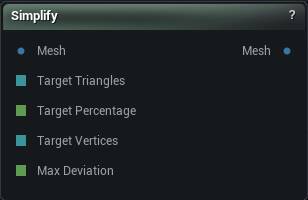
The Simplify node
When to use it
Brings a dense mesh down to a triangle or vertex budget by collapsing edges, and keeps its UV islands, material sections and polygroups intact while doing it.
Scans and AI-generated meshes arrive far denser than anything downstream needs. This is the way to cut them down without losing the work already on them: unlike Remesh, which rebuilds the surface and throws the original topology and UVs away, everything a texture or a rig depends on survives.
The reverse direction is Subdivide, and even triangle sizes rather than fewer of them is Remesh.
How to use it
- 1
Connect the dense mesh
- 2
Pick a target mode and budget, and leave the Preserve toggles on
- 3
Click Simplify
The Result category reports the before and after counts.
Pins
| Pin | Type | Description |
|---|---|---|
Mesh |
Mesh | The mesh you want fewer triangles in. |
Target Triangles |
Whole Number | Drives the triangle count from the graph. Leave it empty to use the value in the panel. Triangle Count mode only. |
Target Percentage |
Number | Drives the percentage from the graph. Leave it empty to use the value in the panel. Percentage mode only. |
Target Vertices |
Whole Number | Drives the vertex count from the graph. Leave it empty to use the value in the panel. Vertex Count mode only. |
Max Deviation |
Number | Drives the allowed drift in cm from the graph. Leave it empty to use the value in the panel. Geometric Deviation mode only. |
| Pin | Type | Description |
|---|---|---|
Mesh |
Mesh | The reduced mesh. It only updates when you press Simplify. |
Settings
| Setting | Type | Description |
|---|---|---|
Target Mode |
Choice | Which of the numbers below the reduction aims at. |
Target Triangle Count |
Whole number | How many triangles you want left. Each collapse takes two triangles away, so the result can land one under your number. Asking for more than the mesh already has passes it through untouched rather than failing, and anything under four is treated as four - below that there is nothing left to collapse and the result stops being a surface. |
Target Percentage |
Number | How much of the incoming triangle count to keep. 100 leaves the mesh alone. |
Target Vertex Count |
Whole number | How many vertices you want left. Same rule as the triangle count: ask for more than the mesh has and nothing happens to it. |
Max Deviation |
Number | How far, in centimetres, the reduced surface may drift from the original. It keeps collapsing until the next collapse would break that limit, so you get however many triangles the shape needs rather than a number you picked. Slower than the count modes, because it measures against the original the whole way. |
Quality |
Choice | What the reducer works hardest to hang on to as it collapses edges. |
Preserve UVs |
True/False | Lock every UV and normal seam so islands cannot be merged or torn open. This is what keeps a textured asset looking textured. Turn it off and the seams collapse, which smears the texture across the surface. |
Preserve Material Borders |
True/False | Lock the edges where one material meets another so sections keep their exact borders. Locked edges never collapse, so a mesh cut into many small sections may not get anywhere near a low target. |
Preserve Group Borders |
True/False | Lock the edges between polygroups. Costs you the same room to reduce that material borders do. |
Preserve Boundary |
True/False | Lock open edges so a cut-out piece keeps the exact shape of its border, and the original vertex density along it. That density is usually why a scan or a patch will not reduce far enough, so turn it off when the target stays out of reach. |
Available in Mesh Morpher Graph and Mesh Morpher Studio.