Studio and Graph › Geometry
Retopologize
Paint direction strokes on the surface, solve, and extract a quad-dominant mesh whose edge flow follows what you painted. For topology that has to be animation-ready, or readable by another artist.
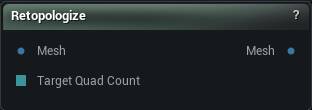
The Retopologize node
When to use it
Paint direction strokes on the surface, solve, and extract a quad-dominant mesh whose edge flow follows what you painted. For topology that has to be animation-ready, or readable by another artist.
How to use it
- 1
Wire a mesh into Mesh and select the node
Setting up takes a few seconds on a heavy scan. A progress dialog shows while it works.
- 2
Set Target Quad Count, or leave it at 0 for one quad per sixteen incoming vertices
- 3
Drag strokes across the surface with the comb to say which way the loops should run
- 4
Press Solve Orientation Field, then Solve Position Field
Both keep refining until you press them again to stop.
- 5
Press Accept to write the quad mesh out
The flow lines and the grid stay hidden until you solve. Before that the field is still random and drawing it would only show noise. Your strokes and the solved field are saved with the graph, so reopening the document drops you back where you left off.
Pins
| Pin | Type | Description |
|---|---|---|
Mesh |
Mesh | The mesh to rebuild. Usually a scan, a sculpt or a generated mesh that is far too dense to work with. |
Target Quad Count |
Whole Number | Wire a number here to drive the quad budget from the graph, so a whole LOD chain can run off one value. Leave it unconnected to use the details panel. 0 from either source means one quad per sixteen incoming vertices. |
| Pin | Type | Description |
|---|---|---|
Mesh |
Mesh | The quad mesh, once you press Accept. Empty until then. |
Settings
| Setting | Type | Description |
|---|---|---|
Target Quad Count |
Whole number | Roughly how many quads you want out. On a quad mesh the vertex count comes out about the same, so this doubles as a vertex budget. Expect to land within about 15 percent rather than on the number: the grid has to stay aligned to the flow, and that rules out hitting an exact count. 0 works it out from the input instead: one quad per sixteen incoming vertices. The resolved figure gets written back here so you can see what you got. Changing this rebuilds the field and solves it again. |
Align To Boundaries |
True/False | Make the quad grid run along open borders instead of wandering across them. Turn it on for anything with a mouth bag, eye sockets or a cut edge, or the loops drift off the rim and the border comes out ragged. |
Sharp Creases |
True/False | Pin quad edges onto the mesh's hard edges, so a jaw line or a bevel stays crisp instead of getting rounded off. It can also punch triangle holes into otherwise clean quad output, so look the result over before you rely on it. |
Adaptive Sizing |
True/False | Let quad size follow the shape, so fingers, ear rims and straps get smaller quads and survive. Switch it off and anything thinner than a single quad cell can drop out of the result entirely. Leave it on unless you want evenly sized quads more than you want the thin parts. |
Smooth Iterations |
Whole number | Even out the new quads after extraction. Each pass slides every interior vertex toward the average of its neighbours and then drops it back onto the original surface, so the grid gets tidier without the shape drifting or shrinking. Border vertices never move - those are the ones Preserve Boundary is about to snap. 0 leaves the extracted quads exactly as the solver produced them. |
Minimum Cost Flow |
True/False | Use a slower, more thorough solver for the step that decides where the quad grid's irregular points go. It generally leaves fewer of them and a cleaner flow. Worth trying when the ordinary solve gives up on a mesh - the error you get in that case names this setting. |
Preserve Sections |
True/False | Carry the original mesh's materials, UVs, vertex colours and normals over onto the new quads. Sampled from the nearest bit of the old surface when you press Accept, seams included. Turn it off if you want a bare mesh. |
Use Source Correspondence |
True/False | Change how the transfer decides which part of the old surface a new vertex came from. Off, it takes whatever is nearest, which is more accurate on ordinary geometry. Turn it on where two surfaces nearly touch, like a lash card against an eyelid, and the nearest-point search keeps sampling the wrong sheet. |
Preserve Boundary |
True/False | Pull the new mesh's open borders back onto the original ones. Without it the quad grid stops a little short of every rim and you get a thin gap all the way round a mouth or an eye socket. |
Boundary Snap Distance |
Number | How far a border vertex is allowed to travel when it snaps, counted in multiples of the new mesh's average border edge length. Anything further from the old border than this stays where it is. The cap is what stops two neighbouring vertices snapping to opposite sides of a hole and dragging a folded black shard across it. 2 is generous; drop to 1 for a tighter snap when the original border is dense. |
Smooth Strokes |
True/False | Smooth each stroke once you let go of it, so a shaky drag still reads as a clean direction. Off by default: the smoothing pulls a closed stroke in on itself, so a loop drawn round an eye ends up smaller than you drew it. |
Weld Before Init |
True/False | Merge vertices sitting on top of each other before anything else runs. An imported mesh is often split at every UV seam, and those splits break the surface into pieces this cannot solve across. Leave it on. |
Weld Tolerance |
Number | How close two vertices have to be before they merge, in world units. 0 merges only the ones at exactly the same spot, which is what you want for a plain seam split. Raise it to close up geometry that has drifted apart; raise it too far and real detail collapses. Changing it rebuilds. |
Show Flow Lines |
True/False | Draw the coloured lines that show which way the loops will run. They only appear once you have solved the orientation field at least once, and picking a position tool switches them off for you. |
Show Grid |
True/False | Draw the grid overlay over the mesh. Needs the position field solved first, and picking a position tool switches it on for you. |
Show Exact Quads |
True/False | Show the finished quads in the grid - the same layout Accept will produce, rebuilt in the background a moment after each change (the previous quads stay up while a rebuild runs). Turn it off to use the flow-line grid instead, which updates instantly and follows the field live but only approximates the final quads. |
Show Flow Field |
True/False | Put a small cross on sampled vertices showing the two directions the grid follows there. Worth turning on to read the field up close when the flow lines are too far apart to tell. |
Show Painted Strokes |
True/False | Draw the strokes you have already painted. |
Show In Progress Stroke |
True/False | Draw the white ribbon that trails the cursor while you are dragging. |
Flow Line Density |
Number | How many flow lines get drawn. This only touches the coloured lines; the grid overlay draws at the real quad density and ignores it. 0.5 is the normal amount, 0 is a quarter of it, 1 is four times as many. |
Field Sample Count |
Whole number | How many vertices get a cross drawn on them. Raise it to read the field in a tight spot, drop it when the crosses start hiding the mesh. |
Field Arm Size Scale |
Number | How long the cross arms are drawn. 0.5 is the normal length, 0 is a quarter of it, 1 is four times as long. |
Singularity Size Scale |
Number | How big the singularity markers are drawn, on the same scale as the cross arms. Singularities are the points where loops converge instead of running straight through. |
Grid Ribbon Width |
Number | How wide the grid lines are drawn. They are real geometry sitting on the surface rather than screen-space lines, so the width scales with the mesh: 0.5 normal, 0 a quarter, 1 four times. Changing it redraws the grid. |
Flow Ribbon Width |
Number | How wide the flow lines are drawn, on the same scale as the grid width. Each line is fattest in the middle and tapers away at both ends. |
Field Arm Thickness |
Number | Line thickness of the first cross arm, in pixels. 0 hides it. |
Field Ortho Thickness |
Number | Line thickness of the second cross arm, in pixels. |
Singularity Thickness |
Number | Line thickness of the singularity markers, in pixels. |
Painted Stroke Thickness |
Number | Line thickness of the strokes you have painted, in pixels. |
In Progress Stroke Thickness |
Number | Line thickness of the white stroke that follows the cursor, in pixels. |
Available in Mesh Morpher Graph and Mesh Morpher Studio.