Studio and Graph › Geometry
Remove Geometry
Deletes the triangles the connected selection marks, rebuilding skin weights and material slots so what is left is still a usable asset. Cropping a scan, dropping an unwanted accessory, cutting a r...
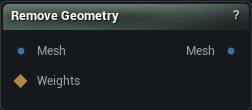
The Remove Geometry node
When to use it
Deletes the triangles the connected selection marks, rebuilding skin weights and material slots so what is left is still a usable asset. Cropping a scan, dropping an unwanted accessory, cutting a region out before a replacement gets appended.
Watch Selection Threshold. The selection arrives as per-vertex weights, and this is where a vertex starts counting as selected. Too low and the cut creeps out into the soft edge of your paint. Too high and nothing goes at all.
Holes where you wanted a clean edge are normal. Follow with Fill Holes or Stitch Mesh.
How to use it
- 1
Connect the mesh and a triangle selection
- 2
Click Apply to remove the selected geometry
Pins
| Pin | Type | Description |
|---|---|---|
Mesh |
Mesh | The mesh to cut geometry out of. |
Weights |
Weight Map | Marks what to delete. Any triangle touching a vertex above Selection Threshold goes. |
| Pin | Type | Description |
|---|---|---|
Mesh |
Mesh | What is left. |
Settings
| Setting | Type | Description |
|---|---|---|
Selection Threshold |
Number | The weight a vertex has to beat before the triangles around it get deleted. A painted mask fades off gradually, but a triangle either goes or it stays, so this is where that soft edge turns into a hard yes or no. At 0, any vertex with any paint on it counts, which usually takes more of the surrounding surface than you meant. |
Available in Mesh Morpher Graph and Mesh Morpher Studio.