Studio and Graph › Exporters
Write USD
A static USD layer with every UV set, vertex colours and UsdPreviewSurface materials, which is what a USD-native pipeline expects to receive for a prop or a character.
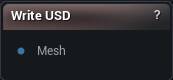
The Write USD node
When to use it
A static USD layer with every UV set, vertex colours and UsdPreviewSurface materials, which is what a USD-native pipeline expects to receive for a prop or a character.
One shape is all this writes. A deforming sequence out of a streaming cache goes through Export Geometry Cache to USD instead.
Pick the extension deliberately. .usdc is compact binary, .usda is readable text and enormous, .usd lets the toolchain decide.
How to use it
- 1
Connect a mesh to the Mesh input pin
- 2
Tweak the axis, scale and material settings
- 3
Click Write USD and choose a destination
Pins
| Pin | Type | Description |
|---|---|---|
Mesh |
Mesh | The mesh to save. UVs, vertex colours and materials come through, but not bones. |
Settings
| Setting | Type | Description |
|---|---|---|
Scale |
Number | Multiplies every vertex position on the way out. It does not change what unit the file says it is in, which is what Unit Scale below is for. |
Unit Scale (Meters Per Unit) |
Number | What one unit in the file means, in metres. The 0.01 default means the positions leave as centimetres and the file says so, which is exact and needs no arithmetic. For a metres-based file set this to 1.0 and Scale to 0.01: change one without the other and the mesh lands a hundred times off. |
Flip V |
True/False | Flips V so UVs sit the way USD and Maya read them. Get it wrong and textures come out upside down. |
Write All UV Sets |
True/False | Writes every UV set, not just the first. The extras come through named st1, st2 and so on. |
Write Normals |
True/False | Writes normals per face corner, so hard edges stay hard. Turn it off and the receiving app smooths everything and your creases go soft. |
Vertex Colors |
Choice | What goes into the display-colour channel: the mesh's own colours, one flat colour per material section (the same colours the sculpt viewport shows in Section Colors), or nothing. |
Prim Path |
Text | Where the mesh sits inside the file, as a path. The first part of it becomes the root that other apps open the file at. |
| Setting | Type | Description |
|---|---|---|
Y Up |
True/False | Stands the mesh up Y-up, the way most other packages want it, instead of the Z-up MeshMorpher works in. Either way the shape is preserved, not mirrored, and Load USD File brings it back exactly as it left. |
Flip Winding |
True/False | Reverses triangle winding, which is what keeps the surface facing outward once the axes have been converted. Leave it on. Switch it off and the file records that choice honestly, so the mesh still shades the right way out, but nothing is gained by it. |
| Setting | Type | Description |
|---|---|---|
Write Materials |
True/False | Writes a material per section and binds it to the right faces. Turn it off and the mesh arrives with no shading at all. |
Write Textures |
True/False | Writes the mesh's images into a folder next to the file and points the materials at them. Nothing is packed inside the file itself, so move the file on its own and every material comes up untextured. |
Available in Mesh Morpher Graph and Mesh Morpher Studio.