Classic › Editor › Tools
Classic › Editor › Tools › General
Options
Mesh Morpher allows users to configure the visuals indicators to help them with the Tools.
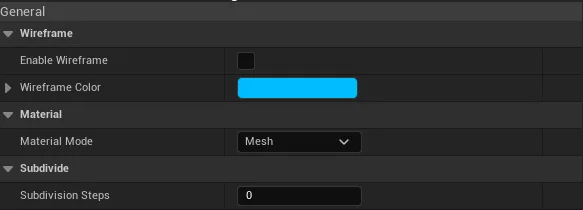
| Options | Description |
|---|---|
| Enable Wireframe | Users can enable/disable Wireframe in Tools. |
| Wireframe Color | Pick a Wireframe color |
| Material Mode | Sometimes the mesh materials can confuse users or hide certain details. Mesh Morpher allows users to use the meshes material or the Focus Material. |
| Subdivision Steps | Allows users to subdivide the mesh in sculpt tool. The subdivided mesh gets projected on the skeletal mesh when the editing is finished. |
Classic › Editor › Tools › General
Masking
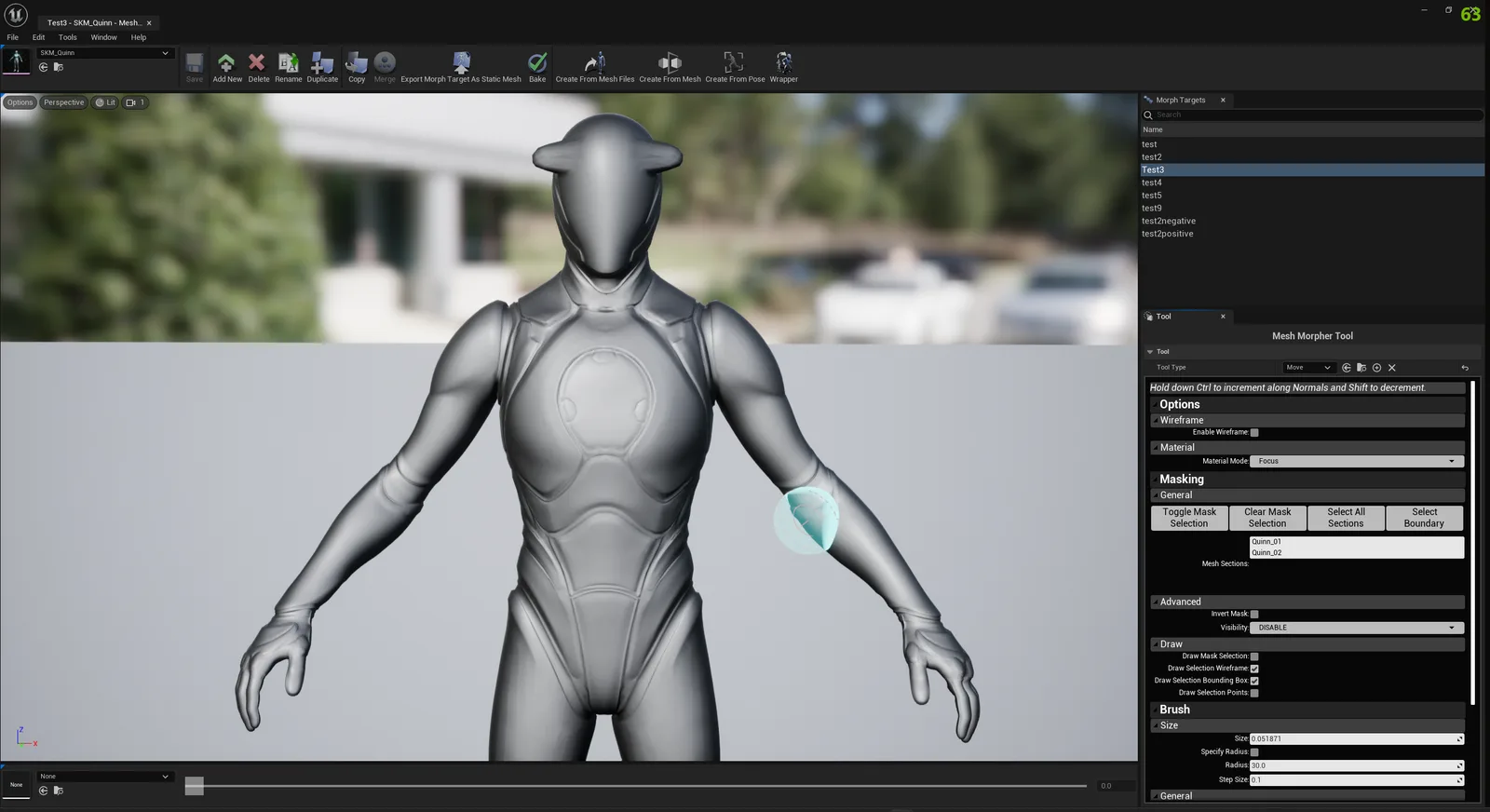
Mesh Morpher allows users to select and mask certain portions of the meshes in order to provide them with precision when applying Tools.
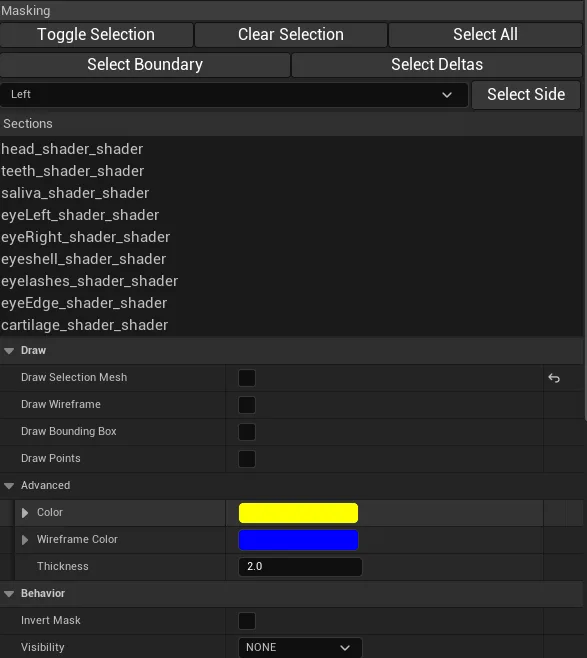
Side Masking Menu
| Options | Description |
|---|---|
| Toggle Selection | Allows users to toggle drawing selection on/off. When the Mask Selection Drawing is enabled, the notification area will display the following message |
| Clear Selection | Clears the current mask selection |
| Select All | Selects all sections in Mesh Sections |
| Select Boundary | Selects the boundary vertices of the mesh |
| Select Deltas | Selects affected vertices |
| Select Side | Allows users to select vertices located in the picked side. |
| Sections | Displays the current Sections available in the mesh data and allows users to select them. When selecting a section, previous masked vertices are cleared. Once a section is selected, toggling masking allows users to add additional masked vertices to the selection |

Draw
| Options | Description |
|---|---|
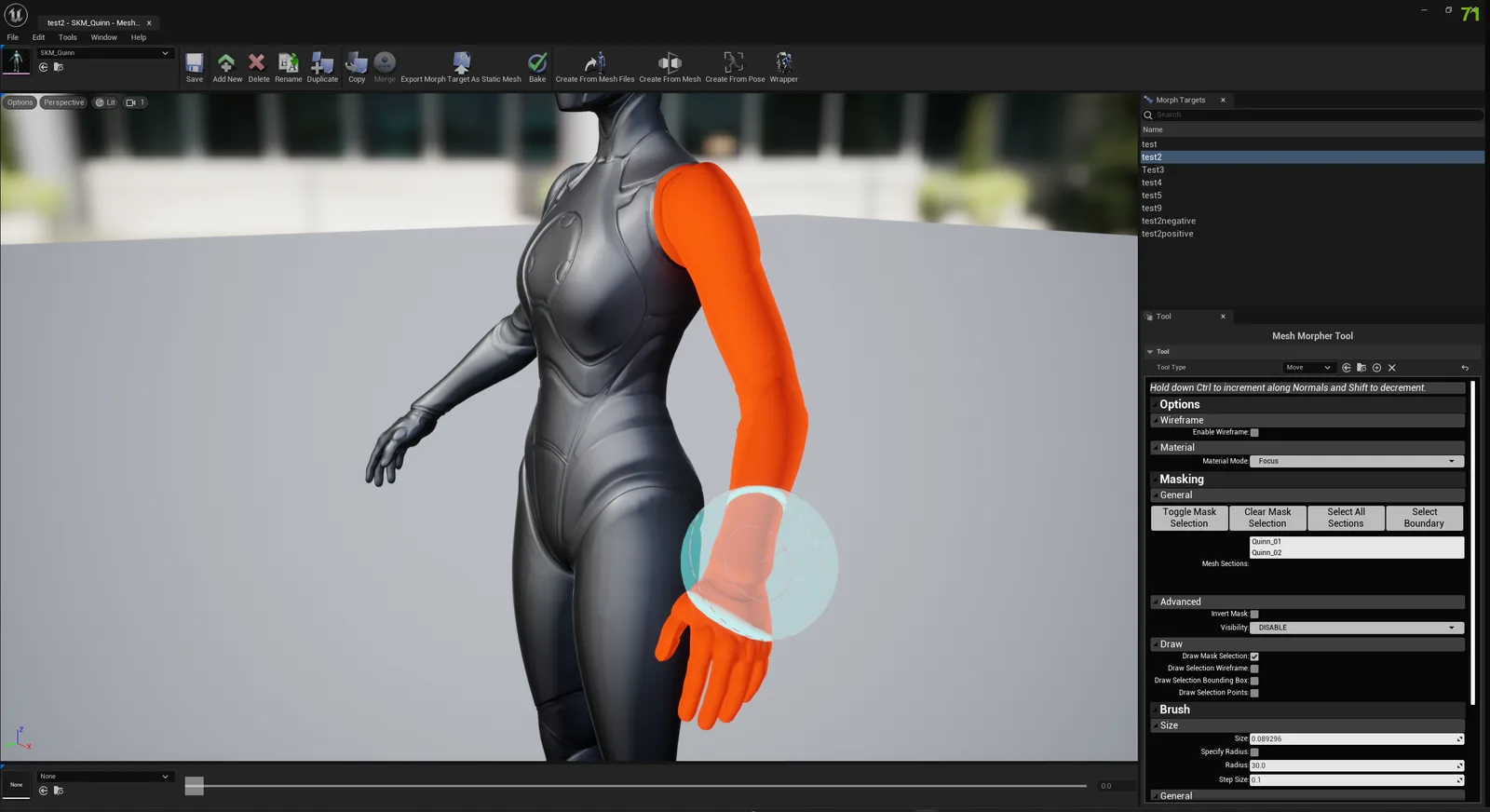
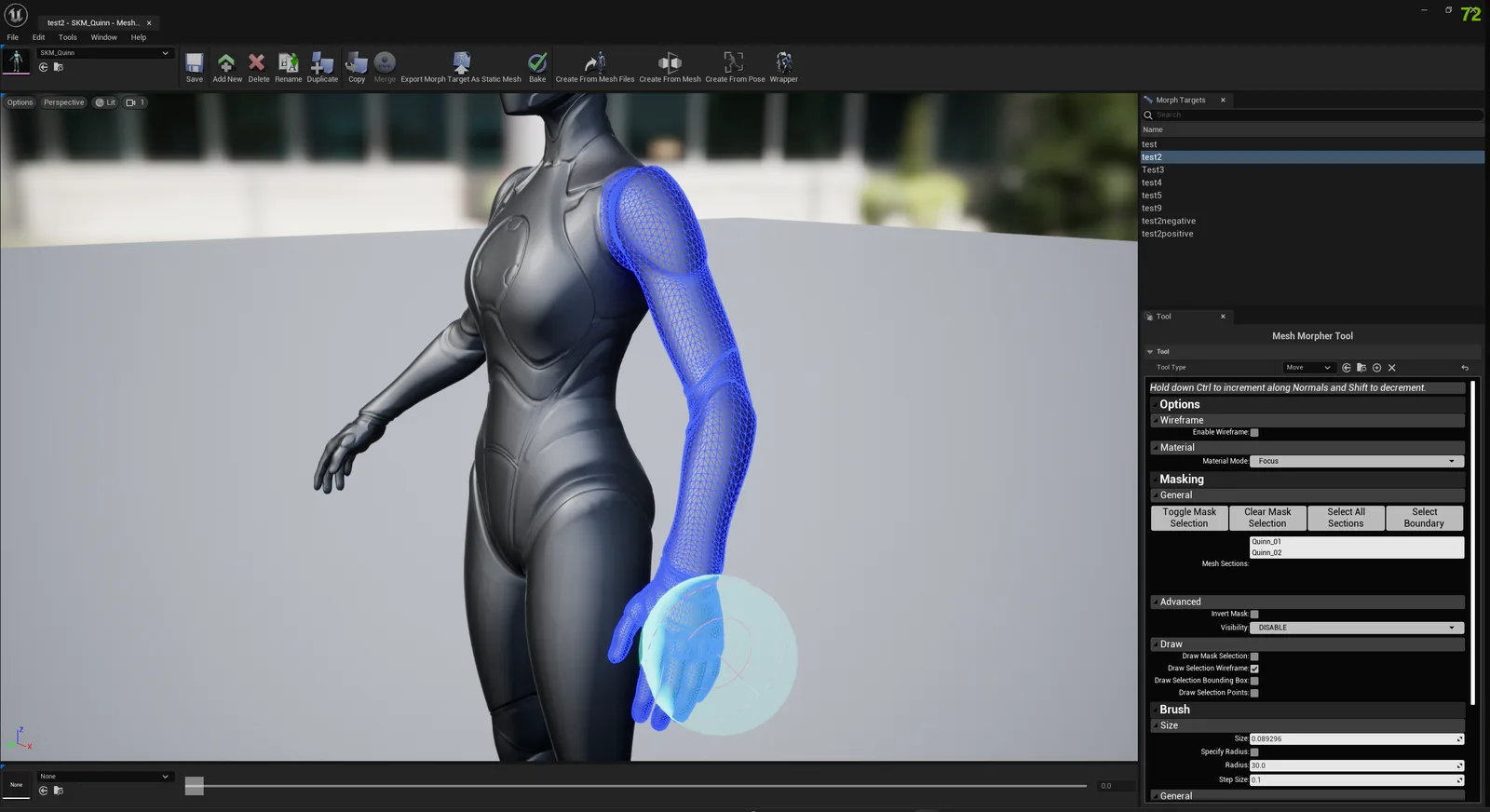
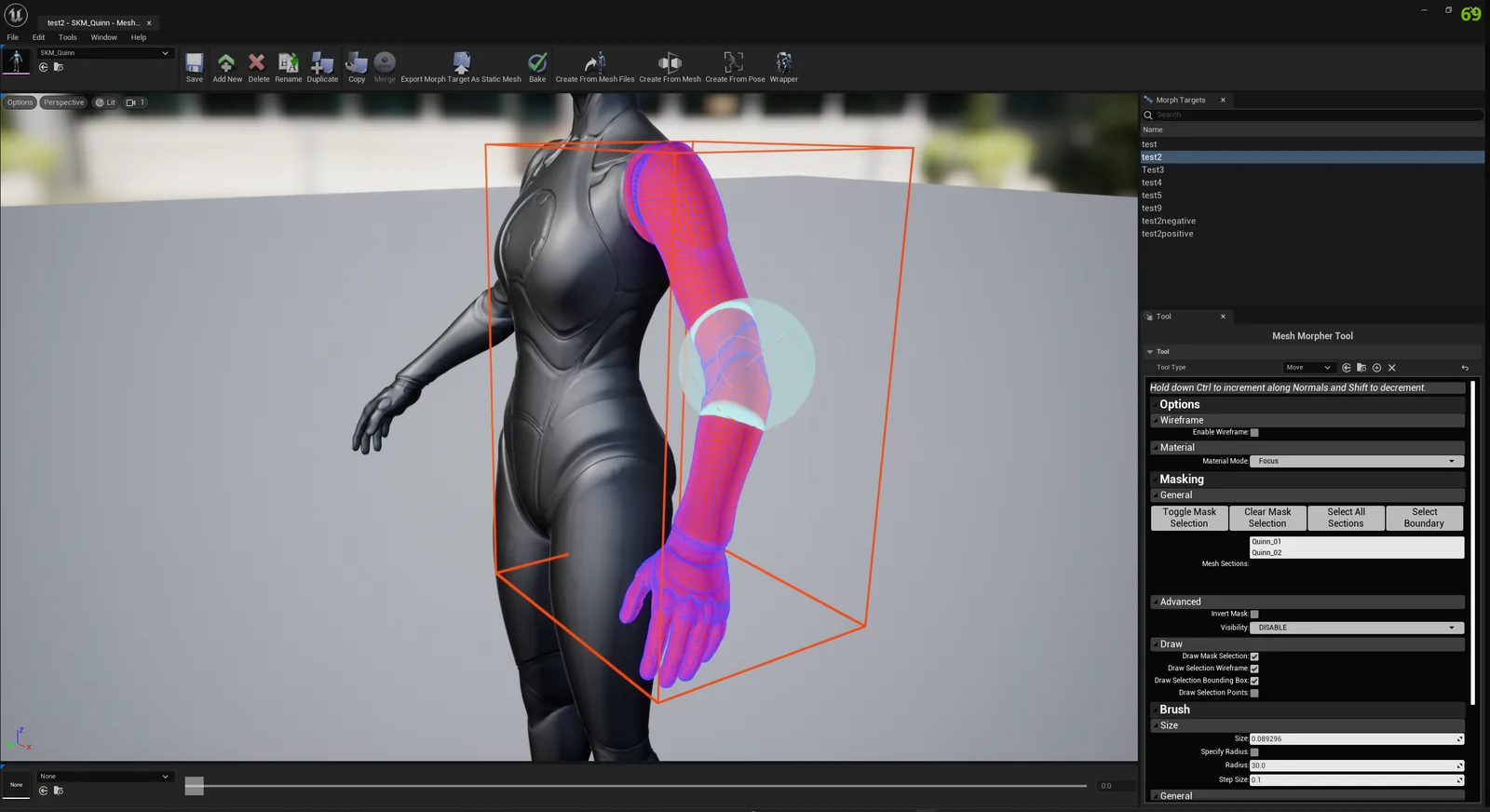
| Draw Selection Mesh | If enabled, the selection will be drawn as a mesh on top of the existing Mesh |
| Draw Wireframe | If enabled, draws the wireframe of the selection |
| Draw Bounding Box | If enabled, draws a bounding box around the selection |
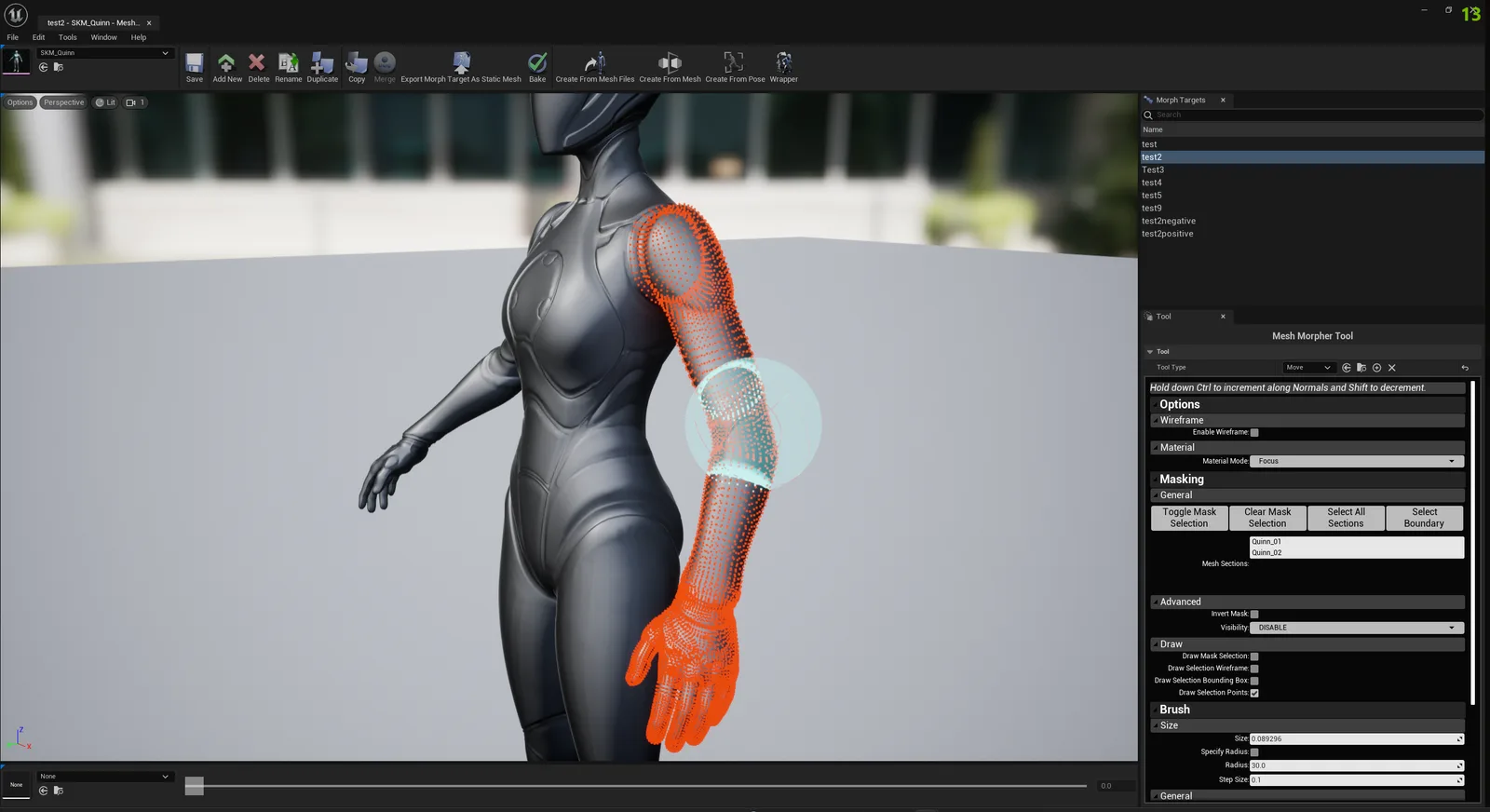
| Draw Points | If enabled, draws the vertices points of the mask selection |
| Color | Set the color of the selection mesh |
| Wireframe Color | Set the color of the selection wireframe |
| Thickness | Set the thickness of the selection drawing elements |
Behavior
| Options | Description |
|---|---|
| Invert Mask | Inverts the behavior of the selection. If enabled, only the vertices that are not part of the selection can be modified. If disabled, users can only modify the vertices that are part of the selection. |
| Render Unselected | Whether to render unselected vertices |
Users can save a mask selection to a UStandaloneMaskSelection asset to use it later whenever they want.
To save a selection, users need to go to Edit->Selection
and select Save Selection(enabled only if a selection is already open) or Save Selection As...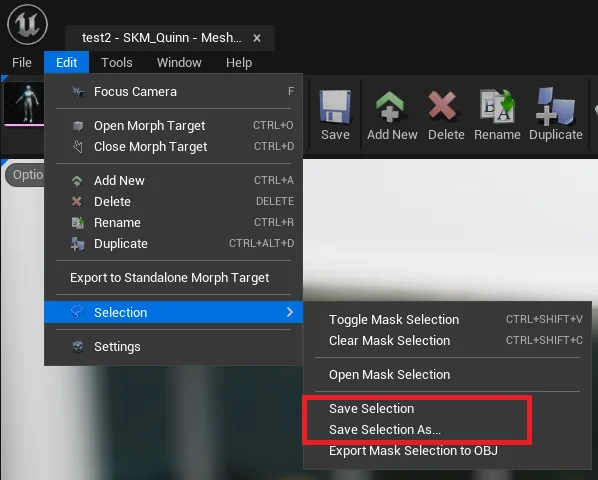
Users can also open a previously saved UStandaloneMaskSelection asset by going to Edit->Selection and clicking on Open Mask Selection which will open a asset browser.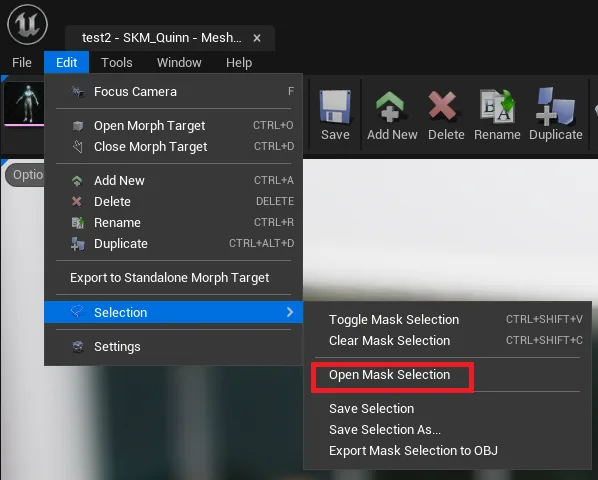
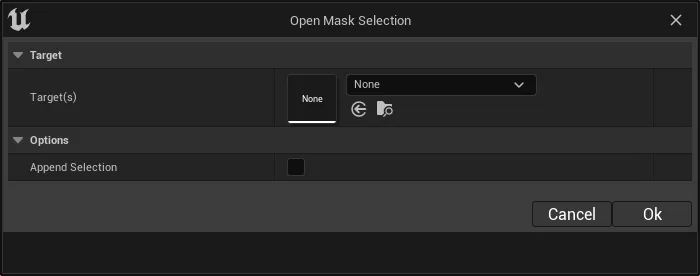
Enabling Append Selection, will add the Mask Selection to the existing selection in Tools.
Users can also export a selection to an OBJ file by going to Edit->Selection and clicking on Export Mask Selection to OBJ...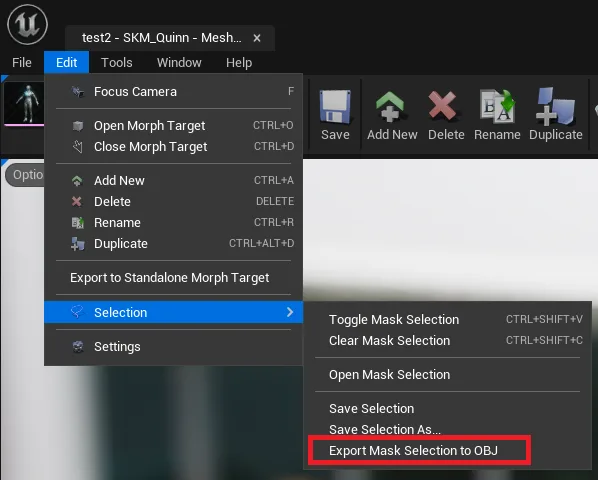
When Masking is toggled on, the Tool is disabled, users can only draw mask selection.
Classic › Editor › Tools › General
Brush
Mesh Morpher allows users to configure the Brush parameters to help them achieve wanted results with the Tools.
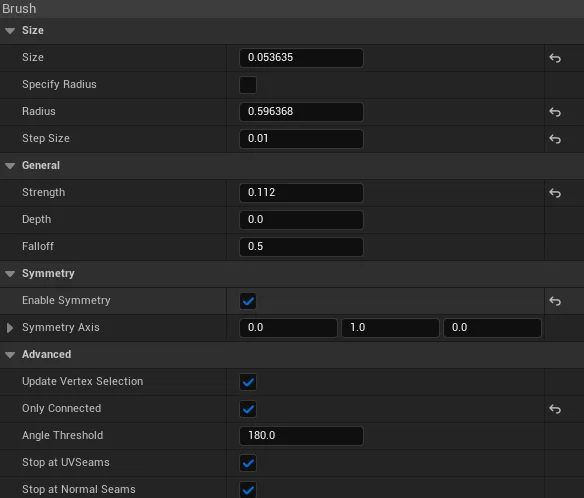
| Options | Description |
|---|---|
| Size | Size of the brush indicator relative to the mesh size |
| Specify Radius | Users can also manually specify a brush radius by enabling this option |
| Radius | Radius of the brush |
| Step Size | By pressing [ and ] users can increase/decrease the brush size by the Step Size amount |
| Strength | Strength of the brush. Changes how impactful the brush actions are |
| Depth | Depth allow to change how deep the Brush gets placed on the Drag Plane, the initial brush positioning. |
| Falloff | Allows to change how impactful the brush can be on the outskirts. |
| Falloff Type | Falloff type applied on the outskirts of the brush. |
| Enable Symmetry | If enabled, a second brush indicator will appear that will be placed at 180 rotation to the Symmetry Axis. 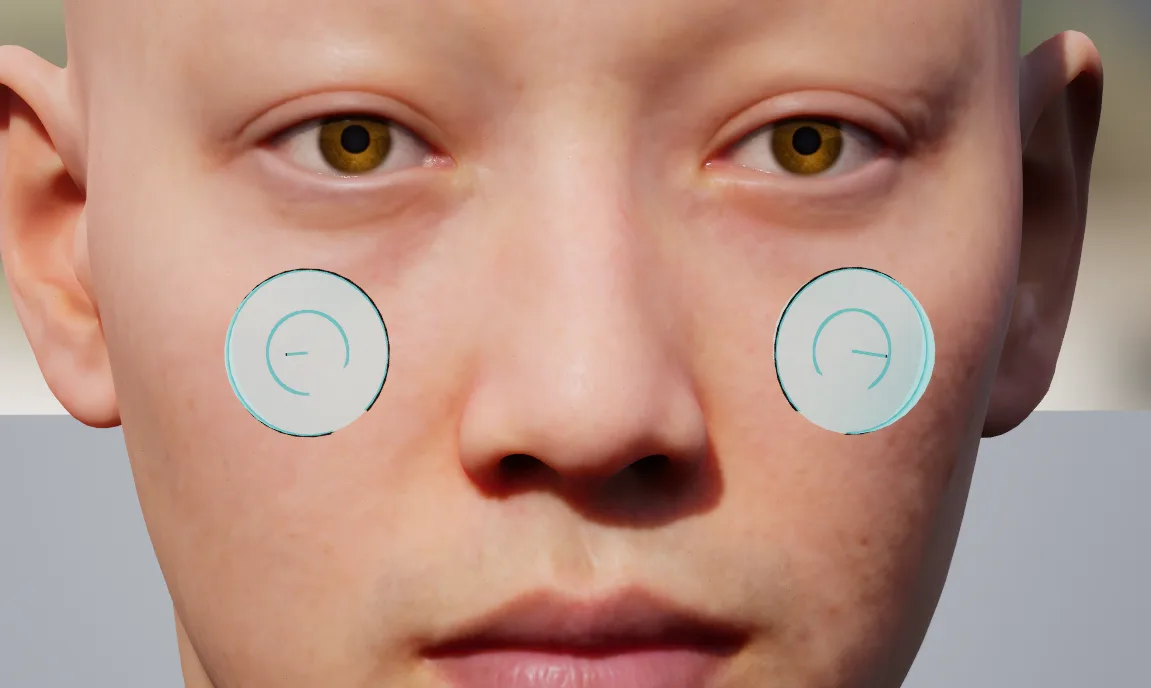 |
| Symmetry Axis | Mesh Morpher uses Y forward so the symmetric brush will be placed accordingly |
| Update Vertex Selection | Whether to update the vertex selection on brush move |
| Only Facing Camera | Whether to only hit and select vertices only facing camera. |
| Only Connected | Enabling this options disables Only Facing Camera option. This options allows users to select and use the brushes only on connected triangles. |
| Angle Threshold | The angle threshold at which the triangles are still marked as connected |
| Stop at UV Seams | Stops the iteration of connected triangles at UV seams |
| Stop at Normal Seams | Stops the iteration of connected triangles at Normal seams |
Classic › Editor › Tools › General
Indicators
Mesh Morpher allows users to configure how Brush indicators are rendered. Changing thsese settings can increase visibility in certain cases and improve overall user experience.
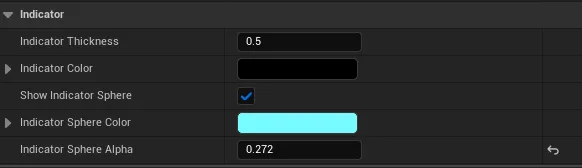
| Options | Description |
|---|---|
| Indicator Thickness | Set the Indicator thickness |
| Indicator Color | Set the Indicator color |
| Show Indicator Sphere | Whether to display Sphere Indicators |
| Indicator Sphere Color | Set the color of Sphere Indicators |
| Indicator Sphere Alpha | Set the opacity of Sphere Indicators |
Classic › Editor › Tools › General
Shortcuts
Hold key (B) to dynamically change brush size moving mouse left and right 
Hold key (N) to dynamically change brush falloff moving mouse left and right
Hold key (T) to dynamically change brush strength moving mouse left and right
The values are increased by the Step Size value in Brush Settings.