Classic › Editor
Classic › Editor › Basic Operations
Open Skeletal Mesh
There are several ways you can open a Skeletal Mesh in Mesh Morpher.
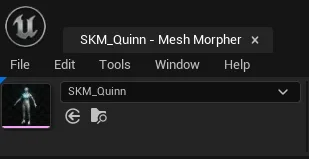
- Use the asset picker in Mesh Morpher's toolbar.
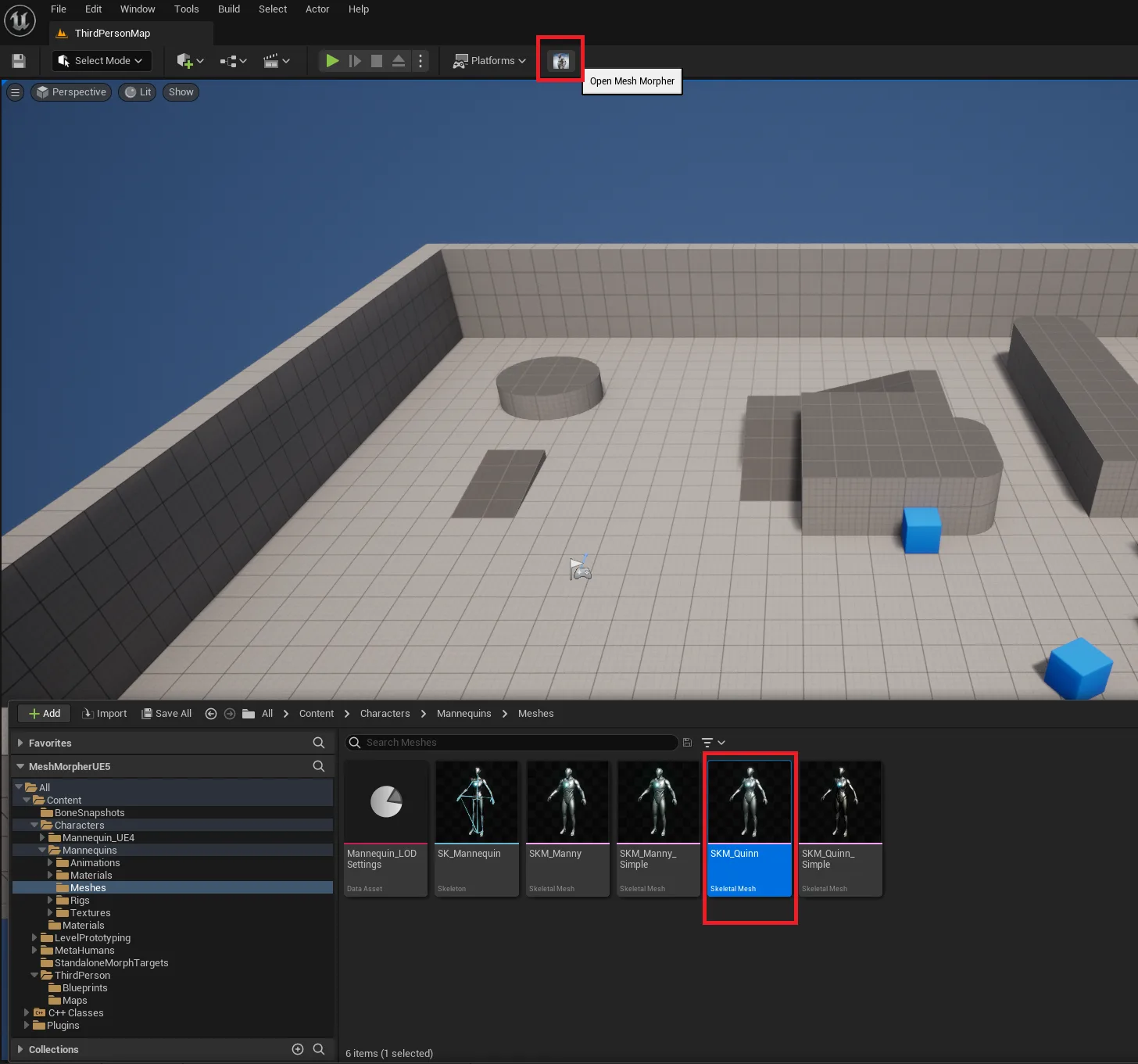
- Select the Skeletal Mesh in Content Browser and click on Mesh Morpher icon.
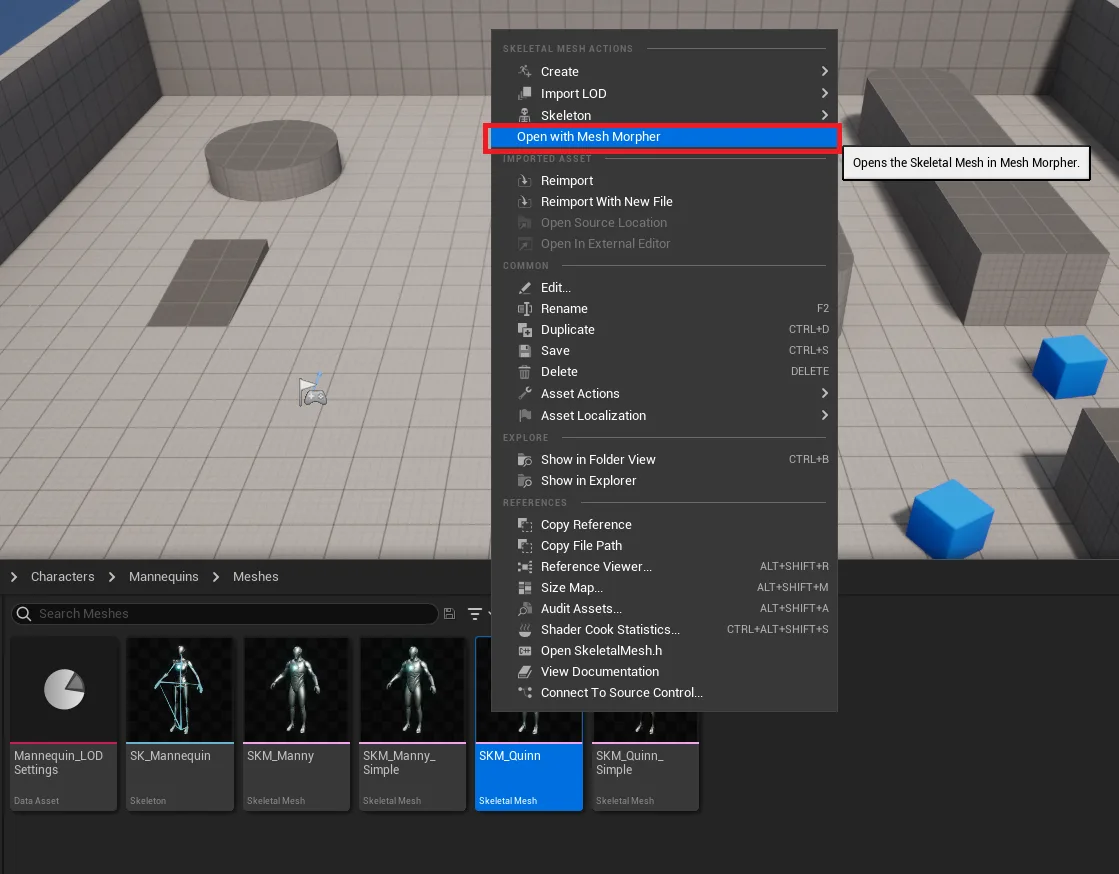
- Select the Skeletal Mesh in Content Browser, right click and select Open with Mesh Morpher.
Classic › Editor › Basic Operations
Save
Saves the changes to the Skeletal Mesh making them persistent.
Save button is accessible through:
- Toolbar

- Navigating to File top dropdown menu and clicking save
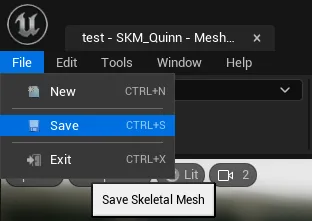
Keyboard shortcut: Ctrl + S
The button is greyed out when there's nothing recorded to save.
Saving is irreversible.
Classic › Editor › Basic Operations
Open Morph Target
Mesh Morpher allows users to load and sculpt existing Morph Targets in-engine.
There are three ways to load a Morph Target:
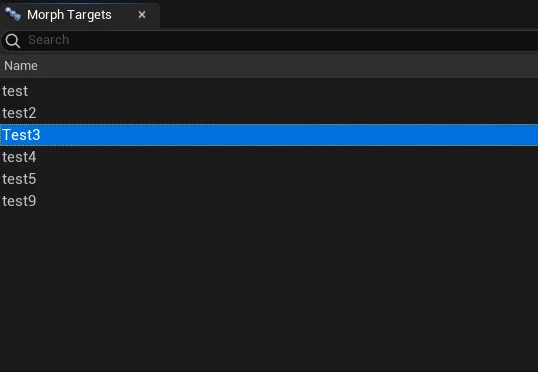
- Double-click on the Morph Target you want to load in Morph Targets list.
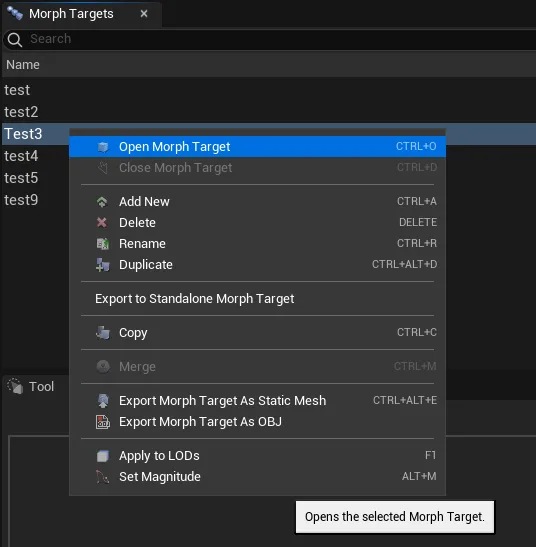
- Right-click on the Morph Target you want to load in Morph Targets list and select Open Morph Target.
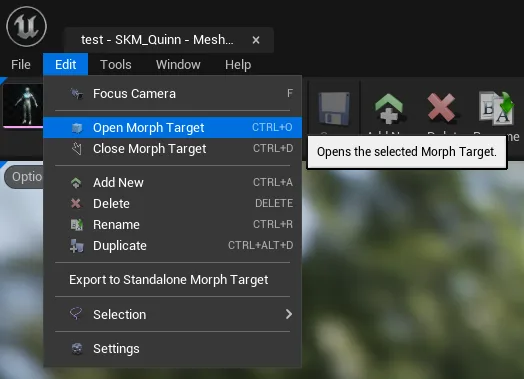
- Navigating to Edit top dropdown menu and clicking Open Morph Target
Keyboard shortcut: Ctrl + O
Classic › Editor › Basic Operations
Close Morph Target
Mesh Morpher allows users to unload Morph Targets that have been previously loaded.
There are two ways to unload a loaded Morph Target:
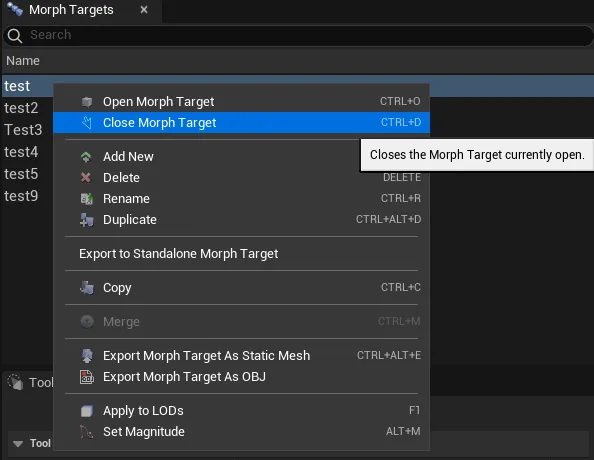
- By right-clicking on the Morph Targets list and select Close Morph Target.
- Navigating to Edit top dropdown menu and clicking Close Morph Target.
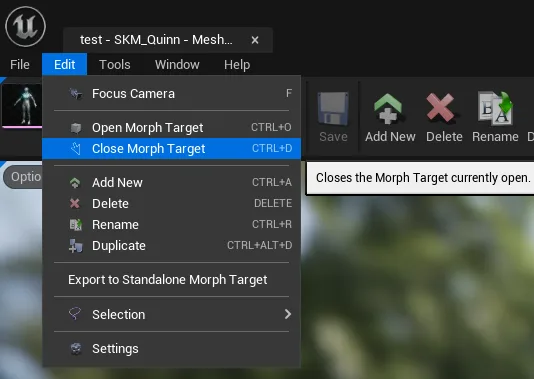
If there are any changes to the Morph Target, Mesh Morpher will attempt to save them.
Keyboard shortcut: Ctrl + D
The button is greyed if no Morph Target is loaded.
Classic › Editor › Basic Operations
Add New
Mesh Morpher allows users to create and sculpt new Morph Targets in-engine without the need of any other DCC software.
There are three ways to create new Morph Targets:
- By clicking Add New in Mesh Morpher's toolbar

- By right-clicking on the Morph Targets list and select Add new
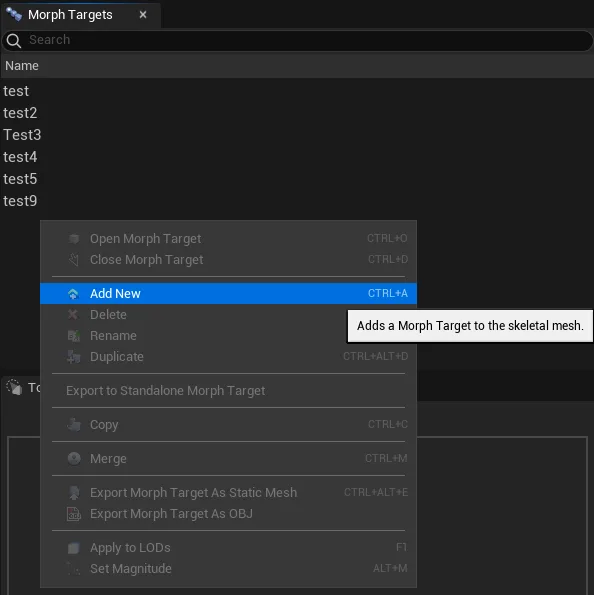
- Navigating to Edit top dropdown menu and clicking Add new
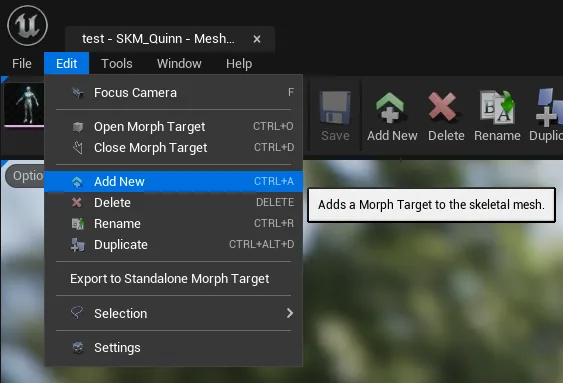
Once the Add New button is pressed, a dialog box will open, asking for a name for the new Morph Target.
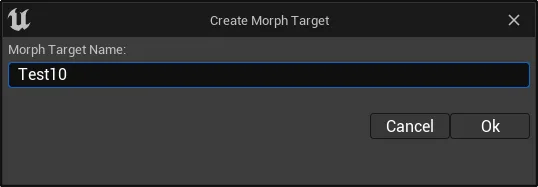
If the selected Morph Target name is already in use, a new dialog box will pop asking whether to overwrite or change the name. Pressing Yes will clear and overwrite the existing Morph Target.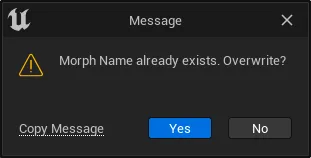
Keyboard shortcut: Ctrl + A
Classic › Editor › Basic Operations
Delete
Mesh Morpher allows users to delete Morph Targets in-engine without the need of any other DCC software.
You can delete a single Morph Target or multiple Morph Targets by using Ctrl+Click or Shift+Click to select additional Morph Targets in the Morph Targets list.
There are three ways to delete Morph Targets:
- By clicking Delete in Mesh Morpher's toolbar

- By Right-clicking on the Morph Target you want to Delete in Morph Targets list and select Rename.
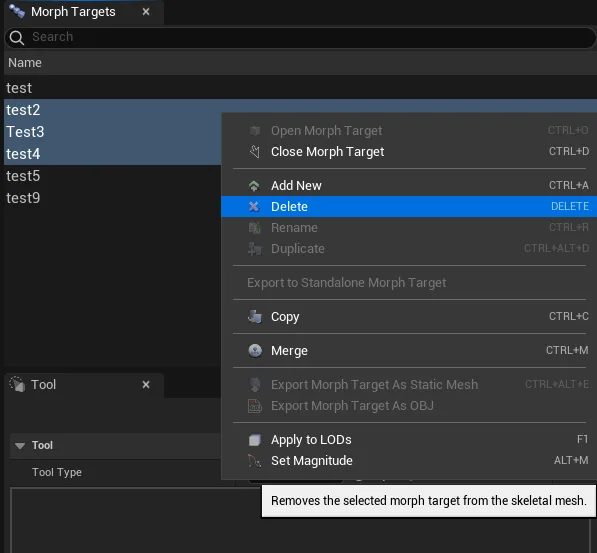
- Navigating to Edit top dropdown menu and clicking Delete
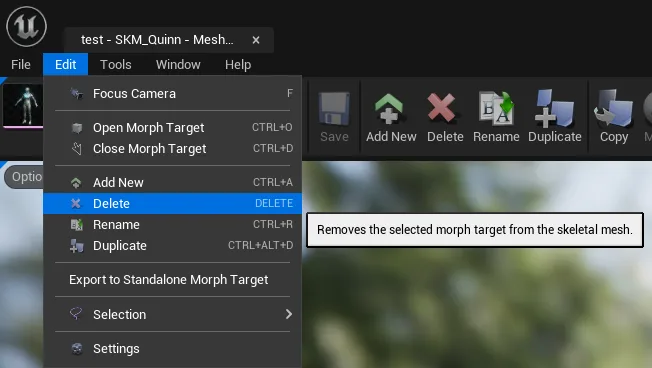
A new dialog will pop asking for confirmation. Clicking Yes will proceed with Morph Target removal.
Keyboard shortcut: DELETE
The button is greyed out when there's no selection.
Morph Target removal is irreversible.
Delete allows multi-selection.
Classic › Editor › Basic Operations
Rename
Mesh Morpher allows users to rename Morph Targets in-engine without the need of any other DCC software.
There are three ways to rename Morph Targets:
- By clicking Rename in Mesh Morpher's toolbar

- By Right-clicking on the Morph Target you want to rename in Morph Targets list and select Rename.
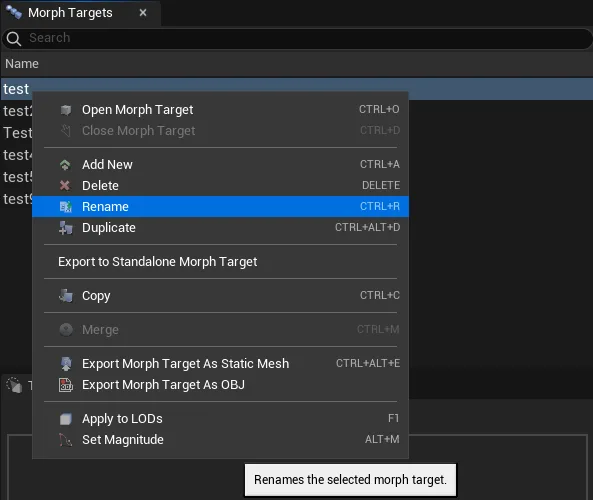
- Navigating to Edit top dropdown menu and clicking Rename
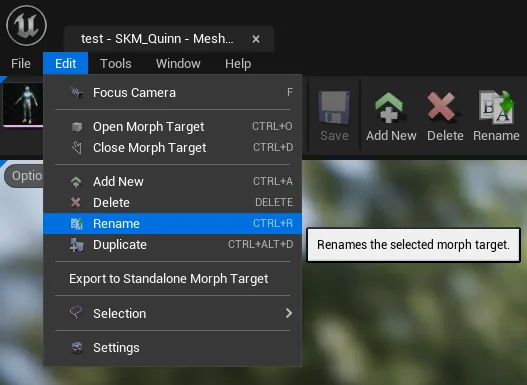
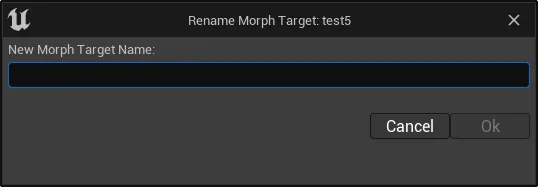
Once the Rename button is pressed, a dialog box will open, asking for a New Morph Target Name.
If the selected Morph Target name is already in use, a new dialog box will pop with the information.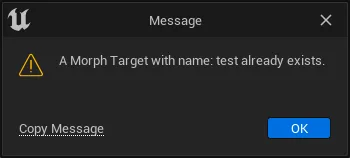
Keyboard shortcut: Ctrl + R
The button is greyed out when there's no selection.
Morph Target renaming is irreversible.
Rename doesn't allow multi-selection.
Classic › Editor › Basic Operations
Duplicate
Mesh Morpher allows users to duplicate Morph Targets in-engine without the need of any other DCC software.
There are three ways to duplicate Morph Targets:
- By clicking Duplicate in Mesh Morpher's toolbar

- By Right-clicking on the Morph Target you want to duplicate in Morph Targets list and select Duplicate.
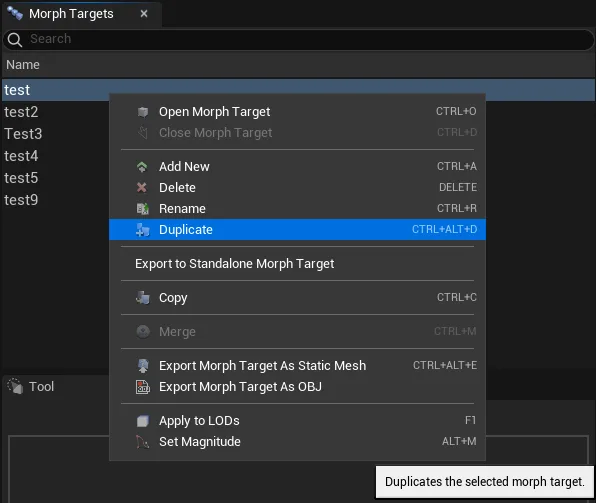
- Navigating to Edit top dropdown menu and clicking Duplicate
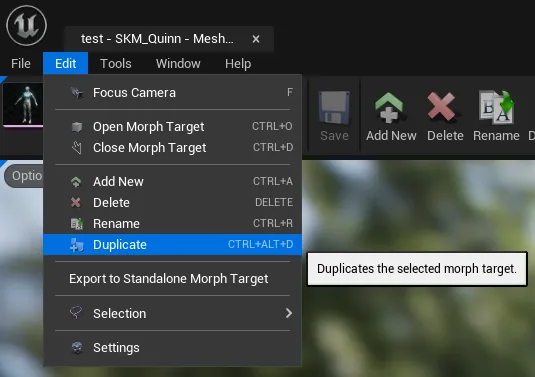
Once the Duplicate button is pressed, a dialog box will open, asking for a name for the new Morph Target.
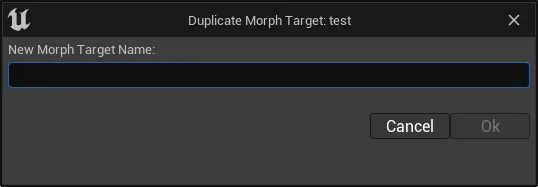
If the selected Morph Target name is already in use, a new dialog box will pop asking whether to overwrite or change the name. Pressing Yes will clear and overwrite the existing Morph Target.
Keyboard shortcut: Ctrl + Alt + D
Duplicate doesn't allow multi-selection.
Classic › Editor › Basic Operations
Set Magnitude
Set Magnitude works as a Multiplier in Mesh Morpher.
Set Magnitude works as a Multiplier in Mesh Morpher.
It allows users to change the impact of the deltas in a Morph Target by a given value. Values can go both ways, negative to decrease the impact and positive the increase the impact.
You can Set Magnitude for a single Morph Target or multiple Morph Targets by using Ctrl+Click or Shift+Click to select additional Morph Targets in the Morph Targets list.
There are two ways to Set Magnitude of a Morph Target:
- By Right-clicking on the Morph Target you want to change Magnitude for, in Morph Targets list, and select Set Magnitude.
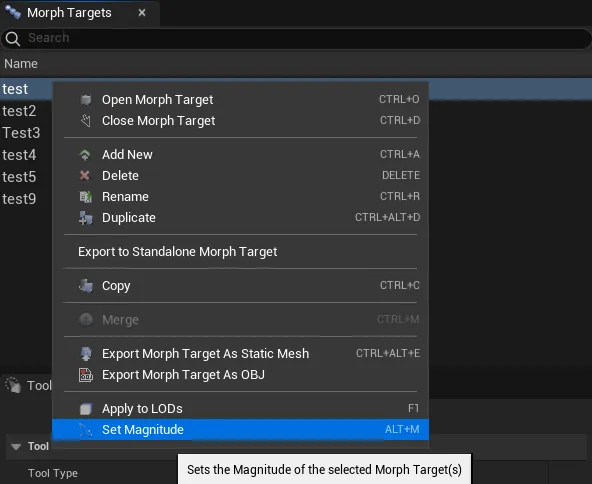
- Navigating to Tools top dropdown menu and clicking Set Magnitude
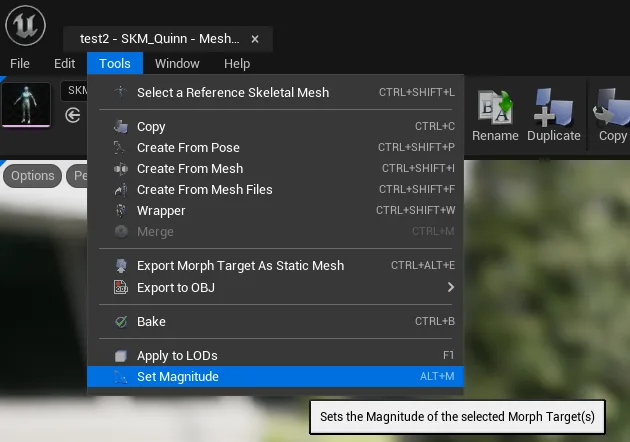
Once the Set Magnitude button is pressed, a dialog box will open, asking for a Magnitude value.
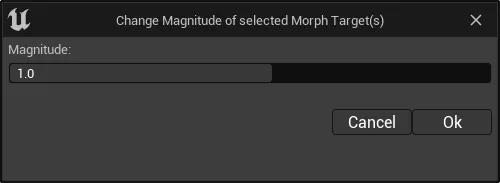
Keyboard shortcut: Alt + M
Set Magnitude allows multi-selection.
Here is an example of how Magnitude Works with both negative and positive magnitude values.
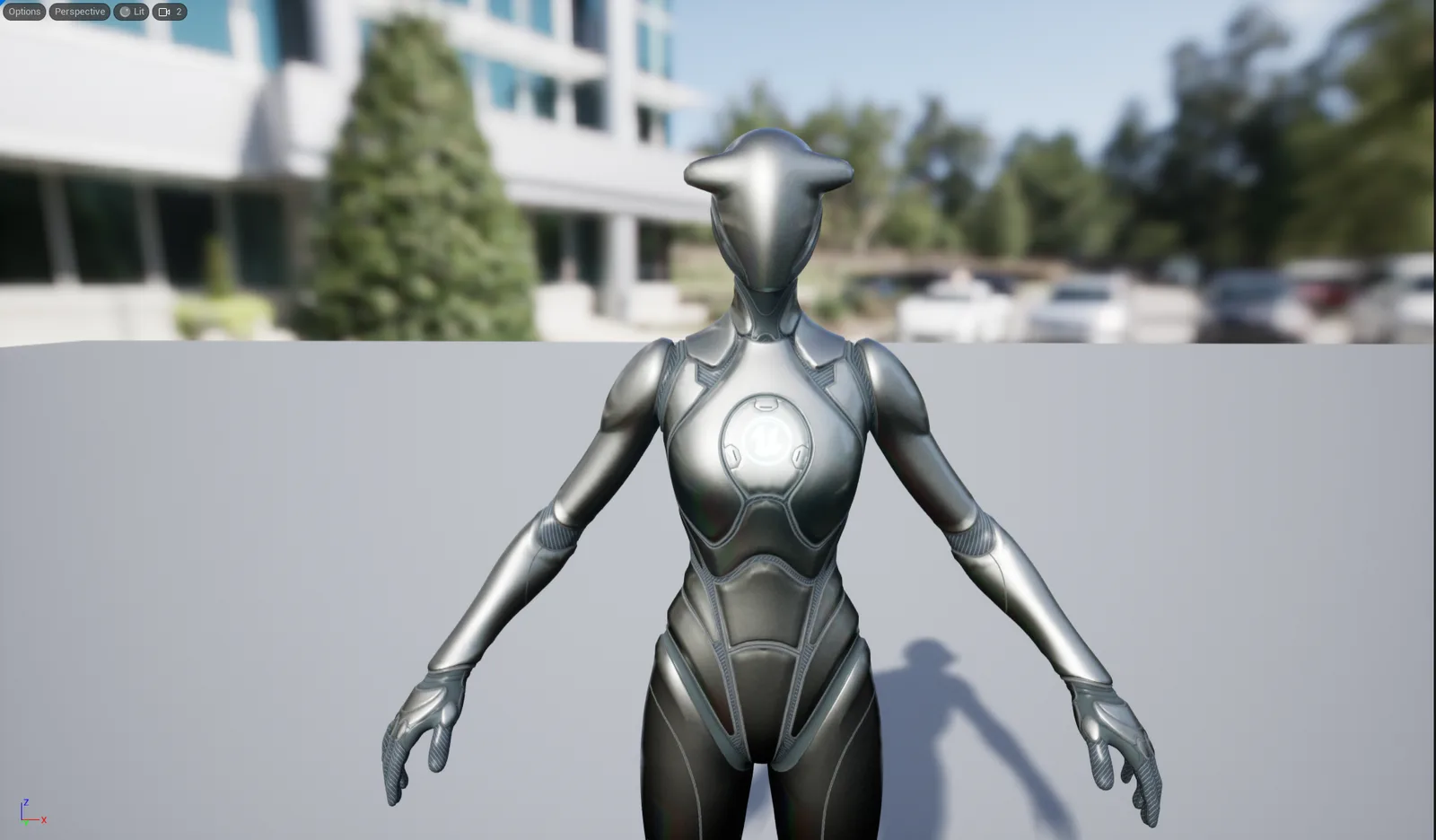
Original Morph Target
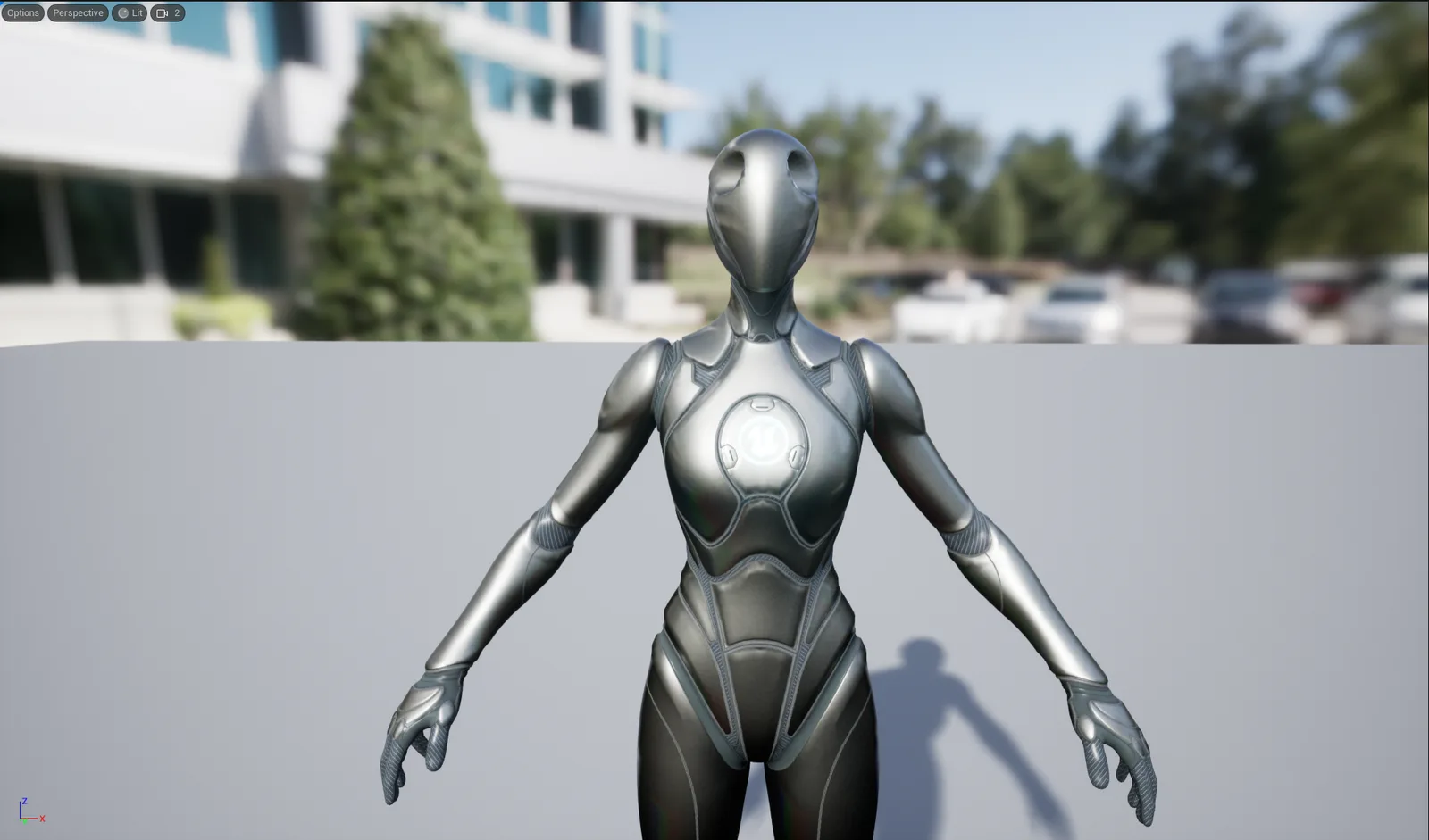
Magnitude: -1.0
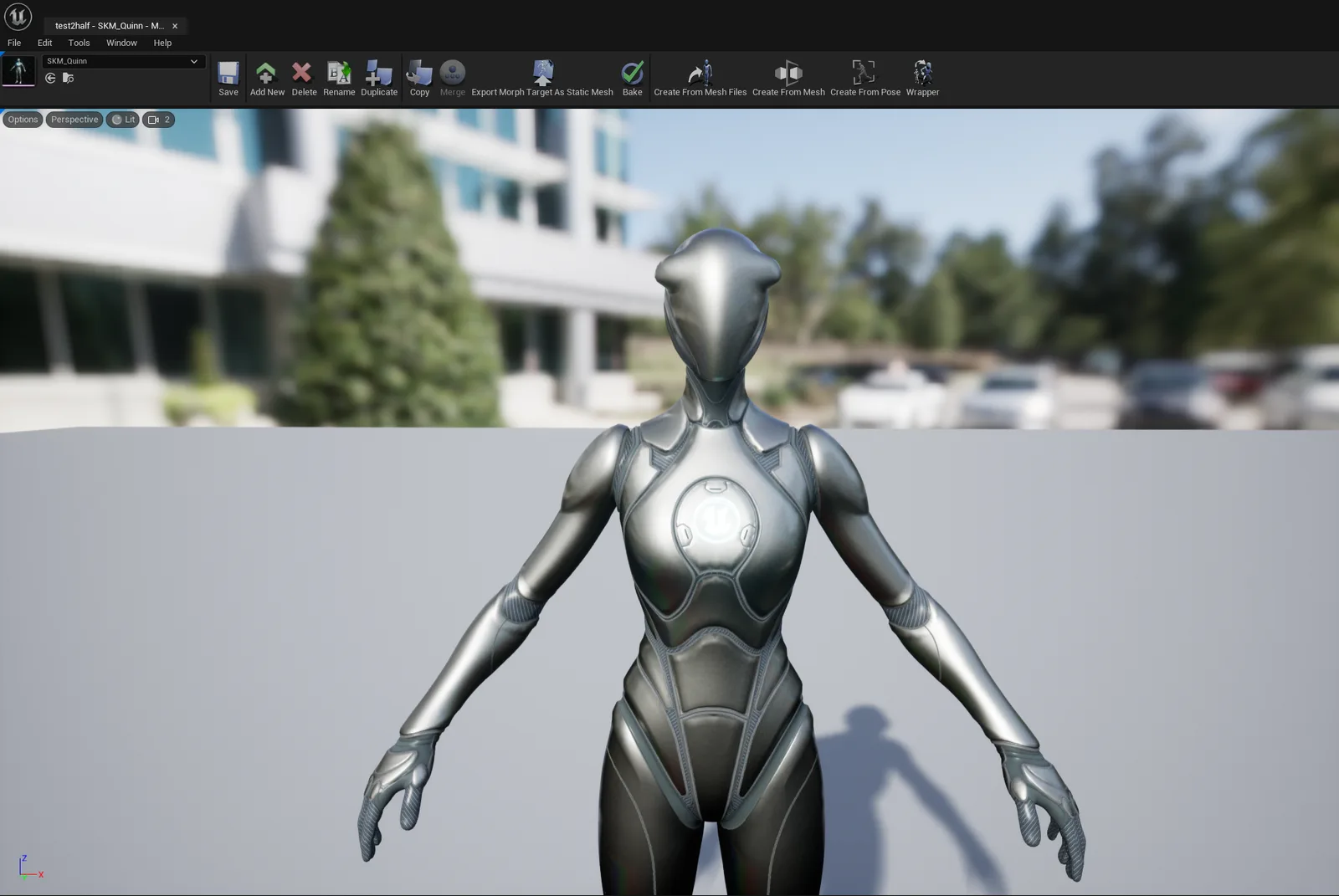
Magnitude: 0.5
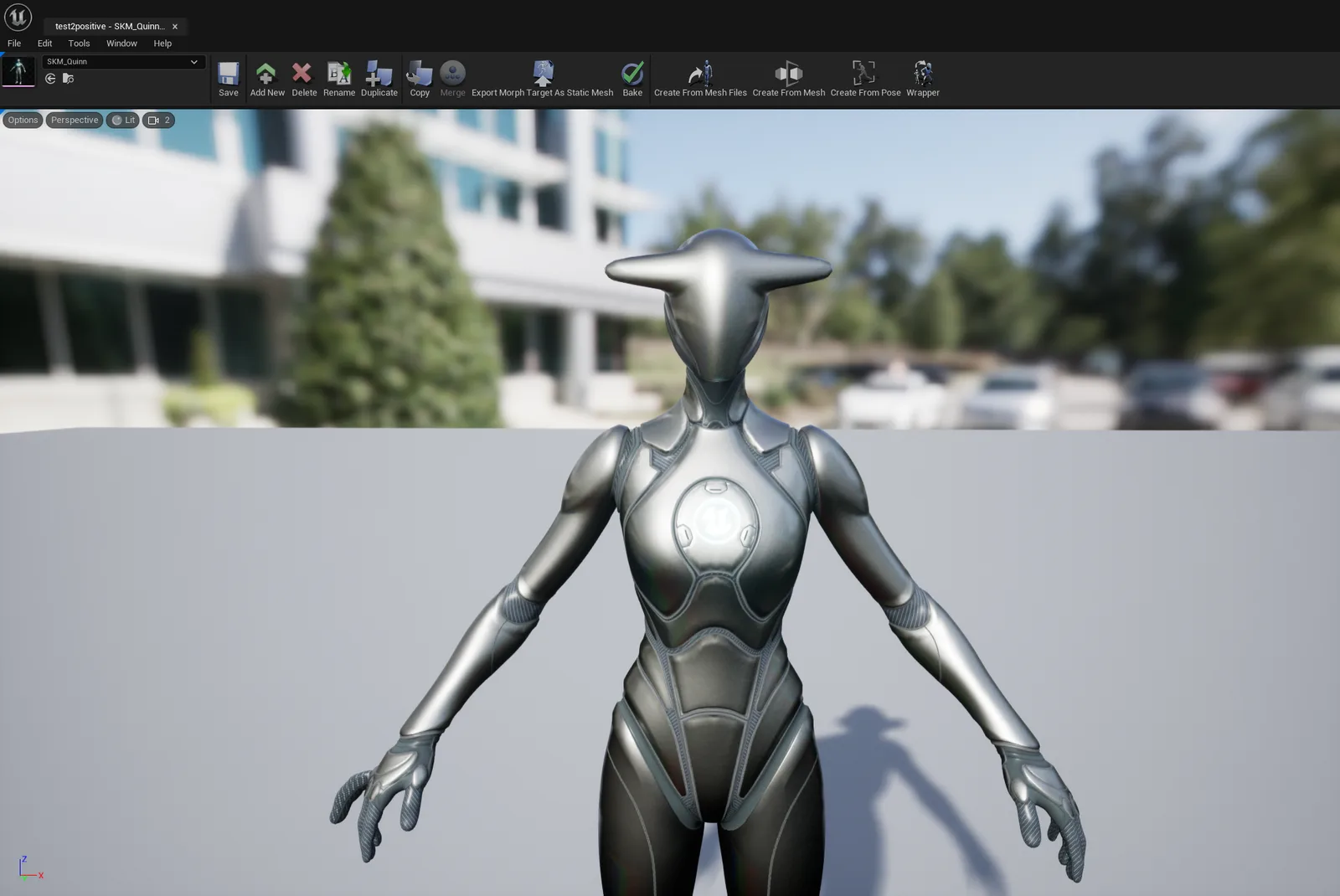
Magnitude: 2.0
Setting Magnitude is irreversible.
Classic › Editor › Basic Operations
Merge
Mesh Morpher allows users to merge two or more Morph Targets into a single Morph Target.
You can merge two or more Morph Targets by using Ctrl+Click or Shift+Click to select additional Morph Targets in the Morph Targets list.
There are three ways to Merge Morph Targets:
- By clicking Merge in Mesh Morpher's toolbar

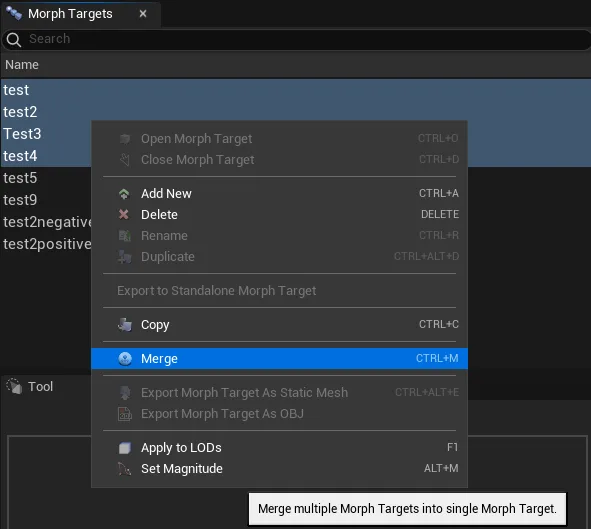
- By Right-clicking on the Morph Targets list and select Merge.
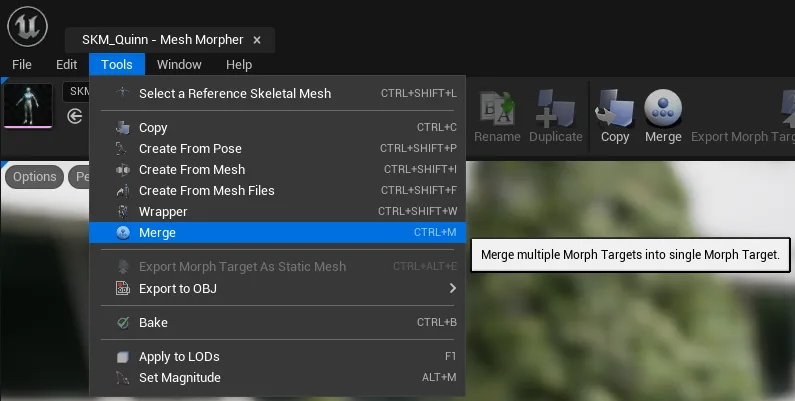
- Navigating to Tools top dropdown menu and clicking Merge
Once the Merge button is pressed, a dialog box will open where users can select several options.
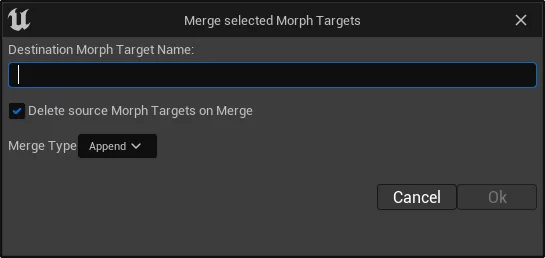
Destination Morph Target Name
Users have to select a new Morph Target name, this Morph Target will hold the merge result.Delete source Morph Target on Merge
Enabling this option will remove the selected Morph Targets used for merging.Merge Type
There are currently three types of merging availble in Mesh Morpher which can output different results:Type Description Append Will append the deltas in each selected Morph Target for each Vertex. Magnitude Will select the deltas with the highest Magnitude from each Morph Targets for each Vertex. Mean Average Will get the sum of deltas in each selected Morph Target for each Vertex and will get the average by dividing the sum by the number of deltas for that vertex.
If the Destination Morph Target name is already in use, a new dialog box will pop asking whether to overwrite or change the name. Pressing Yes will clear and overwrite the existing Morph Target.
If the Destination Morph Target name is part of the selection, a new dialog box will pop asking to pick another name.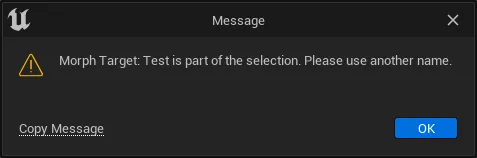
Keyboard shortcut: Ctrl + M
The button is greyed out when there's no selection or the selection doesn't have two or more Morph Targets.
Merge only allows multi-selection.
Morph Target merging is irreversible.
Classic › Editor › Basic Operations
LODs
Mesh Morpher can handle Morph Targets with LODs based on UV projection or ICP algorithm.